


What is MIDB in Google Sheets?
The MIDB function in Google Sheets returns a specific number of bytes from the middle of a text string. You might be wondering why we need MIDB when there’s already a MID function in Google Sheets. The difference lies in how these functions handle text. While MID deals with characters, MIDB deals with bytes. This distinction becomes crucial when working with languages that use multi-byte characters. It works just like the MID function, but it measures the length of the text in bytes instead of characters.
This makes MIDB especially useful when working with double-byte character set (DBCS) languages such as Japanese, Chinese, or Korean, where one character may take up two bytes. However, for regular English text, each character is one byte, so MIDB behaves exactly the same as the MID function. For example, suppose we have the text string “Elephant” in cell A1. To extract 4 bytes starting from the 3rd byte, we use the following formula:
=MIDB(A1, 3, 4)
This formula would return “epha”, because it starts at the 3rd byte at letter e. After that it selects four bytes. English letter is 1 byte; hence, the output matches the normal MID function result.

Use this MIDB in Google Sheets Template to follow along with the examples in this article.
Download Excel TemplateKey Takeaways
- The MIDB function in Google Sheets extracts a specific number of bytes from the middle of a text string, starting from a given byte position.
- It is particularly useful for double-byte character sets (DBCS) such as Japanese, Chinese, or Korean, but also works seamlessly with English and French text.
- MIDB can be combined with other functions like IF, FIND, or LENB to perform conditional text extraction, multilingual processing, or structured data parsing.
- This function is highly effective in multilingual text management, helping ensure clean, accurate, and consistent data extraction across diverse language datasets.
Syntax
Now that we have a brief introduction to this function, let us look at the MIDB in Google Sheets formula:
=MIDB(string, start_byte, num_of_bytes)
Here, the arguments mean the following:
- string – The text string from which bytes will be extracted.
- start_byte – The position (in bytes) from where extraction should begin.
- num_of_bytes – The number of bytes to extract from the text string starting at start_byte.
How To Use MIDB Function in Google Sheets?
As we know, the MIDB function in Google Sheets is used to extract a specific number of bytes from the middle of a text string. Unlike the standard MID function, MIDB is especially useful when working with double-byte character sets such as Japanese, Chinese, or Korean.
For languages like French and English where each character is one byte, MIDB works the same way as the regular MID function.
You can use the MIDB function in two ways:
- By manually typing the formula
- By selecting it from the Google Sheets menu
Using the MIDB Function Manually
Let’s walk through an example to see how the MIDB function works when entered manually. There is cell A1 containing the text string “Bonjour à tous.” We must extract 5 bytes starting from the 4th byte of this string.
Step 1: Enter the text “Bonjour à tous” into cell A1. Select an empty cell B1, where you want the result to appear. Start typing the function:
=MIDB(

Step 2: Provide the required arguments inside the parentheses. You can either type the text directly or refer to a cell.
=MIDB(A1, 4, 5)

Here:
- A1 is the text string.
- 4 is the byte position where extraction begins.
- 5 is the number of bytes (characters) to extract.
Step 3: Press Enter. The cell will display “jour ” because it starts at the 4th byte of “Bonjour à tous” (j).

The next 5 bytes give the substring “jour “. Notice the addition of the space as a fifth byte.
Using MIDB From the Menu
- Click on any empty cell.
- Go to Insert → Function → Text.
- From the list, select MIDB.
- Fill in the required arguments and press Enter.
By using the MIDB function, you can accurately extract parts of text from the middle of a string — even when working with multilingual datasets like French and Japanese.
Examples
Let’s examine some interesting examples to understand in detail how the MIDB function works and how it can be applied in real-life business scenarios.
Example #1 – Extract Middle Characters From Product Codes
A company maintains a list of alphanumeric product codes which are alphanumeric. Each code contains two letters followed by a series of numbers. The company wants to extract just the numeric portion from the middle of each product code for use.
Step 1: Open a Google Sheet and enter the product codes in cells A2 to A4.

Step 2: In cell B2, use the formula below to extract 4 bytes starting from the 3rd byte:
=MIDB(A2, 3, 4). Press Enter.

Step 3:The formula will return “1234,”since it starts at byte 3 and extracts 4 bytes.
Drag the formula down to apply it to the remaining rows.

This formula allows the company to extract consistent numeric sections from product codes efficiently.
Example #2 – Using MIDB with IF Function
A global retailer maintains a multilingual product label database where each entry includes French/English text followed by Japanese text. They want to automatically extract the Japanese portion of the text. Let us look at how to do it with MIDB in Google Sheets
Step 1: Enter the multilingual text strings.
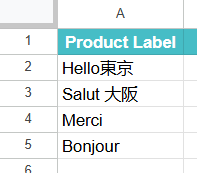
Step 2: In cell B2, enter the following formula:
=IF(MIDB(A2, 6, 4) <> “”, MIDB(A2, 6, 4), “No Japanese Text”)
Here:
- MIDB(A2, 9, 4) extracts 4 bytes starting from the 9th byte, where the Japanese text begins.
- The IF function checks if the extracted value is blank. If not, it displays the extracted characters; otherwise, it shows “No Japanese Text”.

Step 3: Press Enter. Drag the formula down for other rows.
You’ll get “大阪” and “名古屋” for the entires with Japanese text.
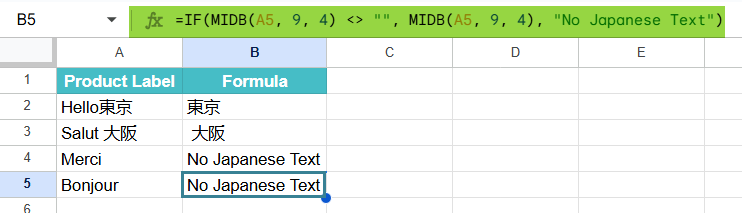
By combining MIDB with IF function, the retailer can selectively extract multilingual parts only when present.
Example #3 – Using MIDB with FIND Function
A logistics company maintains a product list where each item’s category code is followed by a hyphen. They need to extract the category code from each entry
Step 1: Enter the product names into cells A2 to A5.

Step 2: Enter the following formula to extract the text between parentheses:
=MIDB(A2, FIND(“-“, A2) + 1, 3)
Step 3: Press Enter. For “Box-A12”, the result will be A12. Drag the formula down for the rest of the rows.

Important Things To Note
- MIDB returns the same value as MID if the input string contains only single-byte characters (such as standard English text).
- The arguments start_byte and num_of_bytes must both be greater than or equal to zero.
- If the start_byte value exceeds the total length of the text in bytes, the function returns an empty string.
- If the num_of_bytes argument is larger than the remaining bytes from the starting point, MIDB returns all available text from that point onward.
- MIDB is particularly useful when working with multilingual datasets that include double-byte characters such as accented letters or Asian scripts, ensuring accurate byte-based extraction.
Frequently Asked Questions (FAQs)
Some of the similar functions include:
1. The LEFTB function extracts a specified number of bytes from the left side of a text string.
2. The RIGHTB function extracts bytes from the end of a text string, based on a given byte count.
3. The LENB function calculates the number of bytes in a text string, helping you manage multilingual data more accurately.
One common issue is incorrect byte positioning. Since MIDB counts bytes and not characters, starting or ending in the middle of a multi-byte character.
If your dataset mixes single-byte (English) and double-byte characters, miscalculating byte positions can lead to inaccurate extractions.
When the start_byte exceeds the text’s total byte length, MIDB returns a blank result. Using MIDB without proper handling of language settings in Google Sheets may result in incorrect byte interpretation, especially for multilingual datasets.
One can combine MIDB with FIND to extract text that appears between two symbols or markers.
Using MIDB with IF helps you conditionally extract multilingual text only when present.
Pairing MIDB with LENB enables byte-based substring extraction for text fields that contain a mix of double-byte and single-byte characters.
Use this MIDB in Google Sheets Template to follow along with the examples in this article.
Download Excel TemplateRecommended Articles
Continue with these related resources when you want the next practical step in this topic.
- Text function in Google Sheets
- Concatenate In Google Sheets
- LEN Function In Google Sheets
- LEFT Function In Google Sheets
- MID In Google Sheets
Explore the full Google Sheets Text Functions guide or browse Google Sheets Resources.