


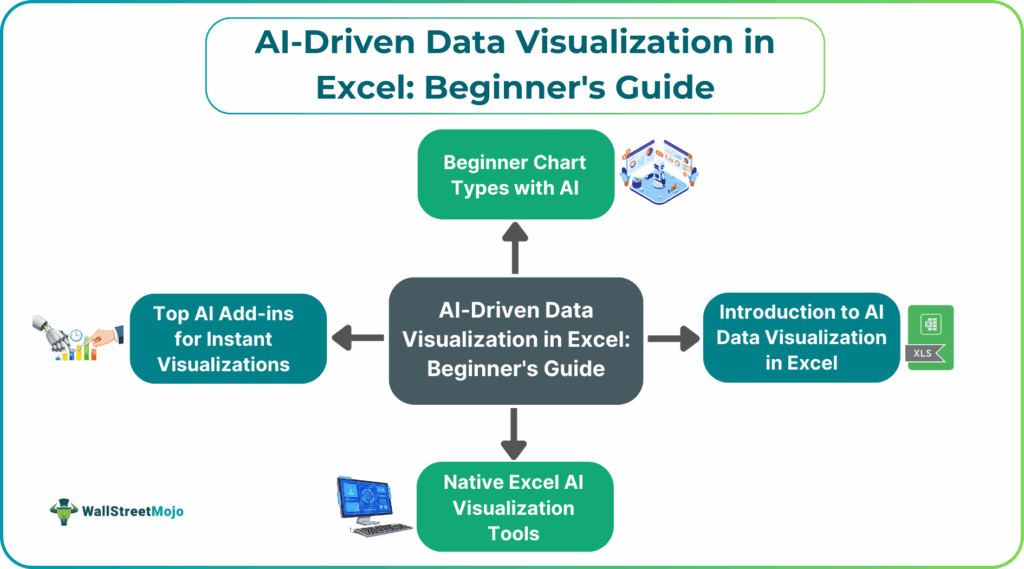
Introduction to AI Driven Data Visualization in Excel
Data visualization is one of the most important skills for anyone working with data. Charts and dashboards help turn raw numbers into insights that are easy to understand. Today, AI has made this process much easier in Excel, especially for beginners. When the available AI-driven features, one can use Excel for charts, highlight patterns, and even answer questions about your data using simple language. This guide explains how AI driven Data Visualization works in Excel, which tools beginners can use, and how to get started step by step.
AI in Excel uses machine learning to understand the given data and recommends the best visualization. Instead of manually building charts and testing different options, Excel can now suggest visuals that match your data and question.
For beginners, this helps them access the benefits of Excel without a big learning barrier. There is no need for deep knowledge of chart types or any complex formulas. AI helps transform large or messy datasets into clear chart and patterns with minimal effort. AI-driven visualization in Excel is mainly powered by built-in tools like Copilot and the Analyze Data feature. Excel AI charts help beginners quickly turn raw data into clear visuals by automatically suggesting and creating the right charts using simple natural language prompts.
Native Excel AI Visualization Tools
Excel comes with built-in AI tools that help users create visuals faster. These tools are useful for beginners who want results without advanced Excel skills for AI driven Data Visualization.
#1 – Copilot Chart Recommendations
Copilot is Microsoft’s AI assistant built directly into Excel. It allows users to ask questions about their data in plain English and get charts or summaries.
How it works: You can open the Copilot pane from the Home tab and type requests like:
- “Show sales trends by region in the form of a bar chart”
- “Create a pie chart for product market share”
Copilot analyzes your table and creates a suitable chart automatically. Some of the benefits include:
- No need to manually choose chart types
- Charts are created directly from your data
- Saves time on formatting and setup
For this, format your data as an Excel Table. Then open Copilot and ask for a chart. Copilot usually inserts the visual on a new sheet or next to your data for easy review. One can thus automate Excel charts AI with ease.
#2 – Analyze Data Insights to Visuals
Analyze Data is another powerful AI feature in Excel that scans your dataset and suggests insights automatically.
How it works: You can find Analyze Data on the Home tab. When you click it, Excel reviews your data and shows suggested charts, pivot tables, trends, and key numbers it finds. Some of its benefits:
- Finds patterns you may not notice
- Highlights trends, outliers, and comparisons
- Suggests charts like line charts, pivot charts, and summaries
This feature is helpful when you are not sure what to analyze. Excel takes the first step for you and presents possible stories hidden in the data.
Beginner’s Steps to AI Visualization
Before using AI tools, it is important to prepare your data correctly. Even AI works best with clean and structured data. Let us look at the steps for the same:
- Step 1: Prepare your AI data visualization Excel data
- Step 2: Open Copilot or Analyze Data
- Step 3: Ask for visuals
- Step 4: Insert and refine
This process allows beginners to go from raw data to insights in minutes
Top AI Add-ins for AI driven Data Visualization
Apart from the in-built Excel features, there are AI add-ins that help users create visuals without coding. These tools are useful when working with larger datasets or when you need complex analysis. AI add-ins focus on natural language, automation, and instant dashboards. They are often used by non-technical users who want results without learning advanced tools.
#1 – SheetAI Chart Generator
SheetAI is mainly used in the Google Sheets ecosystem but represents how AI data visualization Excel chart generation works.
What it does:
- Creates charts and dashboards using natural language
- Suggests metrics and dimensions automatically
- Helps beginners explore data without manual setup
It is especially useful for users who move between Excel and Google Sheets and want similar AI driven functionalities to be implemented.
#2 – Powerdrill Visualization Bot
Powerdrill Bloom is an AI data visualization Excel platform designed for marketers and business users.
Key features:
- Conversational AI interface
- Automatic data cleaning
- Instant charts and insights
Users can upload data, ask questions, and get visuals without building anything manually. This makes it ideal for quick exploration and reporting.
Beginner Chart Types with AI
AI does not just create charts; it also helps choose the right chart for your data. Below are common chart types beginners can easily use as AI driven Data Visualization.
- Line Charts: Best for showing trends over time, such as monthly sales or website traffic. AI can detect seasonality, spikes, and drops automatically.
- Bar Charts: Useful for comparing values across categories, like sales by region or product. AI can suggest grouped or stacked bars for deeper comparison.
- Pie and Donut Charts: Good for showing proportions, such as market share. AI can tell you when a pie chart is appropriate and when it is not.
- Scatter Plots: It is used to show relationships between two variables, like ad spend vs. sales. AI can identify clusters and trends in the data points.
- Area Charts: Similar to line charts but emphasize volume over time. AI may suggest these when magnitude matters.
Dynamic Dashboards from Raw Data
Modern AI tools go beyond single charts and help build dashboards from raw data for AI driven Data Visualization.
AI-powered platforms like Microsoft Power BI and Tableau use similar concepts that are now slowly appearing inside Excel.
What dashboards offer:
- Filters to slice data
- Drill-down to see details
- Multiple charts connected together
Why it matters:
Dashboards turn static reports into interactive views. Users can explore performance, sales, or behavior without asking analysts for new reports each time. Excel AI dashboards help beginners create interactive, professional-looking reports from raw data by automatically combining charts, filters, and insights with minimal manual effort.
Interactive Trend Visualizations
AI is especially strong at analyzing time-based data for AI driven Data Visualization.
- Time-series analysis: AI can detect trends, seasonality, and unusual changes in data and display them clearly using line or area charts.
- Predictive insights: Some AI tools can forecast future values, such as expected sales, and show them alongside historical data.
- Natural language queries: Users can ask questions like “Show sales trends for Q4” and get instant charts without manual filtering. This makes trend analysis faster and more accessible, even for beginners.
Frequently Asked Questions (FAQs)
AI analyzes the structure and values of your data, detects patterns, and selects suitable chart types. Tools like Copilot visualization Excel and Analyze Data use machine learning to match your question with the best visual.
Built-in tools like Copilot and Analyze Data are the best for starters and basic data manipulation. For advanced needs, platforms like Power BI offer AI-assisted dashboards and deeper analysis.
With clean data and AI tools, beginners can build charts, dashboards, and summaries without coding or complex formulas. AI handles most of the technical work to give you the required results.
Recommended Articles
Continue with these related resources when you want the next practical step in this topic.
- How To Use AI With Excel
- How AI Is Transforming Data Analysis In Excel (2026 Complete Guide)
- Excel AI And Machine Learning: Beginner’s Guide For 2026
- The Most Useful AI Features in Excel: Unlock Smarter Spreadsheets in 2026
- Top Skills for AI-Enabled Excel in 2026 (Must-Master List)
Explore the full Excel AI Automation and Analysis guide or browse Excel Resources.