


Introduction
Every finance and operations analyst has faced the same scenario – a critical report depends on a freshly received Excel file, but the raw data is a mess. It may have mixed date formats, inconsistent vendor names, extra spaces, and missing values. The usual response is to spend hours manually cleaning ranges, cross‑checking formulas, and revalidating the final output. Thus, the time available for analysis and storytelling. AI Excel data cleaning transforms messy data instantly by letting analysts describe the desired state of the data in plain language and then have an AI assistant either propose a set of steps, generate a cleaned table, or auto‑apply fixes in the sheet itself.
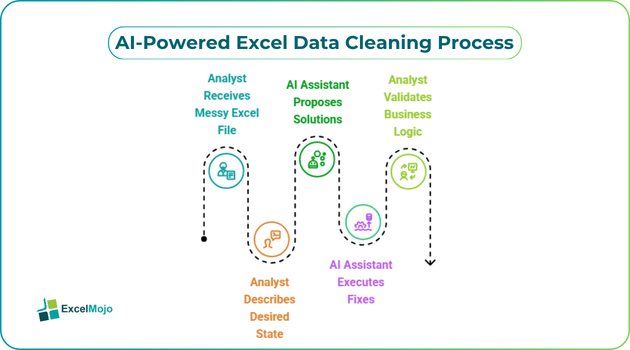
The AI detects patterns such as text inconsistencies, numeric formatting issues, and duplicates, then offers or executes corrections without requiring the user to build complex formulas. An AI‑powered “Clean Data” option on the Data tab can scan for text inconsistencies, extra spaces, and malformed numbers and propose fixes with a single click. For clean Excel data instantly with AI, the user shifts from wrestling with TRIM, UNIQUE, DATEVALUE, and VLOOKUP chains to supervising an AI‑driven cleanup that still needs human validation for business logic.
How AI‑Powered Excel Ddata Cleaning Works
AI powered Excel data cleaning automation relies on semantic understanding and pattern‑matching rather than fixed formulas, which makes it especially effective for problems like inconsistent naming and broken date formats.
Typical patterns:
- Selecting a range or table and then using an AI‑driven clean‑data tool (for example, “Clean Data” in the Data tab with Copilot) triggers an audit that flags text inconsistencies, numbers stored as text, and extra whitespace.
- The user can then accept or reject the proposed fixes, which may include standardizing “California / CA / Calif.” into a single canonical form or converting free‑text dates into a uniform ISO format.
- In some add‑on tools, the analyst can write a natural‑language command such as “Unify all company names in column B to their official legal names” and let the AI scan for fuzzy matches and propose a mapping table.
This behavior is described in AI‑data‑cleaning tutorials and product pages that show how AI tools can perform semantic categorization, fill missing values based on other columns, and standardize formats across an entire sheet in a single pass. To transform messy Excel data with AI tools, the AI effectively compresses dozens of manual Find‑and‑Replace or formula‑based steps into a guided workflow the user can review and approve.
How to Clean a Messy Dataset in Practice
AI Excel data cleaning transforms messy data instantly and becomes most useful when the analyst starts with a structured audit of the data and then uses AI tools to execute the repetitive bits.
A practical workflow:
- In Excel, open the raw workbook and identify the critical tables that feed reports or dashboards.
- Use the native “Clean Data” option (if available with Copilot) or an AI‑based cleaning tool to perform an initial scan that flags inconsistencies, duplicates, and formatting issues.
- For more complex problems, such as company‑name mismatches or missing region codes, define a clear prompt such as “Unify vendor names in column C, fill missing region codes in column D based on postal codes, and standardize all dates in columns A and F to ISO format.”
- The AI returns either an updated table or a set of recommended actions; the user then copies the cleaned data into a new sheet, leaving the original untouched for audit.
- Spot‑check a few known‑problem rows and a small statistical sample to confirm that totals, counts, and logical relationships still match expectations.
This approach is consistent with AI‑data‑cleaning guides that show how natural‑language commands can replace thousands of manual edit operations, especially for tasks like “fix all text‑stored numbers” or “merge variants of the same customer name”. For clean Excel data instantly with AI, the analyst’s role is to set the rules, validate the result, and lock down the final version as the source for downstream models.
Practical Example: Fixing a Sales‑Data Snapshot
A common use case for AI Excel data cleaning for messy datasets is a one‑off sales data snapshot from a legacy system or a third‑party source.
Suppose the sheet has:
- Vendor
- Sales Person
- Order Date
- Amount
Issues include:
- Vendor names are spelled in multiple ways.
- Dates in mixed text and numeric formats.
- Extra spaces around names and some rows missing the sales person.
A prompt like: “Clean this table so that all vendor names are standardized, dates are converted to ISO format, and missing sales‑person entries are left blank but flagged” can trigger an AI‑driven workflow that:
- Uses fuzzy‑matching to group “Company X Inc”, “Company X Inc.”, and “Company X” into a single vendor.
- Converts 1/10/2025, 1‑10‑2025, and 01‑Oct‑2025 into 2025‑10‑01.
- Leaves blank cells where the sales person is missing and adds a small indicator column such as HasSalesPerson to flag rows.
Once the cleaned version is pasted into a new sheet, the analyst can:
- Build a pivot table that accurately groups by vendor and region.
- Use SUMIF and COUNTIF on the clean names and dates without worrying about mismatched entries.
- Archive the original file as a reference and document the AI‑driven rules in the workbook’s “Data” or “Notes” sheet.
This example illustrates how AI powered Excel data cleaning automation can compress a multi‑hour chore into a tightly supervised, AI‑assisted task that still leaves the analyst in control of the outcome.
Pitfalls and Best‑Practice Tips
AI Excel data cleaning transforms messy data instantly and can greatly speed up preparation, but it also introduces a few practical pitfalls.
One common issue is over‑trust in the AI fix. The cleaned table may look neat, but the user may overlook edge cases such as merged cells, protected rows, or very‑old dates that are misinterpreted by the AI. Best practice is to keep the original sheet, apply AI‑driven cleaning only to a copy, and run a quick sanity check on totals and distributions.
Another risk is loss of audit‑trail fidelity. When AI tools replace or rename records, it can be hard to trace which original entry mapped to which clean version. Teams should request mapping tables, keep a log of the cleaning steps, and avoid overwriting the raw data directly in production files.
A third pitfall is over‑normalization. The AI may aggressively standardize names or codes in a way that erases meaningful distinctions, such as different subsidiaries or legal entities that share similar names. Analysts should review any unification proposals, validate them against the business glossary, and exclude cases where legal or operational differences matter.
Frequently Asked Questions (FAQs)
Can AI Excel data cleaning transform messy data instantly on complex workbooks?
Yes, for many common patterns like text inconsistency, mixed date formats, and duplicates, AI‑driven tools can apply fixes across large ranges quickly. However, highly irregular or deeply nested structures still require human oversight, partial manual intervention, and possibly staged cleaning passes.
Do AI powered Excel data cleaning automation tools replace Power Query and formulas?
They complement them rather than replace them. AI‑driven cleaning is strong for semantic issues such as name standardization and fuzzy matching, while Power Query and native formulas excel at repeatable, structured transformations that can be scheduled or reused. The best teams combine both: AI for ad‑hoc mess, and Power Query for production‑grade pipelines.
How accurate are AI‑powered tools at cleaning Excel data?
AI tools are generally accurate for common issues such as duplicate removal, number‑format correction, and simple text normalization, but they can struggle with highly domain‑specific naming conventions or very sparse data. Analysts should always test on a subset, compare before‑and‑after statistics, and validate against known‑good reference sets.
Can clean Excel data instantly with AI work if the dataset is in Google Sheets or another tool?
Many AI‑Excel tools focus on XLSX and Excel‑desktop workflows, but some AI data‑cleaning platforms can handle exported CSV or other formats. The general pattern—upload data, describe what to clean, and download the result—works across systems, though the tight integration with Excel ribbon features (like “Clean Data” with Copilot) is specific to Excel itself.