


Introduction – AI VBA Code Generator
Many Excel users still treat automation as a “programmer’s problem.” This is despite their day‑to‑day work involving repetitive tasks like copying ranges, formatting reports, or updating dashboards that could easily be automated with a short macro. The usual barrier is not the complexity of the logic itself, but the fear of writing VBA code from scratch and learning it. AI VBA code generator changes that by letting analysts describe a task in plain English, such as “copy the last month’s data to an archive sheet and clear the source range,” and have an AI assistant generate a working VBA macro that can be pasted into the workbook.
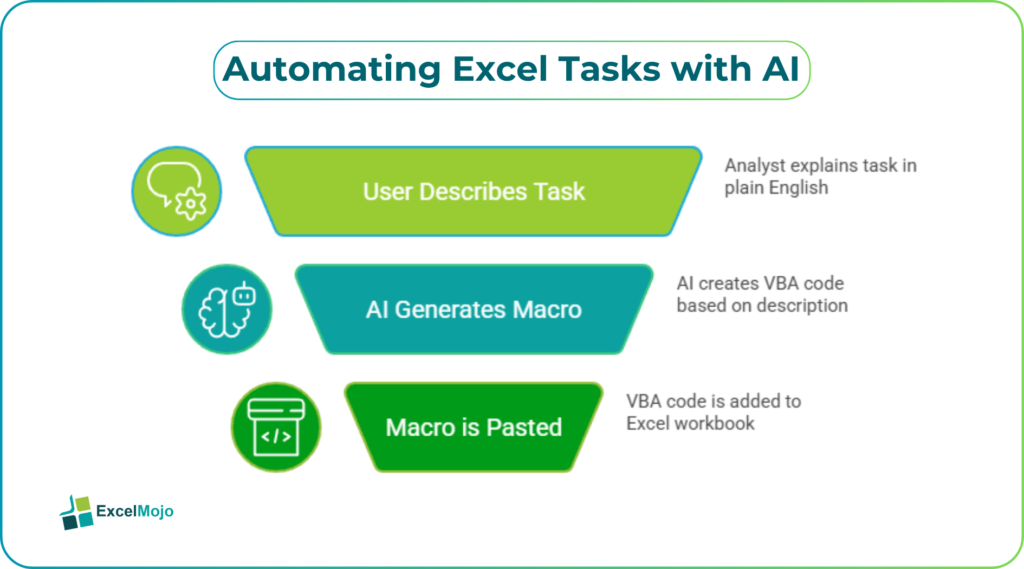
Here, the AI handles the syntactic layer (loops, Range objects, and Sheets references) while the user owns the business logic and the validation of the output. Users can describe their automation needs in natural language, receive a complete macro with error handling and comments, and then run it in Excel without prior coding knowledge. For VBA code generator with AI for beginners, the key is to treat AI‑generated macros as drafts that still require testing and minor tweaks rather than zero‑touch automation.
How AI‑Generated VBA Works Today
An AI VBA code generator is typically a web tool, desktop add‑in, or AI assistant that accepts a natural‑language description of an Excel task and returns a complete Sub routine that can be pasted into the VBA editor.
Typical patterns:
- The user describes the task (for example, “Create a macro that formats a selected range with bold headers, banding, and percent formatting where applicable”).
- The AI returns a structured macro such as:
Sub FormatSelectedRange()
Dim rng As Range
Set rng = Selection
With rng
.Columns(1).Font.Bold = True
.Interior.Color = RGB(242, 242, 242)
.NumberFormat = “0.0%”
End With
End Sub
- The user pastes the code into a standard module in Excel, optionally assigns it to a button, and runs it on the relevant range.
This shows that the user need not know VBA syntax; the AI translates the description into a working macro while the user verifies the behavior on a sample range. To create VBA macros without programming AI, the analyst’s role shifts from “writing code” to “defining the task and testing the output.”
How to Generate a Macro with an AI Assistant
AI VBA code generators are most useful when the user writes a clear, business‑oriented prompt rather than a generic request like “write some code.”
A typical workflow:
- In a browser or AI‑integrated tool, open the AI‑VBA‑generator (for example, a web‑based VBA‑code generator or an AI‑Copilot‑style assistant).
- Write a specific prompt such as:
- “Create a VBA macro that copies data from Sheet1 (A1:D100) to Sheet2 (starting at A1) and clears the source range afterward.”
- Or: “Write a macro that loops through column B and highlights cells greater than 1,000 in red and cells less than 0 in blue.”
- The AI returns a complete Sub that can be copied and pasted into Excel’s VBA editor.
- The user tests the macro on a small, non‑critical dataset, adjusts the range references or sheet names if needed, and then uses it on production data.
This approach explains how to invoke the AI, craft a detailed prompt, and then paste the generated code into the VBA editor step by step. For VBA code generator with AI for beginners, the AI effectively becomes a low‑code layer over Excel automation, lowering the barrier to entry while still requiring the user to understand the business impact of the macro.
Practical Example: A Simple Monthly Archive Macro
A common use case for AI generated VBA code no programming is a simple monthly archive routine that moves old data into a history sheet.
Suppose the user wants:
- To take all data from the range A1:E1000 in Sheet1.
- Copy it to Sheet2, pasting at A1.
- Clear the original range afterward.
A prompt like: “Create a VBA macro that copies data from Sheet1 (A1:E1000) to Sheet2, starting at A1, and then clears the source range” can yield a macro such as:
Sub CopyToArchive()
Dim wsSource As Worksheet
Dim wsArchive As Worksheet
Dim LastRow As Long
Set wsSource = ThisWorkbook.Worksheets(“Sheet1”)
Set wsArchive = ThisWorkbook.Worksheets(“Sheet2”)
LastRow = wsArchive.Cells(wsArchive.Rows.Count, “A”).End(xlUp).Row + 1
wsSource.Range(“A1:E1000”).Copy
wsArchive.Range(“A” & LastRow).PasteSpecial xlPasteValues
Application.CutCopyMode = False
wsSource.Range(“A1:E1000”).ClearContents
End Sub
This example illustrates how AI VBA code generator no programming required can turn a frequent, repetitive chore into a one‑click macro. The analyst can extend the idea to add date‑based filtering, append‑only logic, or logging lines that track when the archive was last updated.
Pitfalls and Best‑Practice Tips
The AI VBA code generator without programming can greatly speed up automation, but it also introduces a few practical pitfalls.
One common issue is over‑reliance on AI‑generated code. The macro may work on the first run but could behave unexpectedly with edge cases, such as empty ranges, merged cells, or renamed sheets. Best practice is to treat every AI‑generated macro as a first draft, test it on a small, well‑understood dataset, and adjust the logic or add error handling where appropriate.
Another risk is security and macro‑enablement. VBA macros require the workbook to be saved as .xlsm and for the user to allow macro execution, which can be restricted by corporate policy. Analysts should coordinate with IT or security teams, use clear, business‑meaningful macro names, and avoid hard‑coding sensitive passwords or external paths.
A third pitfall is brittle references. Macros that assume fixed ranges or sheet names can break when the workbook structure changes. Teams should use named ranges where possible, validate the sheet names at runtime, and design macros to fail gracefully with descriptive error messages rather than crashing silently.
Frequently Asked Questions (FAQs)
Can an AI VBA code generator with no programming required really work for absolute beginners?
Yes. Many AI‑VBA tools are explicitly designed for non‑programmers; the user describes the task in plain English, and the AI returns a working macro that can be pasted into Excel. The user still needs to understand the business logic and validate the results, but no prior VBA knowledge is required.
Do AI‑generated VBA macros work in both Excel‑Windows and Excel‑for‑web?
Most AI‑generated VBA macros are written for the desktop Excel object model and require the workbook to be opened in Excel‑desktop (Windows/Mac) with macros enabled. Excel‑for‑web does not support VBA, so automation there requires Power Automate, Office Scripts, or similar technologies.
How accurate are AI‑generated VBA macros for real‑world tasks?
AI‑generated macros are generally accurate for common patterns such as copying ranges, applying formatting, and simple loops, but they may not handle complex edge cases or large‑scale refactoring correctly. Analysts should always test the macro on a subset of real‑world data, review the logic, and add explicit error handling where needed.
Can create VBA macros without programming AI help with more complex scenarios, such as user‑forms or advanced error handling?
Yes. AI‑VBA tools and assistants can generate code for user‑forms, custom functions, and advanced error‑handling blocks, but the user must still validate the behavior, adjust the layout, and ensure the forms align with business rules. For complex user‑interfaces, a hybrid approach—where AI generates the skeleton and the analyst refines the logic—is often most effective.