


Introduction
Many finance and operations teams still handle repetitive email tasks manually, sending status updates, copying data excerpts, or flagging overdue items, because they assume anything beyond basic auto‑responders needs an IT‑built workflow or a third‑party SaaS. The result is hours of copy‑pasting into Outlook instead of designing the logic once and letting it run on demand. AI VBA email automation Outlook macros bridge that gap by letting analysts write lightweight VBA routines that call Outlook from within Excel, and then use AI‑style prompts to generate or refine the underlying code and message templates.
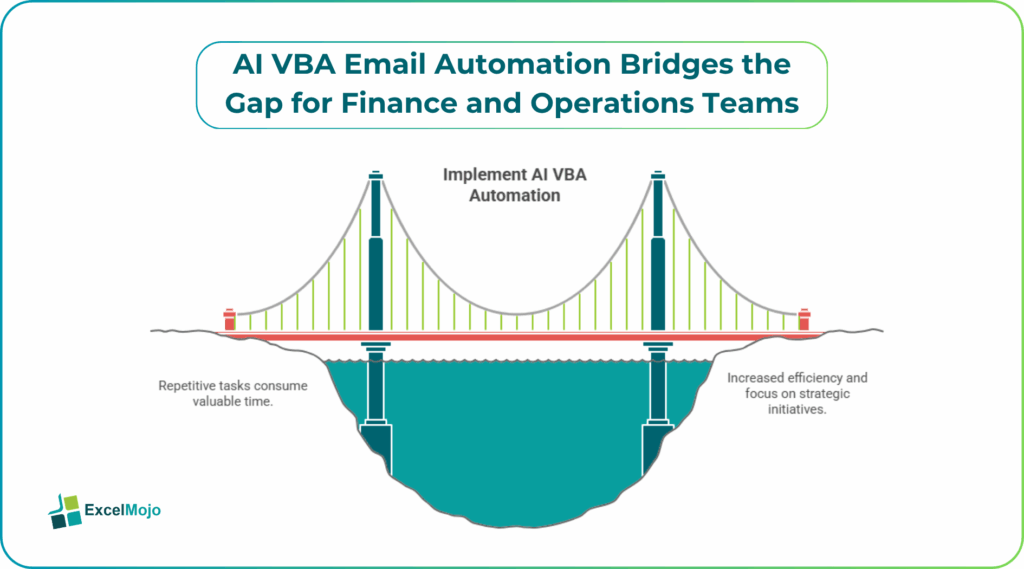
The Excel workbook becomes a control board for outbound communication. For example, a monthly variance report can trigger a batch of emails to relevant controllers, each with a tailored subject line and a one‑sentence summary, while a flagged cell in a tracker can fire an alert to the responsible manager. Excel can create Outlook objects, set recipients, subjects, and bodies, and then send messages programmatically, which is the foundation of automated email workflows with VBA and AI. When combined with AI‑driven code generation, teams can accelerate the setup phase and keep the logic anchored in code that they can inspect and tune.
How VBA Can Talk to Outlook
At the core of AI powered VBA Outlook email automation is the Outlook.Application object, which Excel VBA can instantiate and use to create and send messages.
AI VBA Email Automation Outlook Macros looks like this:
Sub SendEmail()
Dim olApp As Object
Dim olMail As Object
Set olApp = CreateObject(“Outlook.Application”)
Set olMail = olApp.CreateItem(0) ‘ Mail item
With olMail
.To = “manager@company.com”
.CC = “team@company.com”
.Subject = “Monthly Variance Update – ” & Format(Date, “mmm‑yyyy”)
.Body = “Hi Team,” & vbCrLf & vbCrLf & _
“The attached file shows the latest period’s variance by category.” & vbCrLf & vbCrLf & _
“Please review and flag any issues by end of day.”
.Attachments.Add ActiveWorkbook.FullName
.Send
End With
Set olMail = Nothing
Set olApp = Nothing
End Sub Excel‑hosted VBA creates Outlook objects, populating fields, and sending items either immediately or as drafts. Once this infrastructure exists, analysts can extend it to use data from the active sheet, named ranges, or Power Query tables instead of hard‑coded values, which turns a one‑off macro into a reusable workflow.
How to Structure an AI‑Assisted Email Workflow
Using automated email workflows with VBA and AI can significantly speed up the design phase, especially for non‑developers who are comfortable reading code but not writing it from scratch.
A practical pattern for AI VBA Email Automation Outlook Macros might look like this:
- The analyst starts by describing the logic in plain language, such as:
- “Send an email to each department head when the budget variance in column F exceeds 10%, attaching the monthly workbook.”
- They then paste that description into an AI code‑assistant or Copilot‑style tool and ask it to generate a VBA macro that:
- Loops through a table.
- Filters rows where Variance % > 10%.
- Calls Outlook for each matching row.
- The AI returns a structured VBA skeleton that the analyst can paste into the workbook’s module and then refine, adding error handling, logging to a status column, or adjusting the body text.
This approach is similar to how AI‑driven Excel‑automation tutorials position VBA as an engine that AI can scaffold rather than a language the user must master end‑to‑end. For AI powered VBA Outlook email automation, the AI handles the boilerplate; the analyst owns the business rules and security checks.
Practical Example: Variance Alert Emails
A common use case for AI VBA macros for Outlook email automation is to turn a variance‑tracking sheet into an alerting system.
Suppose a workbook contains a table with columns:
- Department
- Month
- Budget
- Actual
- Variance %
A user‑facing button triggers AI VBA Email Automation Outlook Macros that:
- Loops through each row of the table.
- Checks if Variance % exceeds a user‑defined threshold (for example, 10% or –10%).
- For rows that meet the condition, call Outlook and send a targeted email to the department’s manager.
A condensed example:
Sub SendVarianceEmails()
Dim olApp As Object, olMail As Object
Dim tbl As ListObject, rw As ListRow
Dim Subject As String, Body As String
Set olApp = CreateObject(“Outlook.Application”)
Set tbl = ActiveSheet.ListObjects(“VarianceTable”)
For Each rw In tbl.ListRows
If Abs(rw.Range(4)) > 0.1 Then ‘ Variance % threshold
Set olMail = olApp.CreateItem(0)
With olMail
.To = rw.Range(5) ‘ Email column
.Subject = “High Variance Alert – ” & rw.Range(1)
.Body = “Budget variance for ” & rw.Range(1) & ” is ” & _
Format(rw.Range(4), “0.0%”) & “. Please review.”
.Send
End With
End If
Next rw
Set olMail = Nothing
Set olApp = Nothing
End Sub
This pattern illustrates automated email workflows with VBA and AI by tying emails directly to numeric thresholds and attaching actionability to a familiar dashboard. Teams can extend this logic to include conditional attachments, CC/BCC rules, or status flags in the sheet that track which rows have been emailed.
Pitfalls and Best‑Practice Tips
AI VBA email automation macros can save hours of manual work, but it also introduces operational risks if not handled carefully.
One common issue is over‑sending emails. A misconfigured loop or a poor threshold can trigger hundreds of messages at once, which can look like spam or violate internal policies. Best practice is to add a confirmation dialog, log each sent email to a status column, and test the macro on a small subset of rows before running it on the full dataset.
Another risk is security and permissions. The macro must have the user’s Outlook profile open and sufficient permissions to send, and corporate environments may restrict programmatic sending or require explicit approval. Analysts should review company email and automation policies, avoid hard‑coding credentials, and consider using centrally managed services (such as Power Automate) for enterprise‑scale workflows.
A third pitfall is brittle code. AI‑generated VBA can include assumptions about ranges, table names, or Outlook versions that may not hold in production. Analysts should add basic error handling (On Error Resume Next or more structured blocks), validate object creation, and keep the logic closely tied to documented business rules.
Frequently Asked Questions (FAQs)
AI VBA email automation Outlook macros are best suited for departmental or project‑level workflows rather than enterprise‑scale, multi‑channel campaigns. They complement SaaS tools by handling Excel‑driven triggers and lightweight notifications rather than replacing dedicated marketing or CRM automation platforms.
Macros are as secure as the environment that hosts them: local workbooks should be stored in authorized folders, macro‑enabling settings should follow corporate policy, and sensitive data should be masked or aggregated before inclusion in the body or subject. Teams should also regularly review and document automated sending rules.
Yes, the core Outlook.Application object model remains compatible with the new Outlook client, although some UI‑level behaviors may differ. The routines described here—creating items, setting properties, and calling .Send—are supported as long as the user has Outlook running and the macro runs under the same account.
Yes. VBA can set the .HTMLBody property for richer formatting (tables, colored text, logos) and use .Attachments.Add to attach files, ranges exported as HTML, or PDFs generated from the workbook. This capability is documented in general VBA–Outlook automation examples and widely used in production financial reporting systems.
Recommended Articles
Continue with these related resources when you want the next practical step in this topic.
Explore the full VBA Workbooks Files and Automation guide or browse VBA Resources.