


What is DISC in Google Sheets?
The DISC function in Google Sheets calculates a security’s discount rate based on its price. This financial function is very useful for analyzing securities like bonds and other debt instruments. Thus, the DISC function helps determine a security’s discount rate, which is the annual interest rate at which a security is sold below its face value.
Let us say we have the settlement date(the date on which a bond transaction is finalized), maturity date(The specific future date when the bond expires), and purchase price of a bond along with its redemption value, the formula to calculate the discount would be:
=DISC(B1, B2, B3, B4).

Use this DISC in Google Sheets Template to follow along with the examples in this article.
Download Excel TemplateKey Takeaways
- The DISC function calculates the discount rate of a security (like a Treasury bill) that does not pay interest, based on its price and redemption value.
- The syntax of the function is:
=DISC(settlement, maturity, price, redemption, [basis])
- It is used primarily for zero-coupon bonds or discount securities to determine the rate of return.
- The function assumes simple interest and uses a day-count basis to adjust for actual or approximate year length.
- It returns a decimal discount rate, and accurate date inputs are critical to avoid errors.
Syntax
The syntax of the DISC in Google Sheets is as follows:
=DISC(settlement, maturity, price, redemption, [day_count_convention])
Arguments:
- settlement: The date the security is delivered to the buyer
- maturity: The date when it can be redeemed at its face value.
- price: The buying price of the security
- redemption: The redemption value (usually face value) of the security.
- day_count_convention (optional): This indicator shows how to calculate the number of days between dates (0 by default, using a 30/360-day count).
How To Use DISC Function in Google Sheets?
The DISC function calculates the discount rate of a security, like a Treasury bill that does not pay interest but is sold at a discount and is redeemed at face value. It is very useful in financial analysis, especially when evaluating short-term investments.
Let us look at the two ways to use the DISC function:
- By typing DISC manually into a cell
- Selecting DISC from the menu
Let’s explore the manual method first with a real-time example. A person has purchased a Treasury bill for $10,700 that will pay $11,000 at maturity after 120 days. Let us see how to use DISC to calculate the discount rate.
Step 1: Prepare the data and enter it in Google Sheets as follows:
Ensure the Settlement and Maturity dates are entered in a valid date format.

Step 2: Click on cell B6, where you want the discount rate to be displayed. Enter the formula by starting with an = sign followed by the function name. Open the parentheses and enter each of the arguments in the order given in the syntax. You can also enter their cell references, as we have done below.
=DISC(B1, B2, B3, B4, B5)
Here’s what each argument represents:

Step 3: Press Enter. You get the discount rate as a decimal. For example, it might return 0.0818, which means an 8.18% discount rate.
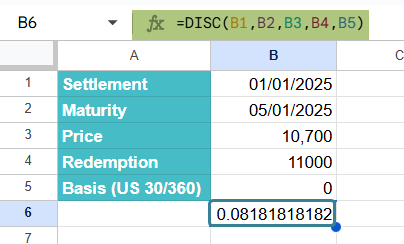
Step 4: Format the result to display as a percentage. You can also increase decimal places for more precision.

Using the Menu Bar to Insert DISC
To enter through the menu options, follow these steps:
- Select the cell where you want the result and go to Insert > Function > Financial > DISC
- Google Sheets will insert =DISC() into the cell. Fill in the required arguments inside the parentheses
- Press Enter to get the result.
Examples
Let us look at some interesting examples on how to implement the DISC to find the discount rate of securities.
Example #1 – Calculate the Discount Rate for a Treasury Bill
In this example, let us make a short-term investment decision that involves investing in a Treasury bill. A financial analyst is comparing two investment options. One of the investments is a T-bill purchased for a discount. He wished to calculate its discount rate to find if it’s worth the investment compared to other fixed interest options.
He uses DISC in Google Sheets to calculate the discount rate before deciding.
Step 1: Enter the investment details in a Google Sheet:
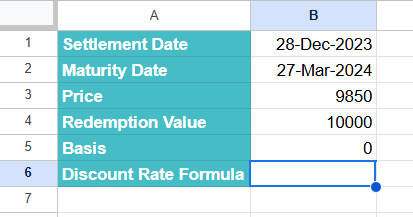
Step 2: Enter the DISC formula in Google sheets in cell B6.
=DISC(B1, B2, B3, B4, B5)
This will calculate the discount rate as shown below.

Step 3: Once you press Enter, you get the discount rate. For instance, it may return 0.0606, indicating a 6.06% discount rate on the investment.
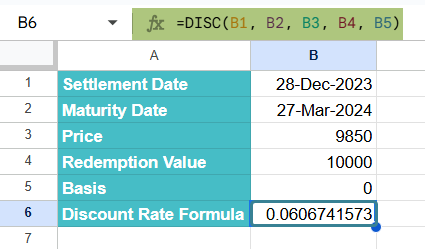
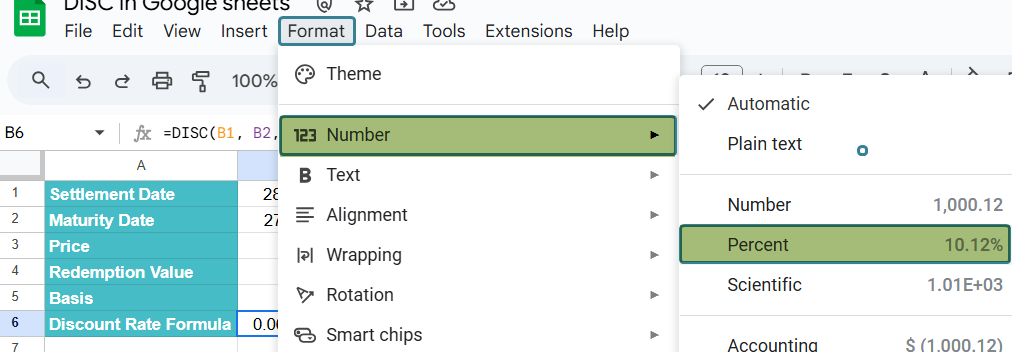
Step 4: To display the result as a percentage, you can use the shortcut shown above or go to Format –> Number -> Percent after clicking on the result cell. Increase decimal places for more precision if needed.
Thus, he can compare the returns with other investments before arriving at a decision.
Example #2 – Calculate the Discount Rate for a Bond
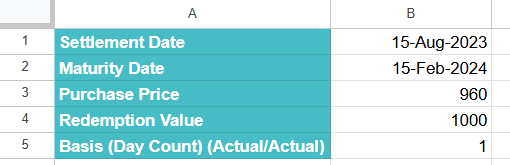
This DISC in Google Sheets example shows a zero-coupon bond that a company is planning to purchase as part of its fixed-income portfolio. These bonds, unlike treasury bills, may have longer durations. However, they are offered at a discount and do not pay periodic interest. Let us use the DISC function for calculating their return.
Step 1: Enter the bond investment details in a sheet as follows:
Step 2: Enter the formula in a blank cell as shown below.
=DISC(B1, B2, B3, B4, B5)

Step 3: Press Enter. We get the discount rate. We get a value of 0.0794, indicating a 7.94% discount rate on the bond.
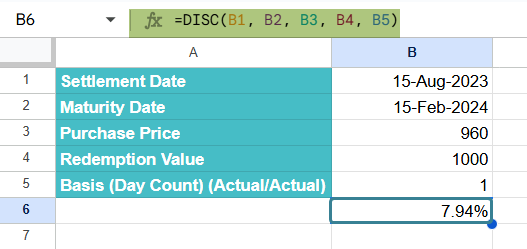
This helps the investor compare the bond’s return with other available fixed-income options.
Example #3
Here, we can use DISC with IF to evaluate whether a bond is worth investing in. We use the If function to find whether the discount rate is above a certain threshold, like 6%.
We buy a zero-coupon bond for $1200. It matures in 180 days, paying $1,500. We will label it “Profitable” only if the discount rate is 6% or greater. Let us look at the steps.
Step 1: Enter all the details in a sheet.
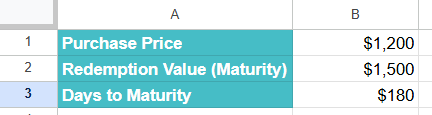
Step 2: Enter the following formula in a Google Sheet using the DATE function.
=IF(DISC(DATE(2023,11,1), DATE(2024,4,29), B1, B2, 0) >= 0.06, “Profitable”, “Not a good investment”)
Here, the IF function checks if the discount value is greater than 0.06 (or 6%) as its output is always a decimal value.
It returns “Profitable” if true, otherwise “ Not a good investment “

Step 2: Press Enter. You can check the result.
We get “Profitable” as the value is greater than 6%.

Important Things to Note
- The DISC function returns the discount rate as a decimal value that can be formatted as a percentage.
- The DISC function is used for financial analysis and when making investment decisions.
- The day_count_convention argument should be a value between 0 to 4, else you get errors.
- To avoid errors, always check that the settlement must be before the maturity date.
- The Basis parameter is optional with a default value of 0.
Frequently Asked Questions (FAQs)
The #NUM! error usually occurs when there is some mistake in the logic used in the formulas. Some of the reasons for the error to occur include:
1. If the settlement date > maturity date
2. If the price >= the redemption value
3. It can also occur if the basis argument is not between 0 and 4.
If you get the #NUM error, always double-check all the input values like dates to see if they are in the correct order and if the price and redemption value are not interchanged.
The DISC function is used when dealing with discounted securities that do not pay periodic interest. This includes Treasury bills or zero-coupon bonds.
The RATE and YIELD functions calculate returns based on regular interest payments or compounding.
However, DISC in Google Sheets focuses only on the difference between the purchase price and redemption value over time. The function can be used for short-term investments with no interest. Here, the return comes entirely from buying below the face value. It is useful in government bond analysis or comparing investment options with no cash flows until maturity. For coupons or regular interest payments, use YIELD or RATE.
1. It is used to calculate the discount rate for bonds like Treasury bills.
2. It is used to determine the effective interest rate of a discounted security.
3. Used in financial modelling and analysis.
Use this DISC in Google Sheets Template to follow along with the examples in this article.
Download Excel TemplateRecommended Articles
Continue with these related resources when you want the next practical step in this topic.
- PV in Google Sheets
- FV in Google Sheets
- NPV in Google Sheets
- IRR Google Sheets Function
- PMT in Google Sheets
Explore the full Google Sheets Financial Functions guide or browse Google Sheets Resources.