


Introduction
Multi‑criteria lookups are a daily headache for analysts who maintain customer ledgers, commission tables, or blended forecasts. A simple VLOOKUP or single XLOOKUP fails when the key depends on several columns such as region, product tier, and date window. Excel XLOOKUP with AI multi‑condition lookup helps by combining XLOOKUP with lightweight helper logic and AI‑assisted prompting that generates robust formulas and checks for edge cases.
This article explains practical patterns, shows how AI can generate and explain multi‑condition formulas, and gives validation steps so the final formula is reliable for finance and operations workflows.
Why Multi‑Condition Lookups Matter
Many real‑world tables have no single unique key. Consider pricing schedules that vary by product, customer segment, and effective date. Using multiple nested LOOKUPs or joining with INDEX/MATCH arrays becomes brittle and hard to audit. XLOOKUP supports exact and approximate matches and returns entire arrays, but it still expects a single lookup array. The practical solution combines XLOOKUP with an explicit composite key or with FILTER/INDEX patterns, and AI can speed the process by producing the correct composite key, guarding against blanks, and suggesting fallback logic such as IFERROR or COALESCE patterns.
Common Patterns and AI‑Assisted Edits
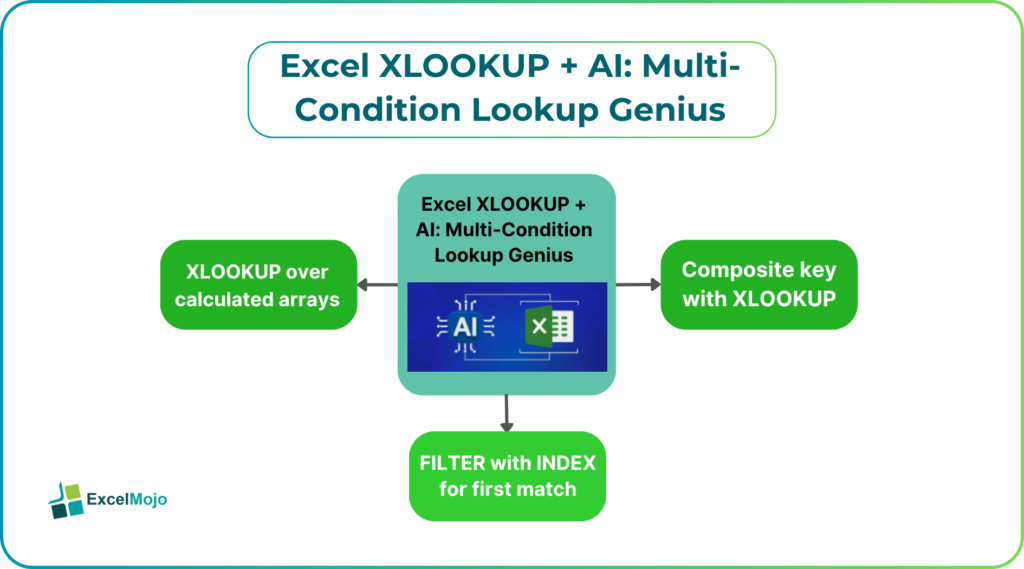
Analysts typically use one of these resilient patterns for XLOOKUP with AI multi‑condition lookups:
- Composite key with XLOOKUP
Create a helper column that concatenates normalized values
(for example, TRIM(UPPER(Region)) & “|” & ProductTier & “|” & TEXT(EffectiveDate, “yyyy-mm-dd”)), then XLOOKUP against that composite. AI can generate the exact helper formula and the lookup string to avoid typing errors.
- FILTER with INDEX for first match
When multiple rows might match, use INDEX(FILTER(…),1,desiredColumn) to get the first match. AI helps by crafting the FILTER condition with proper comparisons and handling blank cells using LEN or N functions.
- XLOOKUP over calculated arrays
XLOOKUP accepts arrays for lookup_array and return_array. The lookup can be an array expression like (Table[Region]=DesiredRegion)*(Table[Product]=DesiredProduct) to find the first numeric match when wrapped with MATCH for position, but this array math is error prone; AI can produce the correct wrapped expression and suggest wrapping with N or VALUE to avoid type issues.
AI assistance reduces typos and reminds the analyst to normalize text with TRIM and UPPER, to use explicit date conversions such as DATEVALUE or TEXT, and to protect against #N/A with IFNA or IFERROR.
For finance usage, accuracy matters, so the AI also suggests sanity checks such as cross‑summing results against a pivot.
Step‑by‑Step Example for XLOOKUP with AI: Pricing Lookup by Region, Tier, and Date
A concrete example clarifies the pattern.
Scenario: a pricing table has columns EffectiveStart, EffectiveEnd, Region, Tier, Price. The transactions table has TransactionDate, Region, Tier, and needs Price.
Recommended approach: create a canonical key and then XLOOKUP with a date check using FILTER.
- Normalize columns in the pricing table: new column Key = TRIM(UPPER(Region)) & “|” & TRIM(UPPER(Tier)). AI can generate the exact formula to avoid case and spacing mismatches.
- In the transactions table, compute TxKey equal to the same normalized expression, and keep TxDate.
- Use a formula that finds the price where TxKey matches and TxDate falls between EffectiveStart and EffectiveEnd. A robust formula pattern:
=LET(
k, TRIM(UPPER([@Region])) & “|” & TRIM(UPPER([@Tier])),
matches, FILTER(PricingTable[Price], (PricingTable[Key]=k)(PricingTable[EffectiveStart]<=[@TxDate])(PricingTable[EffectiveEnd]>=[@TxDate])),
IFERROR(INDEX(matches,1), “No price”)
)
This LET+FILTER+INDEX pattern returns the first matching price and keeps the logic readable. AI can produce this LET scaffold automatically from a plain description like “Return price for transaction where region and tier match and transaction date is within the effective window.” It also adds the IFERROR fallback so missing price cases are explicit.
Validation and Robustness Checks
Formulas succeed in the real world when they survive bad input and schema drift. Useful validation steps for XLOOKUP with AI include:
- Crosscheck totals: compare SUM of matched prices times quantity with a pivot using the same filters.
- Edge cases: test transactions on boundary dates (EffectiveStart and EffectiveEnd) and for missing tiers or null regions.
- Data hygiene: ensure date cells are real dates (use ISNUMBER and DATEVALUE tests), and force text normalization.
- Audit output: create an audit column showing MATCH count via COUNTIFS for the same composite conditions to detect multiple matches.
AI helps by proposing test rows and even generating a short checklist of test formulas. For audit purposes, the final workbook should include a hidden validation sheet with the checks and a short comment explaining the lookup logic.
Pitfalls and Performance Considerations
XLOOKUP with AI – Complex array formulas and FILTER over large tables can slow a workbook. For high‑cardinality datasets, prefer helper columns and structured tables that allow XLOOKUP to operate on single columns instead of repeated FILTER scans. When using dynamic arrays, remember implicit spillage can change ranges; lock references clearly, or use named ranges for clarity.
Another pitfall is mismatch due to formatting differences. AI mitigates this by recommending normalization (TRIM, CLEAN, UPPER) and explicit conversions like VALUE or DATEVALUE. Finally, avoid silent failures: use IFERROR or IFNA but surface the underlying cause in a separate audit column so analysts can still diagnose missing lookups.
Frequently Asked Questions (FAQs)
Can AI create XLOOKUP formulas for multiple conditions automatically?
Yes. Given a clear description of the matching columns and the fallback behavior, AI can generate composite key formulas, LET wrappers, and FILTER/INDEX patterns that implement multi‑condition lookups.
Is the composite key approach better than FILTER for performance?
Composite keys generally perform better on large tables because XLOOKUP is optimized on single column scans. FILTER is more flexible for complex windows or multiple matches but may be slower if used repeatedly on large datasets.
How do you handle multiple matching rows?
Decide the business rule: take the first effective record, aggregate (for example, average or sum), or surface an error. The INDEX(FILTER(…),1) pattern selects the first match; AGGREGATE or SUMIFS can implement other rules.
Does AI help with auditability and documentation?
Yes. AI can produce explanatory comments, generate a test checklist, and suggest an audit sheet with COUNTIFS and sample edge tests. The analyst should keep those artifacts in the workbook.