


Introduction to AI Excel what-if Analysis 2.0
AI What-If Analysis 2.0 in Excel 2026 has evolved from manual data manipulation to intelligent, automated modeling powered by using AI agents. It allows users to ask complex questions without manually setting up scenarios, data tables, or Goal Seek. By leveraging the power of AI, users can instantly forecast long-term data, understand trends and data dependencies, and generate actionable insights with the help of simple conversations in plain language.
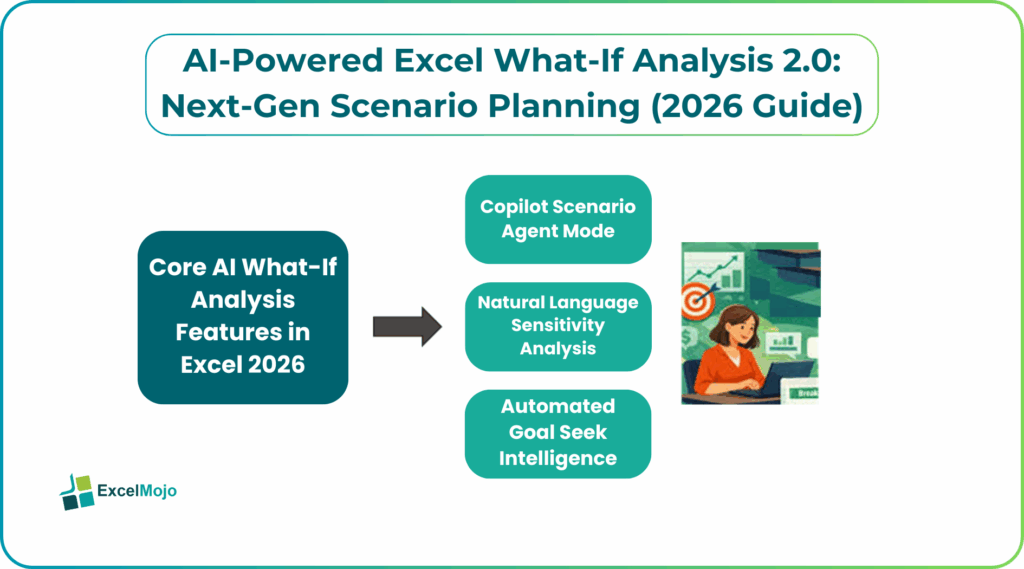
Core AI What-If Analysis Features in Excel 2026
Excel 2026 introduces advanced AI Excel what-if analysis tools to redefine how users interact with data. Let us look at some of their key capabilities:
- Copilot Scenario Agent Mode: It enables interactive, multi-step dialogue for complex and automated modeling with self-correction. This is much more advanced that single step tasks done earlier.
- Natural Language Sensitivity Analysis: It allows users to ask questions like “How does a 5% price increase affect revenue?” to promptly visualize impacts without complex formula adjustments for advanced Excel forecasting AI.
- Automated Goal Seek Intelligence: It proactively identifies necessary input changes to achieve specific targets like determining required sales volume to hit a profit goal. All this is done through conversational prompts.
#1 – Copilot Scenario Agent Mode
The Copilot Scenario Agent Mode acts as an intelligent partner that handles complex forecasting and data modeling tasks in Excel. Unlike the traditional Copilot, this Agent Mode can be communicated with in conversational language for AI Excel what-if analysis. It has multi-step reasoning, allowing it to build, test, and refine complex scenarios based on the goals specified by the user. It can work on multi-step tasks, such as creating complete financial models from scratch and validating them for errors. This helps significantly speed up strategic planning.
#2 – Natural Language Sensitivity Analysis
Natural Language Sensitivity Analysis allows users to instantly determine how changes in specific variables like price, marketing spend, or volume, impact overall financial results. Rather than manually building data tables, users can simply ask questions in plain to see how different parameters affect revenue. Thus, complex business scenarios. This conversational approach makes exploring complex business scenarios, such as the impact of a 5% increase in pricing, accessible and immediate.
#3 – Automated Goal Seek Intelligence
Automated Goal Seek Intelligence removes the need to manually configure the traditional Goal Seek tool for finding input values. The AI understands the desired outcome, such as a specific, required net profit and automatically determines the necessary, adjusted input values to reach that target. This feature rapidly calculates complex scenarios, such as determining the number of units to sell at a given price point, reducing the time spent on iterative modeling and improving decision-making.
Step-by-Step AI What-If Analysis Setup
Using Excel’s Scenario Manager, you can create and compare different sets of input data for AI Excel what-if analysis.
- Define Inputs & Outputs: Ensure your data is structured with formulas connecting inputs to outputs.
- Access Scenario Manager: Navigate to the Data tab -> What-If Analysis -> Scenario Manager.
- Add Scenarios: Click “Add” to define scenarios, selecting the variable cells to change like interest rates, growth percentage, etc.
- Input Values: Enter the specific data values for each scenario in the dialog box.
- Generate Summary: Click “Summary” to create a side-by-side report comparing the results of different scenarios.
Advanced Scenarios: Real Business Examples for AI Excel what-if analysis
Leveraging AI-enhanced Excel allows for deeper, data-driven insights into complex business challenges.
#1 – Sales Forecasting & Risk Assessment
A company needs to forecast future revenue while accounting for uncertain market demand, changing sales prices, and fluctuating cost of goods sold (COGS). These variables directly impact profitability and financial stability.
Using Excel’s Scenario Manager, the team creates multiple scenarios such as a High Demand / Low Cost best-case scenario, a Low Demand / High Cost risk scenario, and a realistic case. Each scenario adjusts demand volumes, pricing, and COGS assumptions to simulate real-world business conditions for AI Excel what-if analysis.
Outcome:
Goal Seek is then used to calculate the minimum selling price required to maintain a 20% profit margin under each scenario. This helps decision-makers identify pricing thresholds, prepare for worst-case risks, and define clear mitigation strategies before market conditions change for Excel scenario analysis AI.
#2 – Inventory Optimization Scenarios
A retail store aims to optimize inventory levels while balancing storage and holding costs against the risk of stockouts that could lead to lost sales and dissatisfied customers.
An Excel Data Table is created to test different combinations of Lead Time and Average Daily Demand. This allows the store to simulate how delays in supplier delivery or sudden demand spikes impact total inventory costs and stock availability.
Outcome:
Using AI-powered Analyze Data, Excel quickly scans the data table to identify patterns and cost trends. It highlights the most efficient reorder points for different product categories, helping the store maintain optimal stock levels while minimizing both excess inventory and stockout risks.
Comparing Traditional vs AI What-If Analysis
| Criteria | Traditional Excel What-If Analysis | AI-Powered Excel What-If Analysis |
|---|---|---|
| Basis | Uses menus and dialog boxes such as Data -> What-If Analysis | Uses conversational chat and natural language prompts |
| Setup Time | High setup time due to manual creation of scenarios and tables | Instant setup as AI automatically understands models and variables |
| Flexibility | Rigid structure with limited variables and difficult re-runs | Highly flexible with easy changes, iterations, and added variables |
| Speed | Slow because each scenario must be created manually | Real-time and instant scenario evaluation |
| Complexity | Requires strong understanding of formulas and Excel tools | Users simply describe the goal in plain English |
| Data Scope | Best suited for small, structured, and static datasets | Handles large, complex, and unstructured datasets efficiently |
| Visualization | Charts must be created and updated manually | Charts and insights are auto-generated by AI |
| Error Handling | Prone to human errors in formulas and assumptions | Reduced errors through AI-driven detection and validation |
| Best For | Simple, routine, or one-time calculations | Advanced modeling, forecasting, and simulation scenarios |
Frequently Asked Questions (FAQs)
AI improves Excel What-If Analysis by allowing users to describe scenarios in plain English instead of manually setting up tables or scenarios. It automatically identifies key variables, runs simulations faster, and generates instant insights and visualizations.
AI-powered Excel can analyze complex scenarios involving many interdependent variables at once. It efficiently processes large datasets, adjusts assumptions dynamically, and highlights trends or risks that are difficult to spot manually.
Traditional Goal Seek changes one input variable to reach a target value, while Copilot analyzes multiple variables together. Copilot also explains results, suggests scenarios, and generates charts, making analysis faster and more flexible.
Recommended Articles
Continue with these related resources when you want the next practical step in this topic.
- How To Use AI With Excel
- How AI Is Transforming Data Analysis In Excel (2026 Complete Guide)
- Excel AI And Machine Learning: Beginner’s Guide For 2026
- The Most Useful AI Features in Excel: Unlock Smarter Spreadsheets in 2026
- Top Skills for AI-Enabled Excel in 2026 (Must-Master List)
Explore the full Excel AI Automation and Analysis guide or browse Excel Resources.