


Introduction to AI Excel Automation
There has been a paradigm shift in automation with Excel, with the advent of AI. Integrating AI with Excel has moved its functionality beyond traditional computational methods. This unbeatable combination helps users implement advanced automated processes and data analysis frameworks. Software engineers couldn’t have it better. Using AI in Excel this 2026, we can look forward to native AI integration and workflow automation. This helps one manage data efficiently with a seamless workflow that is streamlined and accurate.
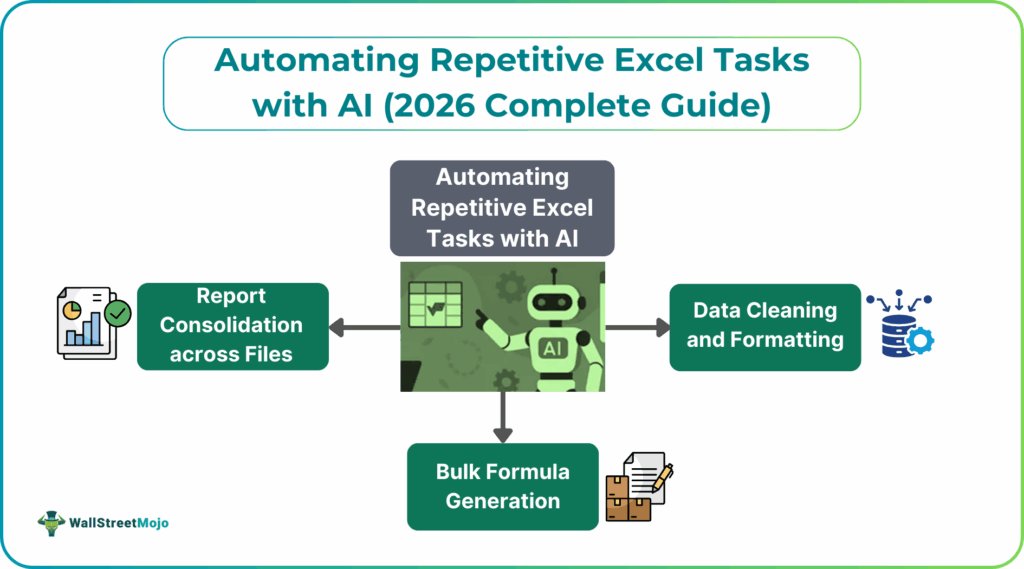
This 2026, repetitive tasks can be automated using natural language to build formulas and drive data analysis. There will be no requirement for extensive formula knowledge. As AI-driven data processing and streamlining gets increasingly common, engineers can focus on other tasks requiring superior skills. Let us look at some practical scenarios where we can apply AI-enhanced ways to automate repetitive Excel tasks AI.
Top AI Tools for Excel Task Automation
Excel AI automation 2026 tools include:
#1 – Microsoft Copilot Automation
Copilot repetitive tasks Excel is used to integrate AI-powered features directly within Excel. It offers users the ability to automate tasks and generate insights devoid of any deep programming knowledge. The key capabilities of Copilot include natural language queries, data visualization propositions, and automated summarization. Users can ask questions in plain language, like “What are the sales trends over the last quarter?” and get real-time answers automatically. These can range from reports to charts.
Real-time automation of tasks can be learnt from user preferences, thereby improving its results over time.
#2 – Excelmatic AI Agent
Excelmatic is an AI-powered automation tool which can simplify how you automate repetitive Excel tasks AI. It helps automate data entry, cleaning, and formatting. It also gives meaningful insights based on your data. Excelmatic uses machine learning models to identify patterns and automatically generate reports or pivot tables. It can also suggest formulas or macros learning from your past data. This creates an automated, efficient workflow.
#3 – ChatGPT Excel Add-ins
The ChatGPT Excel Add-in allows users to integrate OpenAI’s language model with Excel for enhanced automation. It provides capabilities such as generating text-based summaries of datasets, and performing analysis on text data. It also automatically suggests ways to optimize formulas. By adding natural language processing (NLP) into your spreadsheets, users can query their data with simple questions and receive detailed explanations. ChatGPT Excel automation is one you should definitely use to enhance your systems.
#4 – SheetAI Automation Suite
The SheetAI Automation Suite is an advanced set of AI tools that are used to enhance Excel’s capabilities through automation. The suite provides tools for data forecasting, anomaly detection, and automated insights generation. It uses deep learning algorithms to detect patterns in data and suggest optimizations for spreadsheets. SheetAI also includes a user-friendly interface.
Comparison Table of Top AI Tools
| AI Tool | Automation Focus | Key Features | Best For |
|---|---|---|---|
| Microsoft Copilot Automation | Built-in Excel automation | Natural language queries, auto charts, summaries | No-code Excel automation |
| Excelmatic AI Agent | Data task automation | Data cleaning, report creation, formula suggestions | Repetitive Excel workflows |
| ChatGPT Excel Add-ins | AI-assisted analysis | Data summaries, formula help, NLP queries | Text analysis and explanations |
| SheetAI Automation Suite | Advanced AI insights | Forecasting, anomaly detection, smart insights | Predictive and analytical tasks |
Common Repetitive Tasks AI Can Automate
AI-powered automation in Excel can be used for repetitive and time-consuming tasks that would otherwise require extensive manual effort. These tasks involve pattern recognition, fixed actions, and huge amounts of data handling. One can improve accuracy, reduce errors, and save time for more complex tasks requiring human skills with this automation. Other automate repetitive Excel tasks AI include formula application, report consolidation, and multi-sheet processing.
#1 – Data Cleaning and Formatting
Data cleaning using AI in Excel helps automatically detect and fix common data issues that are otherwise difficult to perform accurately by humans. These include tasks such as duplicates, missing values, and inconsistent formats. AI tools can recognize patterns in the data without requiring complex formulas. There is no need for any manual intervention. This results in cleaner, more reliable datasets while significantly reducing the time and effort needed for data preparation.
Inconsistent data formatting can cause errors during automation and tools like Numerous can clean this.
#2 – Bulk Formula Generation
Bulk formula generation using AI in Excel is done with add-ins or Microsoft’s Copilot for MS 365. These tools allow you to give your requirements in plain English and automatically generate complex formulas. They can also automatically apply AI actions across multiple thousands of rows without manual coding.
Methods for Bulk Formula Generation
This can be done by third-party add-ins, such as GPT for Excel, Formula Bot, and Ajelix. They can be installed from the Microsoft Office Store.
#3 – Report Consolidation across Files
To consolidate reports from multiple files in Excel using AI, one can use built-in tools like Copilot or leverage an external AI tool. You must ensure that all source files are accessible in the cloud before you launch Copilot from the ribbon. Then, use natural language prompts to consolidate them.
Using third-party AI platforms like Excelmatic, one can work on complex data workflows and automate the entire consolidation, cleaning, and validation process with natural language commands.
#4 – Multi-Sheet Data Processing
AI in Excel automates and simplifies complex multi-sheet data processing by allowing users to interact using natural language prompts. Instead of manually consolidating data or writing intricate formulas, users can ask the AI to merge, analyze, clean, and summarize data across multiple sheets. The AI can identify trends, generate reports, and create visualizations automatically.
Best Practices for AI Task Automation
For successful AI task automation, you can begin to automate repetitive Excel tasks AI tasks that are critical for your systems, ensuring clean data and clear goals.
- Identify High-Impact Areas: You must target repetitive, time-consuming tasks. Give clear inputs and get clear outputs for quick ROI.
- Start with Small Programs: Begin with simple workflows to learn, refine, and gain confidence before scaling to more complex tasks.
- Define Metrics: Set clear KPIs to measure success.
- Risk-Assess Workflows: Choose low-risk tasks first. Categorize tasks by potential harm and start from small to big.
- Be data-ready: Use clean, structured, and relevant data.
- Choose the Right Tools: Select user-friendly tools that integrate with existing systems and are scalable.
- Involve Stakeholders: Engage IT, operations, and security early for efficient governance.
- Provide Training & Support: Equip your team with skills for effective adoption of AI in Excel.Prioritize Security: Protect data with enterprise-grade security and compliance measures.
Frequently Asked Questions (FAQs)
AI tools use Large Language Models (LLMs) to understand what you require from plain English prompts. They then transform it into actions like formulas, data cleaning scripts, or macro-like sequences. They can replace complex VBA loops with conversational commands.
Some of the best tools include:
1. Microsoft 365 Copilot: Integrated AI for formula generation, automation and data analysis within Excel.
2. Julius, Ajelix, FormulaDog: These offer formula writing, data cleaning, and simple chart creation through prompts.
3. Zapier, Power Automate: They connect Excel with other apps for cross-platform workflows. 4. GPTExcel: Provides chat-based summaries, charts, and automation help.
AI excels at handling complex multi-file Excel automations with tools like Excelmatic. They can be used to process multiple files in a folder like monthly reports. They can also consolidate data or create summaries without complex VBA code, done in minutes through simple prompts.
Recommended Articles
Continue with these related resources when you want the next practical step in this topic.
- How To Use AI With Excel
- How AI Is Transforming Data Analysis In Excel (2026 Complete Guide)
- Excel AI And Machine Learning: Beginner’s Guide For 2026
- The Most Useful AI Features in Excel: Unlock Smarter Spreadsheets in 2026
- Top Skills for AI-Enabled Excel in 2026 (Must-Master List)
Explore the full Excel AI Automation and Analysis guide or browse Excel Resources.