


Introduction to AI Excel Auditing
AI tools in Excel can significantly improve the auditing process with their vast capabilities using machine learning (ML). They can be used to automate repetitive tasks and improve accuracy. With this, they help by providing actionable insights. In this article, we will discuss the ways AI can help with auditing:
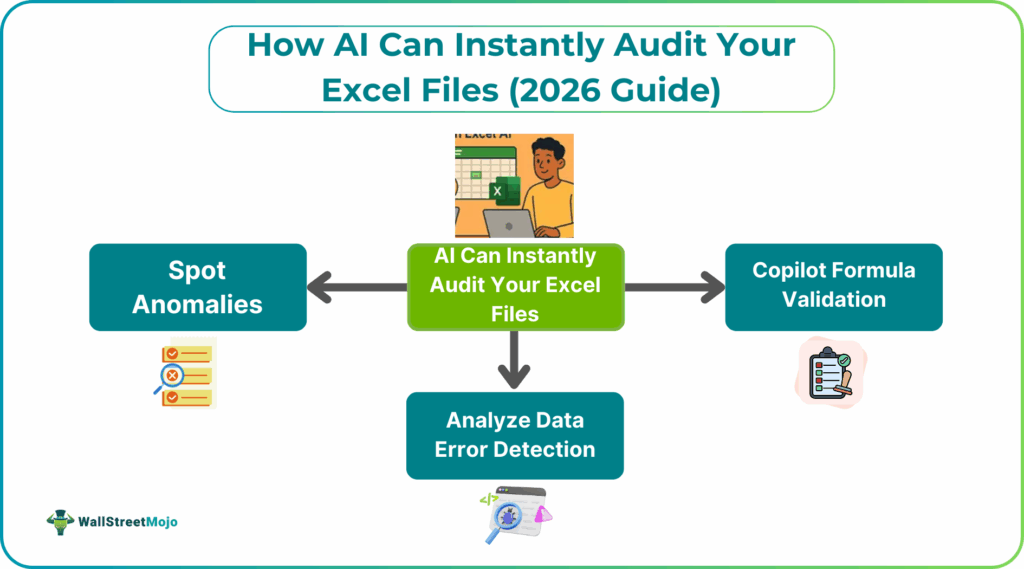
To audit Excel files with AI, it uses features like Copilot in Excel that are in-built. They can be used to find trends, errors, and insights from raw data, automating tasks like data cleaning, formula generation, and anomaly detection. You can also use third-party tools like SheetAI that offer specialized scanning for data inconsistencies. It can be used to streamline checks for duplicates, outliers, and complex calculations that accuracy and save time.
Native Excel AI Audit Features
AI tools in Excel can instantly audit Excel files and give accurate, clear explanations of complex formulas along with automating Excel error detection AI. These tools allow users to ask in plain language questions about their spreadsheets, which the AI analyzes to give clear answers and help users understand and modify complex spreadsheets without deep Excel expertise. This process speeds up formula debugging from hours to minutes and reduces the risk of errors.
#1 – Copilot Formula Validation
As we mentioned earlier, using Copilot for audit features involves using natural language, You can ask it to create or explain complex formulas (e.g., =IF(B2>TODAY(), “Past Due”, “On Time”)).Copilot also predicts trends and patterns for audits and is a one-stop shop for any kind of AI Excel file audit and analysis related functions in Excel with the help of AI.
#2 – Analyze Data Error Detection
Another important feature is getting insights, trends, and outliers with the help of charts, PivotTables, or summaries. These can help spot anomalies like incorrect entries or patterns. It can automatically standardize formats, remove duplicates, and fix inconsistencies in large datasets.
Top AI Audit Add-ins for Excel
Now, that we have understood how AI works for Excel audits, let us look at some of the top tools for AI Excel file audit.
#1 – Microsoft 365 copilot
Microsoft 365 Copilot also offers AI-powered features to help users work smarter by speeding up some of the spreadsheet tasks. This could include tasks such as adding columns and formulas, formatting tables, and creating insights about data. It can automatically detect inconsistencies and errors in the data. It will also create charts or graphs to summarize the data more clearly. Thus, auditing is made much simpler with Copilot.
Such AI tools represent a big advancement when it comes to auditing in Excel. , offering a more efficient and user-friendly way to manage and analyze data within Excel files.
#2 – Excelmatic Audit Bot
We can use Excelmatic to upload our spreadsheets. We can also use their chat interface to ask questions in plain language. The tool analyzes the data and formulas and gives you ready-to-use, accurate answers. It is very useful for complex spreadsheets with interconnected sheets and hidden formulas. It helps understand cell relationships and which cells will be affected by changes.
Step-by-Step Instant Audit Process
To audit an Excel file using AI instantly, you can use a dedicated AI auditing tool or a broad AI agent which has data analysis capabilities. Such tools include Microsoft 365 Copilot or a third-party service like Excelmatic. You must upload your file and use natural language prompts to perform various audit checks.
The Instant AI Excel file audit Process step-by-step is shown below:
This process focuses on using conversational AI agents. This si the most instant method for those not well-versed in programming.
Step 1: Prepare Your Data
Ensure your Excel file has clear column headers. They are very important as they help the AI understand the context.
To get an optimal result, perform basic manual data cleaning first, such as removal of duplicates and formatting the data properly. Some AI tools can help with this step too.
Step 2: Access an AI Auditing Tool
If you are using Copilot Excel audit, you must open your spreadsheet stored and select the Copilot icon in the Home tab to open the chat pane.
In other tools like Excelmatic, go to the platform’s website and upload your Excel or CSV file to their environment. The data is processed in a secure environment.
Step 3: Use Natural Language Prompts for Auditing
Do not go for complex formula. You can type your AI Excel file audit questions and commands in plain English into the chat pane. The AI acts as an expert analyst.
Some of the prompts you may type include:
“Explain the formula in cell A12”.
“How is the ‘Net Income’ calculated, step-by-step?”.
“Are there any errors or #VALUE! issues in this sheet?”.
“Identify any unusual transactions or outliers in the ‘Amount’ column”.
“Scan for any potential fraud indicators in the transaction data”.
If you wish to check for compliance,
“Compare transactions against the approval matrix to identify non-compliant entries”.
“Standardize date formatting across all columns”.
Step 4: Review AI-Generated Results
The AI will provide clear, written explanations as well as summaries based on your data for instant Excel audit AI. It will also give you a detailed explanation, including the formulas it used, so you can trust it or verify if needed.
You can also:
Ask follow-up questions to dig deeper into specific issues.
Step 5: You must copy the AI-generated correct formulas back into your original spreadsheet.
Now, instruct the AI to summarize its findings.
You can use a chat like “Compile all audit findings, including compliance issues, into a formal summary report”.
Common Issues AI Audits Catch
- AI auditing tools in Excel can be used to identify a range of issues that are often difficult and time-consuming to spot manually:
- AI can flag data inconsistencies such as mixed data types within a single column, inconsistent date formats, or spot spelling mistakes
- It can detect standard Excel errors like #VALUE!, #DIV/0!, or #REF! and suggest relevant fixes.
- It can evaluate complex nested formulas in plain language to determine if the logic correctly applies the business rules (e.g., a complex financial calculation).
- AI can highlight formulas containing numbers instead of cell references providing such vital checks.
- AI can quickly scan large datasets to identify omitted entries, duplicated rows, or potential data entry errors.
AI algorithms identify transactions or data points that fall outside expected patterns. This helps flag them for further human investigation as potential fraud indicators.
Frequently Asked Questions (FAQs)
Auditors are increasingly using computers for their auditing purposes to enhance decision-making. Excel remains a favorite for this purpose. Auditors rely on practical implementation of AI-driven features within Excel. By leveraging AI, auditors can automate repetitive tasks, handle errors with ease amd integrate data from external sources instantly. Using Copilot these audits can be done instantly in the spreadsheet itself. If you use broad AI agents, you must upload Excel sheets into their platform.
Some of the errors include:
Computational method errors, specifically when dealing with large datasets.
AI can quickly scan large datasets to identify omitted entries, duplicated rows, or potential data entry errors.
It can evaluate complex nested formulas in plain language to determine if the logic correctly applies the business rules (e.g., a complex financial calculation).
AI can audit 100K+ row Excel files very quickly, often in seconds to minutes, depending on file complexity. It can detect errors, anomalies, duplicates, formula issues, and patterns far faster than manual review.
Recommended Articles
Continue with these related resources when you want the next practical step in this topic.
- How To Use AI With Excel
- How AI Is Transforming Data Analysis In Excel (2026 Complete Guide)
- Excel AI And Machine Learning: Beginner’s Guide For 2026
- The Most Useful AI Features in Excel: Unlock Smarter Spreadsheets in 2026
- Top Skills for AI-Enabled Excel in 2026 (Must-Master List)
Explore the full Excel AI Automation and Analysis guide or browse Excel Resources.