


What is COMBINA in Google Sheets?
The COMBINA function in Google Sheets returns the number of ways to choose a particular number of objects from the available pool of objects, also including ways to choose the same object multiple times. It is also known as choosing with replacement.
In other words, the COMBINA function, COMBINA(n, k), calculates the number of ways to choose k items from a set of n items. It includes selecting the same item multiple times (combinations with replacement). As an example, to find the number of ways you can choose two fruits from a set of fruits. The basket contains an apple, banana, orange, and mango. Use the following formula in a Google Sheet:
=COMBIN(4, 2)

Press Enter. The result will be 6. This means there are 6 different combinations when choosing two fruits from a set of four.
Use this COMBINA in Google Sheets Template to follow along with the examples in this article.
Download Excel TemplateKey Takeaways
- COMBINA in Google Sheets calculates the number of possible combinations with repetitions allowed from a given set of items.
- It is useful in real-life scenarios like lottery selections, ice cream scoops, pizza toppings, or any situation where items can repeat.
- The syntax of the COMBINA function is:
=COMBINA(number, chosen)
- Unlike COMBIN (which excludes repetition), COMBINA always gives a higher or equal count since it considers duplicate selections as valid.
Syntax
The COMBINA in Google Sheets formula is as follows:
=COMBINA(n, k)
- n: The total number of items in the pool.
- k: The number of items to choose from the pool.
As an example, the formula =COMBIN(10, 3) would calculate the number of ways to choose 3 items from a set of 10, without replacement.
How To Use COMBINA Function in Google Sheets?
The COMBINA function in Google Sheets is used to calculate the number of possible combinations for a given number of items with repetitions allowed. It is useful in scenarios where you need to evaluate how many ways items can be grouped when order does not matter and repetition is allowed. It is used in lottery numbers, team selection, or distribution problems.
To enter the COMBINA function in Google Sheets, there are two main ways:
- Enter COMBINA manually
- From the Google Sheets menu
Enter COMBINA Manually
Let us look at the manual method to enter the COMBINA function. To illustrate this, we will calculate the number of combinations for the following details:
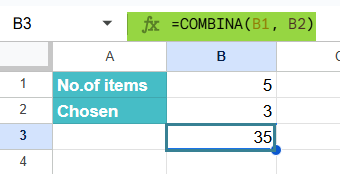
The number of items is given as 5, from which we must choose 3.
Let us calculate how many possible combinations with repetition allowed can be made when choosing 3 items out of 5.
Step 1: Open Google Sheets and in a new spreadsheet, enter the required details.

Step 2: Enter the COMBINA formula in an empty cell B3. Here, we start with an = sign, followed by the function name and open braces. Enter the arguments in the order specified in the syntax, separated by a comma, and close the braces.
=COMBINA(B1, B2)

Step 3: Press Enter. The cell B3 will display the result of the calculation.
The result, 35, represents the total number of ways 3 items can be chosen from 5 when repetition is allowed.
Entering COMBINA Through the Menu Bar
- Go to the Insert tab. Choose Function -> Math.
- From the list, select COMBINA.
- Fill in all the arguments (Number and Chosen).
- Press Enter to get the result.
Examples
The primary purpose of COMBINA in Google Sheets is to calculate the number of possible combinations (with repetitions allowed) for a set of items. Let us look at some simple examples to understand how it works.
Example #1
We wish to find how many ways we can select 4 items from a total of 6 items, where repetition is allowed and the order does not matter. This is a classic combination-with-repetition problem. For example, if the items are {A, B, C, D, E, F}, you could pick {A, A, B, E} or {C, D, D, E}, and both count as valid combinations.
Step 1: In Google Sheets, enter the values:
- Cell B1 – 6 (Number of items)
- Cell B2 – 4 (Number chosen)

Step 2: In cell B3, enter the formula:
=COMBINA(B1, B2)

Step 3: Press Enter. Google Sheets will calculate and display the result as 126.

This shows there are 126 unique ways to choose 4 items out of 6 when repetition is allowed.
The COMBINA function is handy for solving problems involving group selection. It saves time and reduces manual counting errors.
Example #2 – Calculate the number of possible outcomes in a certain event
A person runs an ice cream shop and allows customers to choose 2 scoops out of 4 available flavors (Vanilla, Chocolate, Strawberry, Mango). Customers can pick the same flavor twice (e.g., Vanilla + Vanilla) or mix two different ones. We want to calculate the total number of possible outcomes in such a scenario
Step 1: In Google Sheets, enter the values:
Cell B1 (Number of flavors) – 4
Cell B2 (Scoops chosen) – 2

Step 2: In cell B3, enter the formula:
=COMBINA(B1, B2)
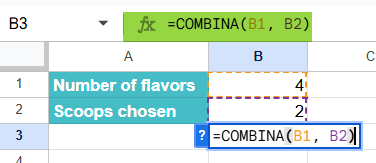
Step 3: Press Enter. Google Sheets will calculate and display the result as 10.

This means there are 10 different possible two-scoop combinations customers can order, including repeats like “Mango + Mango.”
The COMBINA function helps simplify real-world counting problems, making it easy to analyze choices or outcomes without manual listing.
Example #3 – Determine the number of different arrangements with repetition
A pizza shop allows customers to pick 3 toppings from 6 available options (like Cheese, Olives, Peppers, Mushrooms, Corn, Jalapenos). Customers can choose the same topping more than once, for instance, olives). We must calculate the number of possible topping arrangements.
Step 1: In Google Sheets, enter the values:
- (Number of toppings) – 6
- (Toppings chosen) – 3

Step 2: In cell B3, enter the formula:
=IF(B2<=B1, COMBINA(B1, B2), “Invalid selection”)
Here the IF checks that the chosen number (B2) is not greater than the total number of toppings (B1). If the condition is true, COMBINA calculates the combinations. Otherwise, it shows “Invalid selection.”

Step 3: Press Enter. Google Sheets will calculate and display the result as 56.
This means there are 56 unique ways a customer can order a 3-topping pizza when there are repetitions.

By combining COMBINA with IF, you check for errors and can solve real-life problems like pizza topping choices.
Important Things to Note
- The order chosen in the COMBINA in Google Sheets function is not important.
- If there is a number or reference to a number with a decimal part we give in COMBINA, the decimal part is silently truncated before calculation.
- COMBIN excludes repetition, while COMBINA includes it.
- If “chosen” is a decimal, Google Sheets truncates it to the nearest lower integer.
Frequently Asked Questions (FAQs)
The COMBINA function calculates combinations with repetition allowed, while COMBIN calculates combinations without it. If we have three items (A, B, C), and we wish to choose two.
There are 6 different combinations to do it with COMBINA – ({A,A}, {B,B}, {C,C}, {A,B}, {A,C}, {B,C}).
With COMBIN(3,2) the combinations only include – ({A,B}, {A,C}, {B,C}). COMBINA always gives a larger or equal value compared to COMBIN because it counts duplicate selections as well.
1. If either of the numbers in the arguments is negative, Google Sheets throws an #NUM! error.
2. If we use a text instead of a number, it gives an #VALUE! error.
3. COMBINA expects “chosen” to be a whole number. If it is a decimal, it is automatically truncated to 2, which may produce unexpected results.
4. If any argument cell is blank, COMBINA treats it as 0, often leading to unexpected results.
1. It is used in probability calculation to calculate the number of possible outcomes in a certain event.
2. We use it in permutations with repetition to determine the number of different arrangements with repetition.
Use this COMBINA in Google Sheets Template to follow along with the examples in this article.
Download Excel TemplateRecommended Articles
Continue with these related resources when you want the next practical step in this topic.
- MATH Functions In Google Sheets
- SUM Google Sheets Function
- AUTOSUM In Google Sheets
- COUNT FUNCTION IN GOOGLE SHEETS
- AVERAGE In Google Sheets
Explore the full Google Sheets Math Functions guide or browse Google Sheets Resources.