


What is SLN in Google Sheets?
The SLN function in Google Sheets calculates the straight-line depreciation of an asset for a single period. This function distributes the depreciation expense evenly over the useful life of the asset. It belongs to the Financial category that calculates straight-line depreciation of an asset. It is very useful because it provides a straightforward method for determining the annual depreciation. The SLN function is an essential tool for anyone managing assets, providing clarity and accuracy in financial calculations.
For example, if you have purchased a piece of equipment for your home, say a laptop. You want to calculate the annual depreciation expense for this laptop. You use the following formula: =SLN(1,200, 200, 5).
Where Cost = $1,200, salvage value is $200, and useful life is 5 years. You get the result as
Use this SLN in Google Sheets Template to follow along with the examples in this article.
Download Excel TemplateKey Takeaways
- The SLN function in Google Sheets calculates the straight-line depreciation of an asset over its useful life.
- It requires three mandatory arguments: the initial cost of the asset, the salvage value at the end of its useful life, and the asset’s lifespan. Its syntax is as follows:
- =SLN(cost, salvage, life)
- The cost and salvage arguments are numeric values representing the purchase price and residual value, while life is typically in years.
- SLN is particularly useful in accounting, financial reporting, and budgeting, as it evenly spreads depreciation across the asset’s lifespan.
Syntax
Now, let us look at the SLN in Google Sheets formula which is simple and straight-forward.
The syntax for SLN in Google Sheets is:
=SLN(cost, salvage, life)
Where:
- cost: The initial cost of the asset.
- salvage: The value of the asset at the end of its useful life, also called salvage value.
- life: The number of periods usually in years, over which the asset is depreciated.
How to Use SLN Function in Google Sheets?
The SLN function in Google Sheets calculates the straight-line depreciation of an asset over its useful life. It is useful when you want to evenly spread the cost of an asset over a period. One can use SLN in two main ways:
- Enter SLN manually
- Use the function from the Google Sheets menu
Enter SLN Manually
To calculate straight-line depreciation manually in Google Sheets, we can look at the steps with a simple example. We have an asset, say a car, whose details will be entered as shown below.
Step 1: Enter the required details into the sheet, such as cost, salvage value, and useful life.

Step 2: Click on the cell where you want the SLN result to appear. Type =SLN( into the cell.
=SLN(
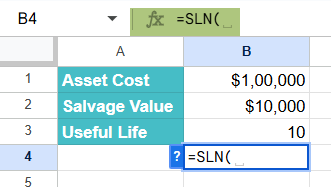
Step 3: Enter the arguments in the order specified in the syntax.
For our example, the formula would be:
=SLN(100000, 10000, 5)
Here:
- 100000 is the cost of the asset
- 10000 is the salvage value
- 5 is the useful life of the asset in years

Step 4: Press Enter. Google Sheets will return the annual straight-line depreciation amount.
For this example, the result would be $18,000 per year.

Entering SLN through the Menu Bar
- Click on the cell where you want the result to appear.
- Go to Insert > Function > Financial > SLN.
- Fill in the arguments (cost, salvage value, useful life).
- Press Enter, and your result will appear.
Examples
The SLN function is used to find the straight-line depreciation for assets over the period of their useful life. Let us look at some practical examples to understand its various uses.
Example #1 – Calculate SLN for a car with a useful life of 24 months, and be sold for $5,000
To calculate the straight-line depreciation (SLN) of a car in Google Sheets, given a useful life of 24 months and a salvage value of $5,000, the following steps are required. The initial asset price is $45,000
Step 1: Open a new sheet and enter the necessary information.

Step 2: Let us now apply the SLN Function:
Select a cell where the depreciation amount for one period is to be entered.
Enter the SLN function using the cell references for the cost, salvage value, and useful life. The formula for straight-line depreciation is SLN(Cost, Salvage, Life)
Let us type the following formula:
=SLN(B1, B2, B3)

Step 3: Press Enter. The result displayed in cell B5 will be the straight-line depreciation amount per period (month in this case).

The result in cell B4 will represent the depreciation expense for each month of the car’s useful life.
Example #2
A businessman purchases a delivery van for $ 200,000. The van is expected to have a useful life of 8 years and a salvage value of $25,000 at the end of its life. The business wants to calculate the annual depreciation expense using the straight-line method.
Step 1: Input the asset details in your Google Sheets, as follows:

Step 2: Apply SLN in Google Sheets as shown below:
In a new cell, enter the following formula:
=SLN(200000, 25000, 8)
This formula calculates the annual depreciation using the straight-line method.

Step 3: We press Enter. The result will be $21,875
This means the van will depreciate by $21,875 each year over its 8-year useful life.

Thus, one can use the SLN function for maintaining consistent annual depreciation expenses for their businesses. One can also use it for financial forecasting and budgeting.
We use the above method widely for assets like vehicles, buildings, and machinery.
Example #3 – Calculate SLN for an asset with a useful life of 12 months, and be sold for $0
A company purchases a laptop for $1,200, expects it to have a useful life of 12 months, and plans to sell it for $0 at the end of its life. The company wants to calculate the monthly straight-line depreciation.
Step 1: Enter the asset details as shown below.

Step 2: Apply the SLN function as we have done above:
Click on a cell where you want the result and enter:
=SLN(B1,B2,B3)

Step 3: Press Enter. The result will be $100.
This means the laptop will depreciate $100 per month over its 12-month useful life.

Step 4: The straight-line depreciation formula can be verified using its mathematical formulas:
Depreciation Expense = (Cost – Salvage Value) / Useful Life
Depreciation Expense = (1200 – 0) / 12 = $100 per month

This method is especially useful for short-term assets or assets that fully depreciate within a year, like laptops, small equipment, or software licenses.
Important Things to Note
- SLN in Google Sheets spreads depreciation evenly across the asset’s life, unlike the DB or DDB functions, which accelerate depreciation.
- The function only works with numeric values for cost, salvage, and life; any text or empty cells will cause #VALUE errors.
- If the salvage value is zero, SLN simply divides the cost by the asset’s life.
- SLN does not automatically handle partial years—you must adjust life manually if calculating for less than a full year as a decimal value.
- It is useful in scenarios for budget forecasting where uniform expense allocation is required.
Frequently Asked Questions (FAQs)
If an asset will have no residual value at the end of its useful life, you can set salvage = 0. The SLN function will then divide the full cost evenly over the asset’s life. This makes it simple to calculate straight-line depreciation for assets that are fully expensed.
Straight-line depreciation assumes that an asset loses an equal amount of value during each period throughout its useful life. The SLN function returns this constant depreciation per period.
One uses it to find the annual depreciation of equipment, machinery, or vehicles.
The function helps us plan future expenses by estimating when an asset will lose value.
It is also used in financial reporting as depreciation affects profit calculations in income statements.
Some of the functions similar to SLN include:
1. DB – This function uses the declining balance method for faster early depreciation and not constant depreciation over each period.
2. DDB – This is similar to DB but applies double declining balance for aggressive early depreciation for certain assets.
3. VDB – This function is used for variable declining balance with an option to switch to straight-line.
Use this SLN in Google Sheets Template to follow along with the examples in this article.
Download Excel TemplateRecommended Articles
Continue with these related resources when you want the next practical step in this topic.
- MATH Functions In Google Sheets
- SUM Google Sheets Function
- AUTOSUM In Google Sheets
- COUNT FUNCTION IN GOOGLE SHEETS
- AVERAGE In Google Sheets
Explore the full Google Sheets Math Functions guide or browse Google Sheets Resources.