


Introduction to Gemini Sheets data validation dropdowns
Manual data entry errors in Google Sheets can quickly derail financial models and dashboards, especially when users select from free‑text lists or enter codes inconsistently. Gemini Sheets data validation context‑aware dropdowns help by using AI to propose or generate dynamic, context‑based list ranges, making validation rules both smarter and easier to maintain. Instead of static dropdown lists, analysts can build rules that change based on the surrounding data, such as account‑type‑dependent valid codes or region‑aware location lists.
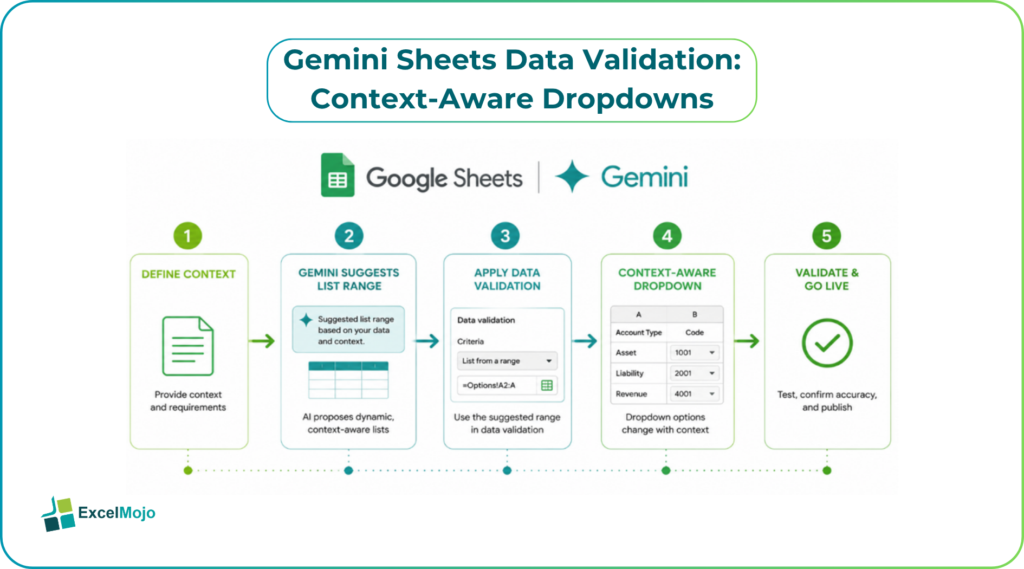
This article shows how to combine Gemini‑assisted prompts with data validation, how to build context‑aware lists, and how to validate the logic so the final validation is production‑ready.
How Gemini Helps with Data Validation Lists
Gemini Sheets data validation dropdowns can speed up the creation and maintenance of validation rules by proposing suitable criteria and list ranges from plain‑language descriptions.
- Prompt‑based list generation: an analyst can ask Gemini, “Create a data validation that checks if a cell is in a specific list of codes based on the value in the adjacent column,” and Gemini can propose a formula for the In‑List rule using array formulas or named ranges.
- Dynamic list construction: for context‑aware scenarios, Gemini can suggest using FILTER, INDIRECT, or VLOOKUP to build a list that changes with another column, such as returning only valid product codes for a given category.
- Validation logic review: Gemini can propose error messages and conditions for when validation should fail, such as invalid codes or combinations of fields, and suggest how to implement them in the Custom Formula validation rule editor.
These suggestions align with best practices for data validation, where the underlying logic is grounded in explicit formulas and structured tables, but the AI layer accelerates implementation and reduces formula‑authoring effort.
How to Build Context‑Aware Dropdowns Step by Step
A practical workflow keeps the validation logic transparent and testable.
- Normalize and structure the reference data: use a table or named range for valid codes, regions, categories, or segments so the validation list can be driven by the table rather than static text entries.
- Use Gemini to generate the validation logic: for example, “Create a context‑aware dropdown for Code based on Category, where valid codes are only those assigned to that Category in the Codes table.” Gemini then suggests a formula such as
=FILTER(Codes[Code], Codes[Category]=[@Category])
which can be used as the source for the data validation list. - Apply the validation rule:
- Select the range of cells to validate.
- Use Data -> Data validation.
- For the criteria, choose “List from a range” and apply the output range of the Gemini‑suggested formula, or use “Custom formula is” with the formula itself.
- Test the behavior: change the context column (for example, Category) and confirm that the dropdown list updates correctly and that invalid choices are blocked.
- Document the logic: keep the Gemini prompt, the formula, and the assumptions (for example, which codes are allowed for which category) in a hidden sheet for audit and maintenance.
This pattern is consistent with AI‑assisted workbook development, where AI drafts rules and formulas, and the analyst reviews and validates them before deployment.
Example: Category‑Dependent Product Codes
A concrete example shows how AI‑assisted validation can reduce manual errors.
- Data: a transaction table with Category, ProductCode, and an audit flag.
- Reference table Codes with Category and ProductCode.
- Objective: ensure that ProductCode is always valid for the selected Category.
Formula pattern suggested by Gemini:
=COUNTIFS(Codes[Category], [@Category], Codes[ProductCode], [@ProductCode])>0
This count‑based custom formula returns TRUE only when the combination is valid. Implemented as a custom formula validation on the ProductCode column, it blocks invalid entries while the dropdown list driven by a FILTER‑based range ensures only valid codes appear during data entry. Analysts can extend this pattern to regional, legal, or compliance‑driven constraints by adding more conditions to the validation formula.
Pitfalls and Best‑Practice Tips
AI‑generated validation rules must be tested and audited just like any other logic.
- Avoid overly complex formulas: validation formulas should be readable and traceable; if the logic is too long, break it into helper columns and reference them in the validation rule.
- Maintain referential integrity: keep the reference tables clean and up to date, and use them as the source for validation lists to avoid diverging lists over time.
- Test edge cases: validate the behavior when the context column is blank, invalid, or outside the expected range, and ensure the validation rule handles such cases explicitly.
- Keep error messages clear: use concise, unambiguous text so users understand why their entry was rejected and how to correct it.
These practices ensure that Gemini‑assisted validations are both robust and understandable for non‑technical users.
Frequently Asked Questions (FAQs)
How does Gemini generate context‑aware validation rules?
Gemini can generate formulas such as COUNTIFS, FILTER, or VLOOKUP patterns that link validation criteria to other columns or reference tables. Analysts paste these formulas into the data validation dialog and test them on sample data.
Can AI‑generated rules replace traditional validation?
No. AI‑based rules are a template that must be validated against real data, reviewed for correctness, and documented. The analyst retains ownership of the final logic and the validation setup.
How do you ensure dropdowns stay in sync with source data?
Keep the source data in a structured table or named range, and have the validation list point to that range. When the reference table is updated, the dropdown list and custom formulas automatically reflect the change.
What validation methods work best with AI?
Use Custom Formula validation for complex rules and List from a range for static or reference‑driven lists. Complex logic should be broken into helper columns when necessary so the validation rule remains readable.