


Introduction
Raw numbers in Google Sheets often need typographic polish before they reach stakeholders: percentages with one decimal, currencies with two decimals and currency symbols, and large figures in thousands or millions. Manually editing each cell’s formatting is tedious and inconsistent. Google Sheets custom number formats Gemini smart codes help by using AI to propose short, reusable custom‑format codes that match business display rules, so analysts can apply clean, consistent formatting with a few clicks. This approach compresses what would be trial‑and‑error formula editing into a guided workflow where Gemini suggests the right format string and validates edge cases.
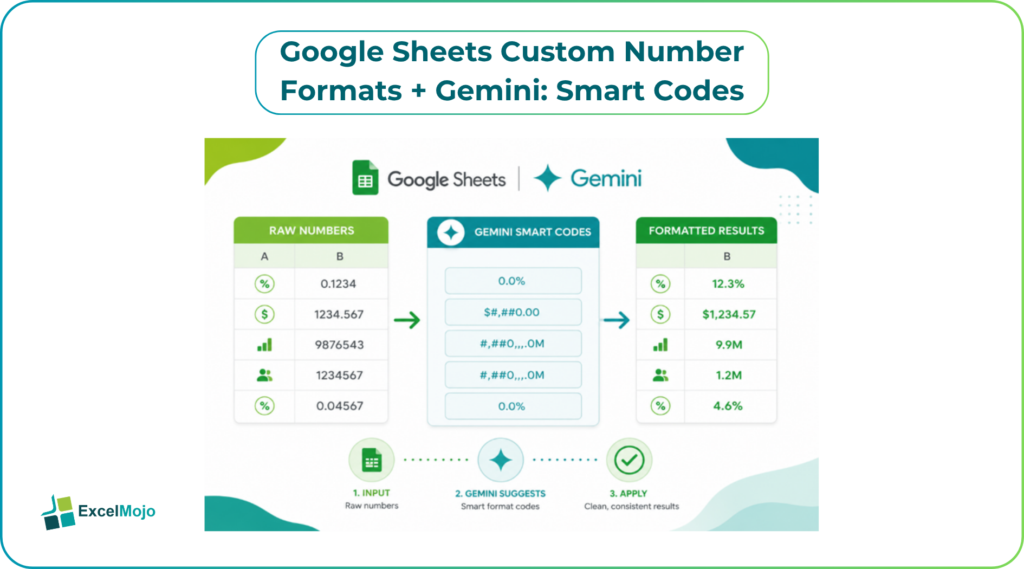
How Google Sheets Custom Number Formats Works
Custom number formats in Google Sheets map underlying numeric values to display strings without changing the cell’s actual value. The format string can specify thousands separators, decimal places, currency symbols, and condition‑based styles.
For example, a format like
$#,##0.00_);[Red]($#,##0.00)
displays positive numbers with a currency symbol and two decimals, and negative numbers in red with parentheses. The underlying value remains a pure numeric so formulas, SUMs, and exports still work correctly. Google Sheets documentation explains these codes and provides examples for dates, currency, and conditional formatting, which analysts can use as a reference when asking Gemini to generate or refine them. For many use cases, the AI layer reduces the need to memorize syntax while still respecting the standard code patterns that Google Sheets expects.
How to use Gemini to Generate Smart Codes
Gemini‑style assistants can speed up the process of writing custom formats when the analyst describes the desired output clearly.
A practical workflow:
- Open the source sheet and select the range to format.
- In Gemini, ask for a custom‑format string for specific display rules, such as “Format as percentage with 1 decimal, 0 as dash, negative in red.”
- Gemini returns a code similar to
0.0″%” for percentages,
[=0]\”-” for zero as dash, and
[Red]0.0″%” for red‑negative formatting, which the analyst can paste into the Number Format -> Custom Number Format dialog. - Test the code on a sample range, then apply it to the full column or table.
- Document the code and its meaning in a hidden sheet so future users can reuse or tweak it.
This approach is consistent with AI‑assisted coding workflows where AI generates code patterns from plain‑language prompts, and the analyst validates and deploys them in the host environment.
Example: Financial Display Formats with AI
A concrete example shows how AI‑assisted codes can polish a financial feed.
- Data: Revenue, Cost, Marginporate, and Units columns.
- Desired display:
- Revenue and Cost: whole numbers in thousands with K suffix.
- Margin: percentage with one decimal, negative in red.
- Quantity: whole numbers, large values in millions with M suffix.
- Prompt to Gemini: “Give custom format codes for: revenue and cost in thousands with K suffix, margin percent with one decimal and negative in red, quantity in millions with M suffix.”
- Gemini suggestion:
- Revenue/Cost: #,,”K”
- Margin: 0.0″%” with additional negative formatting [Red]0.0″%”
- Quantity: 0,,”.M”
- Implementation: apply each code to the appropriate column, verify that SUMs and SORTs still work with the underlying numeric values, and document the codes.
This example illustrates how Google Sheets custom number formats Gemini smart codes can compress multiple formatting rules into a single AI‑assisted workflow that remains consistent and auditable.
Pitfalls and Best‑Practice Tips
Custom‑format codes can introduce subtle issues if not handled carefully.
- Avoid over‑complex codes: long conditional strings with many branches may behave differently on export or when viewed by collaborators. Prefer simple, reusable patterns.
- Preserve numeric semantics: ensure the underlying value remains numeric so that SUM, AVERAGE, and pivot tables work as expected. Custom formats should not turn numbers into text.
- Localize currency and commas: in international workbooks, country‑specific formats (comma vs. period as decimal) must match the locale settings. Gemini can help generate locale‑specific codes if the locale is specified in the prompt.
- Document codes: keep a cheat sheet of commonly used codes (for example, thousands with K, percentages with one decimal) and share them with the team so everyone uses the same standards.
These practices keep formatting consistent, maintain numeric integrity, and ensure that AI‑generated codes are both robust and reproducible.
Frequently Asked Questions (FAQs)
How does Gemini help with custom number formats?
Gemini can generate custom‑format codes from plain‑language descriptions, such as “format as percentage with 1 decimal, 0 as dash, negative in red.” Analysts paste these codes into the custom‑format dialog, test them, and reuse them across the workbook.
Can custom formats break formulas or exports?
Not if the format preserves numeric values. As long as the underlying cell value is numeric, SUM, AVERAGE, exports, and pivot tables work normally. The display format is cosmetic and does not affect the stored value.
How do you localize formats for different regions?
Specify the locale explicitly in the prompt (for example, “format for German locale with comma decimal”), and Gemini will suggest locale‑appropriate codes. Always validate the format on a sample sheet that matches the target locale.
Are AI‑suggested formats suitable for production dashboards?
Yes, with validation. Use a representative sample to test the AI‑suggested code, confirm that formulas still work, and document the code. Once validated, the code can be used across dashboards and reports.