


Introduction to AI API Integration in Excel
Integrating third-party AI APIs into Excel allows businesses to unlock advanced intelligence directly inside their spreadsheets. Instead of switching between multiple tools, users can send Excel data to an AI model, process it, and receive results automatically in cells. This makes Excel a powerful front end for AI-driven automation.
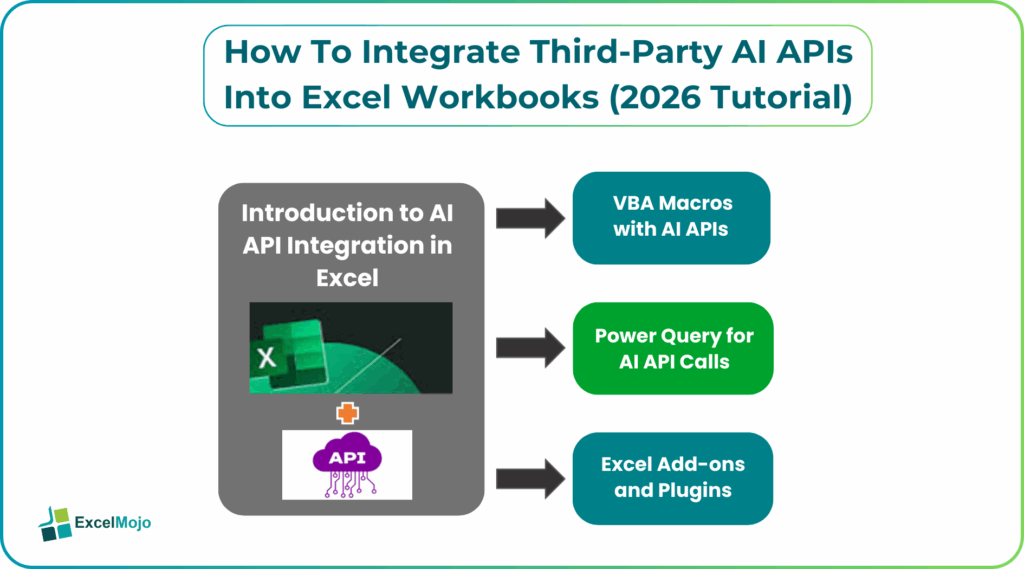
In 2026, Excel is no longer limited to formulas and pivot tables. When we integrate AI APIs Excel, it can summarize customer feedback, classify data, generate insights, perform sentiment analysis, and even create content such as product descriptions or email drafts. These workflows scale efficiently, especially for teams that already rely heavily on Excel for daily operations. By connecting Excel to AI through APIs, businesses can transform static spreadsheets into dynamic, intelligent systems that respond in real time to data changes.
Prerequisites for AI API Setup in Excel
Before we integrate AI APIs Excel, a few technical and non-technical requirements must be in place. These ensure smooth connectivity and reliable results.
As a minimum requirement, users need:
- A supported version of Excel preferably Microsoft 365.
- An active API key from an AI provider like OpenAI, Google Gemini, Anthropic, etc.)
- Internet access for API calls
Basic understanding of Excel workflows
Other optional but helpful prerequisites include:
- Familiarity with Power Query
- Basic VBA knowledge for advanced automation
- Understanding of REST APIs and JSON responses
Most modern integrations are no-code, meaning non-technical users can still implement AI features using guided tools or add-ins.
Method 1: Power Query for AI API Calls
Power Query is one of the most popular and beginner-friendly ways to integrate AI APIs into Excel. It allows users to connect Excel to external data sources, including REST APIs, without writing traditional code.
Using Power Query, Excel can:
- Send selected cell values to an AI API
- Receive structured responses in JSON format
- Convert AI outputs into tables
- Refresh results automatically
Common use cases include:
- Sentiment analysis of customer reviews
- Text summarization
- Category classification
- Data enrichment workflows
The basic workflow using Power Query is as follows:
Open Excel → Data → Get Data → From Web
Nest, enter the API endpoint URL
Add headers and pass request body (prompt or input data)
Transform the JSON response into a table
Power Query is ideal for repeatable, refreshable AI workflows that don’t require user interaction every time.
Method 2: VBA Macros with AI APIs
For advanced users, VBA provides greater control over how we integrate AI APIs Excel. VBA macros allow real-time, cell-level automation where AI results update instantly when data changes.
With VBA, Excel can:
- Send dynamic prompts based on cell values
- Trigger AI calls via buttons or events
- Process API responses programmatically
- Write AI outputs back to specific cells
VBA-based AI use cases focus on speed and automation within Excel. VBA can auto-generate reports by sending data to an AI model and returning structured insights. It enables real-time data interpretation as values change. Custom AI-powered Excel functions allow AI tasks to run like formulas. VBA also supports batch processing of large datasets efficiently and at scale.
While AI API Excel VBA requires basic programming knowledge, it offers unmatched flexibility. Many small businesses use VBA to build internal AI tools without purchasing enterprise software.
Method 3: Excel Add-ons and Plugins
Excel add-ons provide the easiest entry point for integrating AI APIs. These tools abstract technical complexity and allow users to access AI features through a simple interface.
Advantages of add-ons include:
- No coding required
- Pre-built prompts and workflows
- Excel third-party AI integration
- Faster setup
- Built-in error handling
Add-ons are especially useful for teams that want AI capabilities without managing API logic, authentication, or response parsing.
An OpenAI API Excel tutorial shows how to connect Excel to GPT models using Power Query, VBA, or add-ins to automate text analysis, summaries, etc. We can automate Excel with AI APIs as follows:
#1 – OpenAI GPT API Integration
OpenAI’s GPT API is one of the most widely adopted AI services for Excel integration because of its versatility across both analytical and creative tasks. When connected to Excel, GPT can process cell data to generate summaries, analyze sentiment, classify text, and create human-like written content directly inside a spreadsheet. Small teams commonly use it to summarize customer feedback, generate product descriptions at scale, create marketing copy variations, and interpret open-ended survey responses without manual review. Integration options are flexible and include Power Query for refreshable workflows, VBA macros for real-time automation, and Excel add-ins for no-code usage. This adaptability makes GPT models suitable for a wide range of spreadsheet workflows, from structured data analysis to content generation.
#2 – Google Gemini API in Excel
Google Gemini APIs are designed for advanced reasoning, structured outputs, and data-driven insights, making them especially effective for analytical Excel use cases. When integrated into Excel, Gemini performs well in identifying trends, extracting structured information from unorganized datasets, and generating predictive insights based on historical data. Businesses commonly apply Gemini in market trend analysis, large dataset interpretation, and structured data extraction where accuracy and reasoning are critical. Gemini integrates smoothly with Excel through Power Query or middleware services, allowing data-heavy organizations to process complex datasets without exporting them to external platforms.
#3 – Custom REST API Connections
Beyond mainstream AI platforms, Excel can connect to any custom AI or machine learning system that exposes a REST API. This approach is particularly valuable for organizations using proprietary AI models or industry-specific solutions such as demand forecasting engines, risk scoring systems, or internal NLP services. Custom REST API connections provide full control over how data flows between Excel and the AI service, allowing businesses to meet internal compliance requirements and tailor outputs to specific operational needs. Depending on complexity, these integrations are typically implemented using Power Query for structured refreshable calls or VBA for more interactive and event-driven workflows.
Security Considerations for AI APIs
Security is a critical factor when integrating AI APIs into Excel, particularly when spreadsheets contain sensitive financial, customer, or operational data. API keys should never be embedded directly into shared workbooks, as this can expose credentials if files are distributed. Instead, keys should be stored using encrypted storage, environment variables, or secure configuration layers wherever possible. It is also important to limit API permissions to only required scopes, avoid sending regulated or confidential data to external AI services, and regularly monitor API usage logs to detect abnormal activity or cost spikes. Understanding each AI provider’s data retention and processing policies is essential to ensure compliance with privacy regulations and internal governance standards.
Frequently Asked Questions (FAQs)
The most commonly used AI APIs with Excel include OpenAI GPT APIs, Google Gemini APIs, and custom REST-based AI services. The best option depends on whether the goal is text generation, analytics, prediction, or classification.
It is not always needed. Power Query and Excel add-ons allow no-code or low-code integration. VBA and custom REST connections require basic programming knowledge but offer greater flexibility.
When we integrate AI APIs Excel, it is secure when best practices are followed, such as protecting API keys, limiting data exposure, and understanding provider privacy policies. Excel itself does not store AI data unless explicitly written into cells.
Recommended Articles
Continue with these related resources when you want the next practical step in this topic.
- How To Use AI With Excel
- How AI Is Transforming Data Analysis In Excel (2026 Complete Guide)
- Excel AI And Machine Learning: Beginner’s Guide For 2026
- The Most Useful AI Features in Excel: Unlock Smarter Spreadsheets in 2026
- Top Skills for AI-Enabled Excel in 2026 (Must-Master List)
Explore the full Excel AI Automation and Analysis guide or browse Excel Resources.