


What Is LEN Function In Google Sheets?
The Length or the LEN function in Google Sheets counts the number of characters in a selected cell and returns only a numeric value as the output indicating the length or the number of characters found. Since the Google Sheets LEN function is a Text function, it counts letters, numbers, special characters, punctuation marks, and all kinds of spaces (leading, trailing, and between the words).
For example, we have a text for which we will find the length of the same using the LEN Google Sheets Function.

Select cell B2, enter the formula =LEN(A2) and press “Enter”, as shown below.
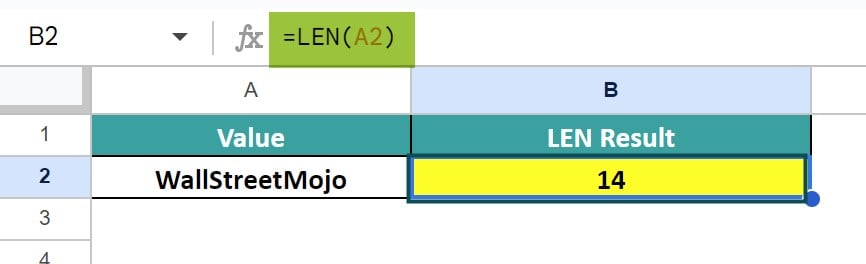
The output is 14, as there are that many letters in the selected string.
Use this LEN Function In Google Sheets Template to follow along with the examples in this article.
Download Excel TemplateKey Takeaways
- The LEN function of Google Sheets is a Text function that counts the characters of the selected data such as a text string, number, spaces, special characters or cell reference, provided as an argument value and it always returns number as an output.
- The argument can be provided as a cell value within double-quotes or a cell reference. But ensure to provide one cell reference at a time, because a cell range will return an error.
- Since the function counts everything in the selected data even the spaces, before after or in-between the strings, the special characters or symbols, we can use the TRIM function to removes extra spaces and give the exact length.
- We can also use the function with some other functions such as RIGHT(), SUBSTITUTE(), IF(), SUMPRODUCT(), etc.
- If the cell value is blank, then the result will be 0 and for a date value the function counts the date dividers too, such as -, /, etc.
Syntax
The syntax of the LEN Google Sheets formula is,

The one and only mandatory argument of the LEN formula in Google Sheets is,
- text: It is the string whose characters are to be counted. It can be supplied as a direct text string (enclosed within double quotes), number or cell reference.
How To Use LEN Function In Google Sheets?
We can use the LEN Function in Google Sheets in two ways, as follows:
- Access from the Google Sheets ribbon.
- Enter the formula in the worksheet manually.
Method #1 – Access from the Google Sheets ribbon
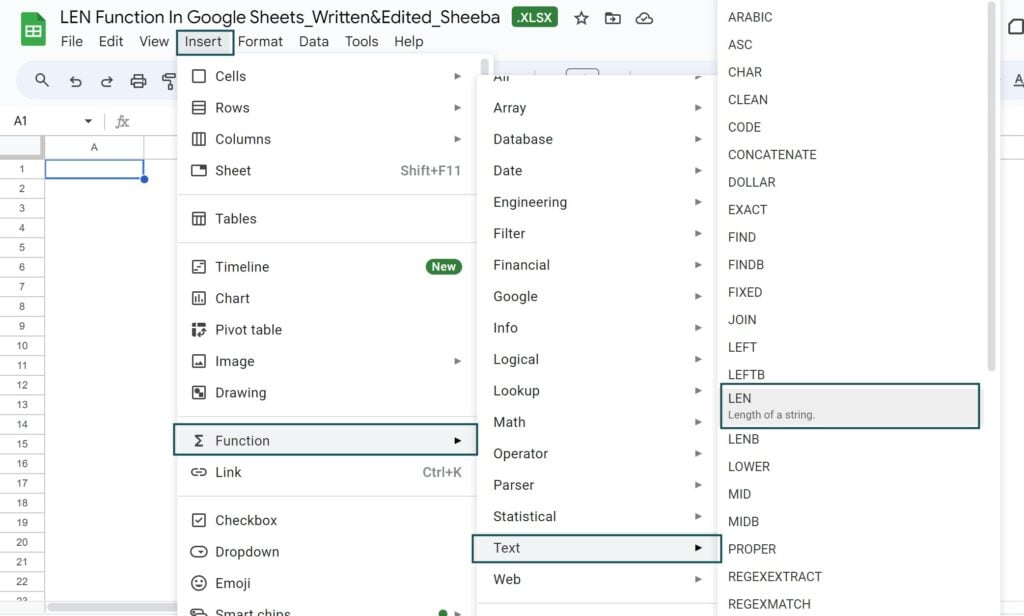
Step 1: Choose an empty cell for the output – select the “Insert” tab – click the “Function” option right arrow – click the “Text” option right arrow – select the “LEN” function, as shown below.
Step 2: The “LEN” formulaappears, as shown below. Enter the argument as cell value or cell reference and press “Enter”.

Method #2 – Enter the formula in the worksheet manually
Step 1: Select an empty cell for the output.
Step 2: Type =LEN( in the cell, as shown below. [Alternatively, type =L or =LEN and double-click the LEN from the Google Sheets suggestions.]
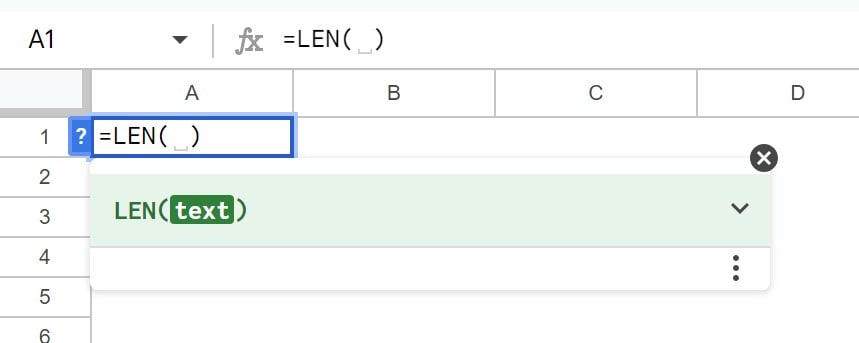
Step 3: Enter the argument as cell value or cell reference.
Step 4: Close the brackets and press “Enter”.
Examples
Let us consider some LEN Function in Google Sheets examples to find the length of various selected data values including and excluding spaces.
Example #1
Consider the dataset given below that consists of various values such as text, numbers, etc. and the details of the values are given in column B. We will find the length of characters using the LEN formula.

The steps to find the length of the given values are,
Step 1: Select cell C2 and enter the formula =LEN(A2), as shown below.

Step 2: Press “Enter” and drag the formula from cell C2 to C7 using the fill handle to get the other results, as shown below.

The output shows that, regardless of the values, the formula returns the length of the same.
Example #2 – Count A Specific Character With A LEN Formula
We have a list of company names in the given dataset. We will Count A Specific Character With A LEN Formula, here, the letter “a”, using LEN() and SUBSTITUTE().
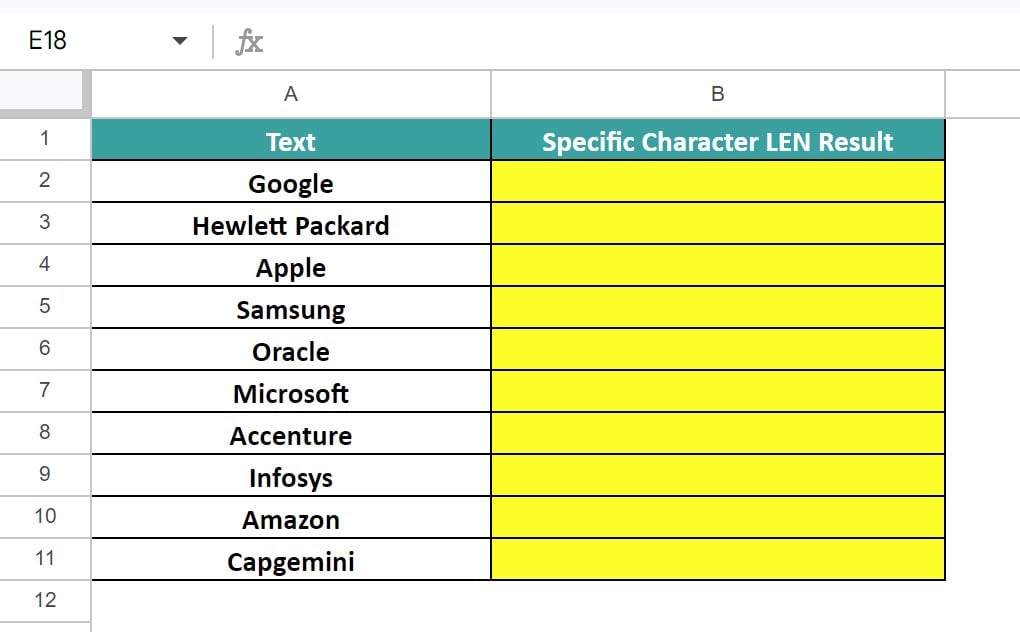
The steps to count how many times the letter “a” appears in the selected data are as follows:
Step 1: Select cell B2 and enter the formula =LEN(A2), as shown below.
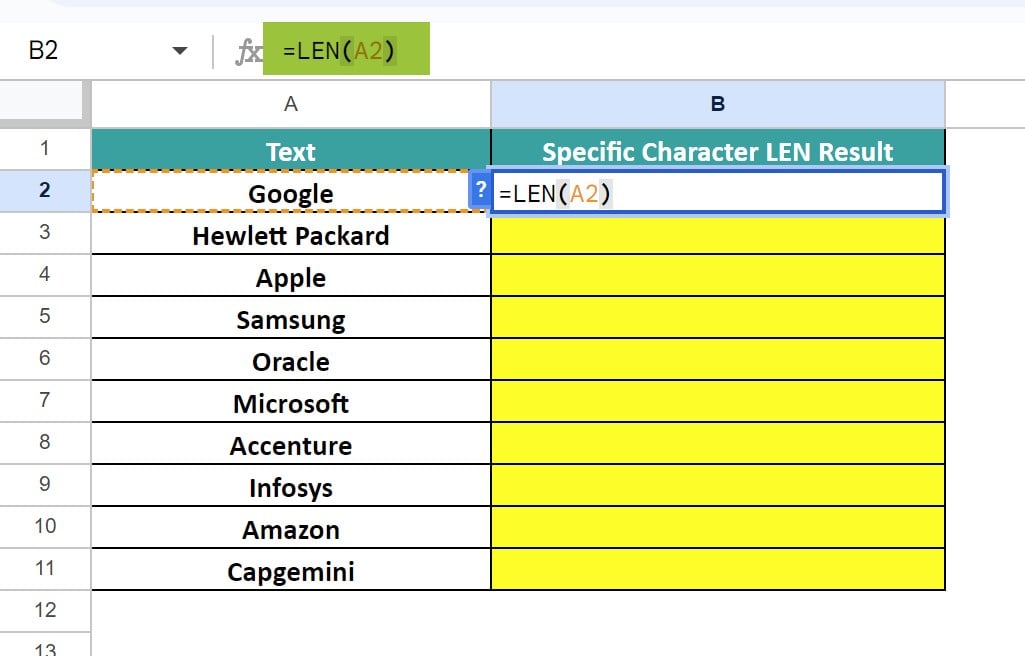
Step 2: Next, in continuation to the formula enter -LEN(SUBSTITUTE(A2,”a”,””)). Then the complete formula is =LEN(A2)-LEN(SUBSTITUTE(A2,”a”,””)), as shown below.
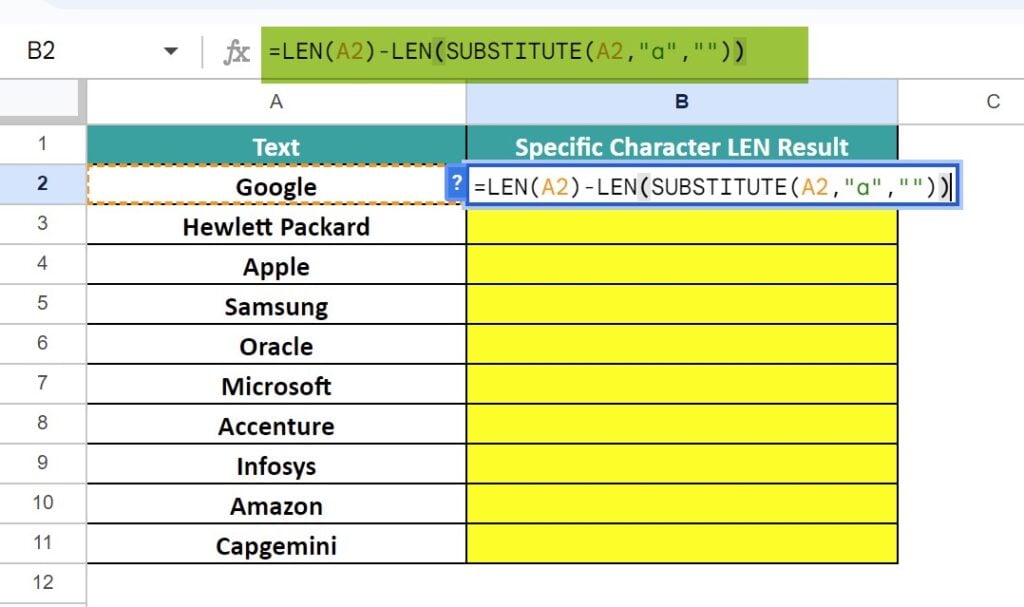
Step 3: Finally, press “Enter”. Google sheet gives the AutoFill suggestion, as shown below. Select it or use the fill handle method, as desired.

The output is shown below.

Example #3 – Separate first and last names
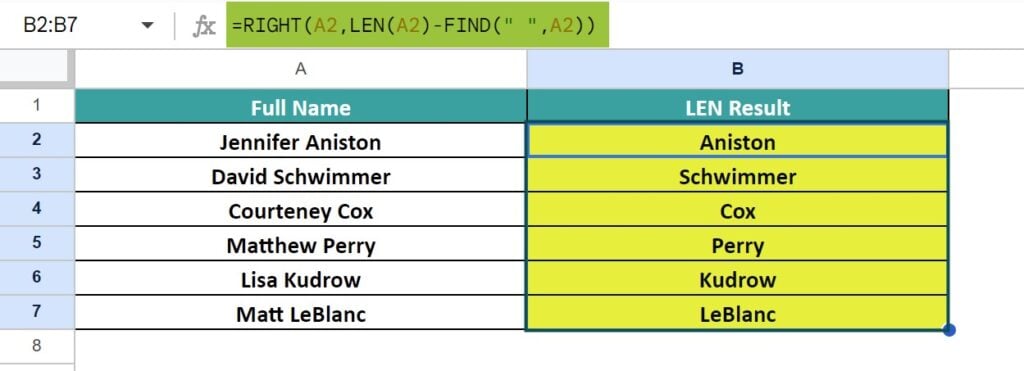
In the dataset below, we have the full names of famous sitcom persons. We will Separate first and last names using the LEN() along with the RIGHT() and the FIND() functions.
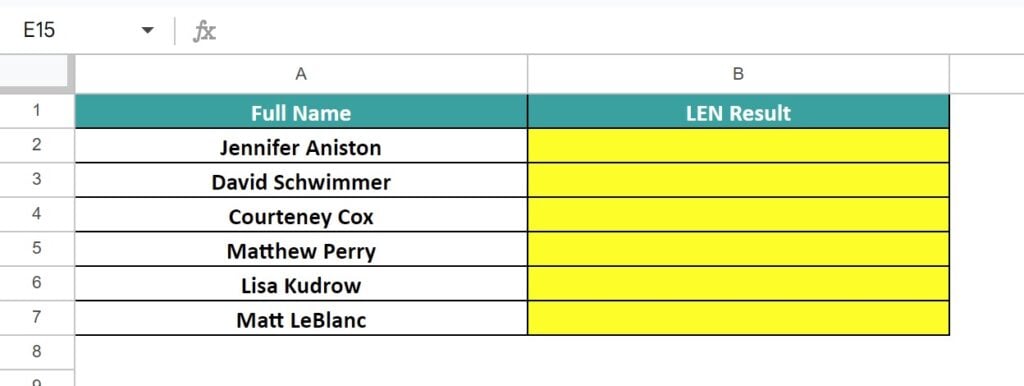
The steps to Separate first and last names are,
Step 1: Select cell B2 and enter the formula =RIGHT(A2,LEN(A2)-FIND(” “,A2)), as shown below.
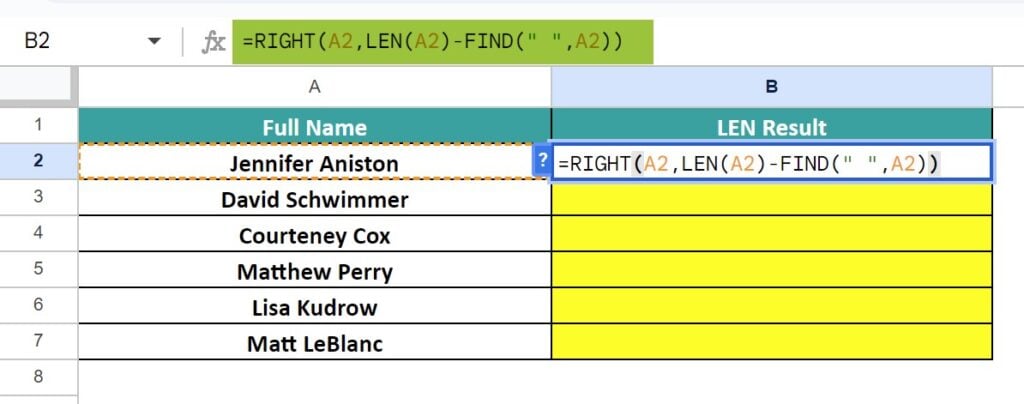
Step 2: Press “Enter” and drag the formula from cell B2 to B7 using the fill handle, to get the following results.
Example #4 – Excluding spaces
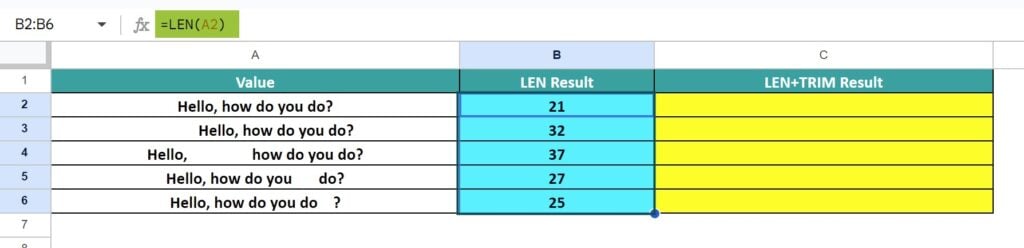
The dataset given below has the same data values, except with some extra spaces. Let us use the LEN() and TRIM() to find the length of characters Excluding spaces. We will see the LEN results as well as LEN+TRIM results for better understanding.

The steps to find length of characters Excluding spaces are as follows:
Step 1: First to find LEN(), select cell B2. Enter the formula =LEN(A2), as shown below.

Step 2: Press “Enter”. Drag the formula from cell B2 to B6 using the fill handle, to get the following results.
Step 3: To exclude unnecessary spaces, select cell C2 and enter the formula =LEN(TRIM(A2)), as shown below.

Step 4: Press “Enter”. Drag the formula from cell C2 to C6 using the fill handle, to get the following results.
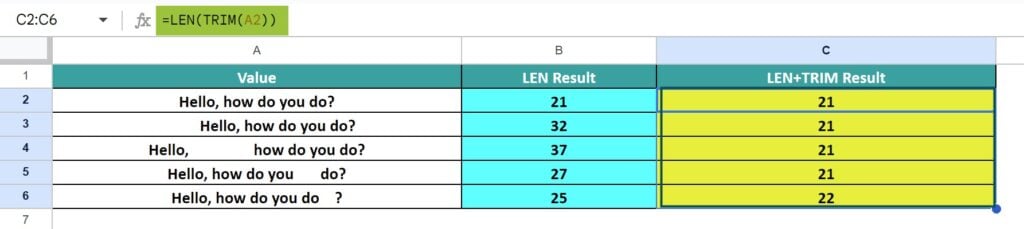
We see that the TRIM removes the spaces that are not required and helps in finding the exact length of the characters.
Example #5 -LEN for a cell range
Consider the Example #3 dataset of names. We will find the total character count of all the names in the dataset using the LEN and SUMPRODUCT.
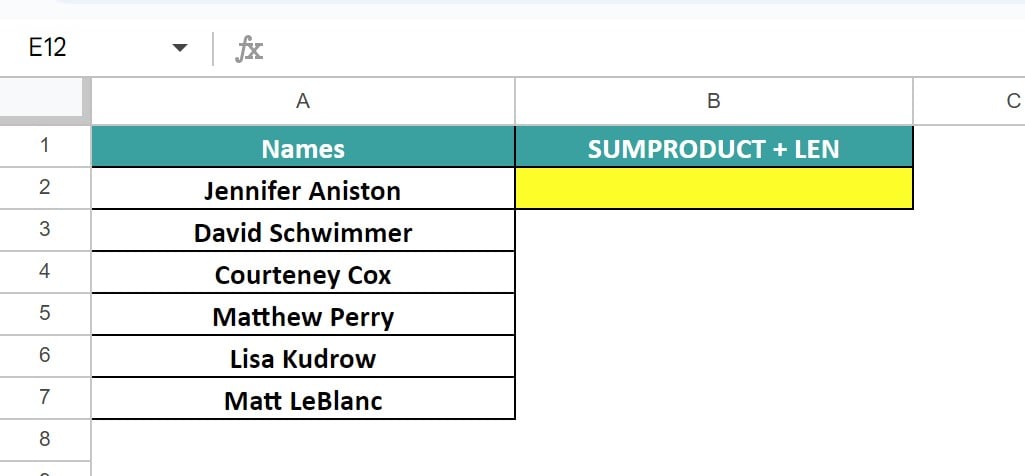
The procedure to find the total characters in a cell range, using the LEN and the SUMPRODUCT functions is,
First, select cell B2 and enter the formula =SUMPRODUCT(LEN(A2:A6)), as shown below.
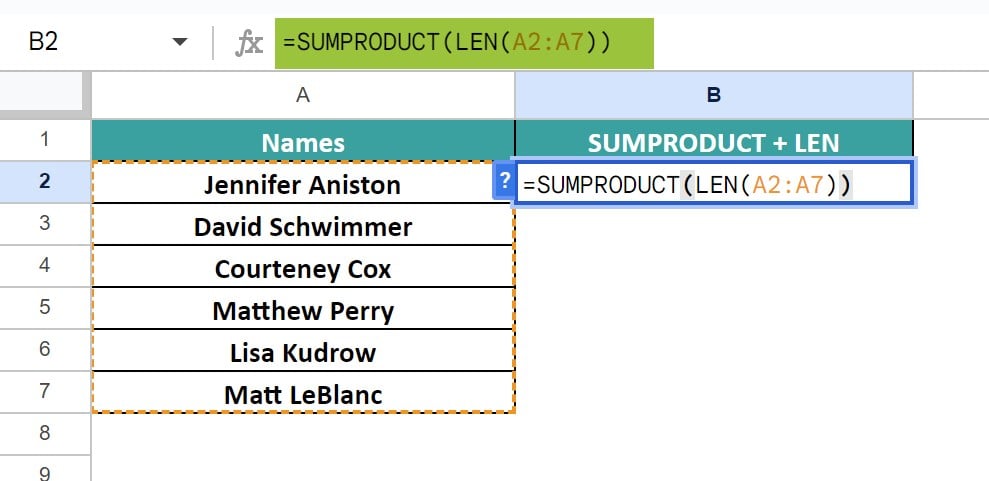
Next, press “Enter” to get the total count, as shown below.

Important Things To Note
- It counts the number of characters of only one cell value at a time and always returns only numeric values as the output.
- It returns the word count of strings when used with the TRIM and SUBSTITUTE functions of Google Sheets, excluding the spaces.
- It returns 0 if a blank or an empty cell is selected.
- We get the #NA error if an argument is not provided or a #VALUE error if the argument provided is a cell range.
Frequently Asked Questions (FAQs)
The LEN function in Google Sheets might not work due to the following reasons,
a. The argument is not provided or a cell range is provided as an argument.
b. We are trying to retrieve other info against the inbuilt purpose of the function.
c. The cell value is entered without double-quotes, treating it as a cell reference.
We often forget in which category a function falls, here, the “LEN” function. Then, we can insert the function as follows:
Choose an empty cell – select the “Insert” tab – click the “Function” option right arrow – click the “All” option right arrow – select the “LEN” function, as shown below.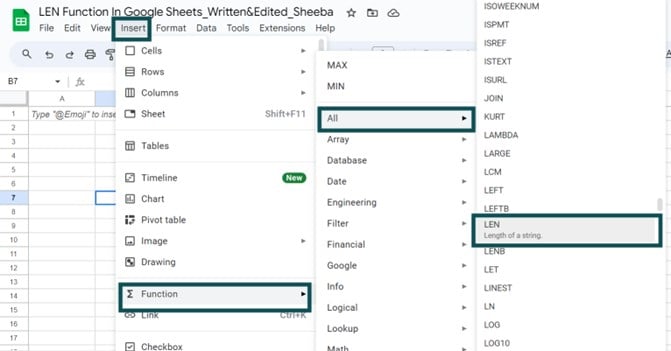
However, as always, entering the function manually is the best way to avoid confusion
Alternatively, we can find the Functions icon to insert the LEN function in Google Sheets by following the path shown below.
Choose an empty cell – click the “More” option represented by the three vertical dots at the end of the toolbar, as shown below.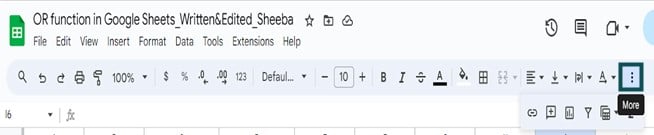
A list of icons appears when we click the “More” option. Here, click the “Functions” icon, as shown below.
Here, click the “Functions” option – click the “All” option right arrow – select the “LEN” function, as shown below.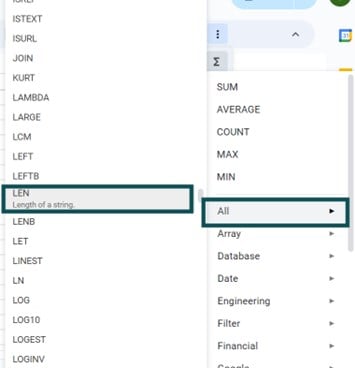
For example, to find the result when we use the LEN function in Google Sheets on a blank cell, we will see the dataset given below where we have a blank or an empty cell.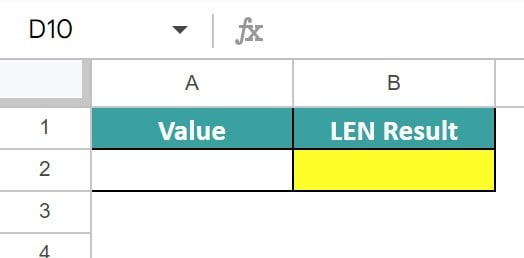
Select cell B2, enter the formula =LEN(A2) and press “Enter”, as shown below.
The output is 0, as the cell is empty or blank and there is no string or text or any value to count.
Use this LEN Function In Google Sheets Template to follow along with the examples in this article.
Download Excel TemplateRecommended Articles
Continue with these related resources when you want the next practical step in this topic.
- Text function in Google Sheets
- Concatenate In Google Sheets
- LEFT Function In Google Sheets
- MID In Google Sheets
- RIGHT Function In Google Sheets
Explore the full Google Sheets Text Functions guide or browse Google Sheets Resources.