


Introduction
Many Power BI modelers sometimes find that a measure returns zero when it should not, flips the sign unexpectedly, or behaves differently when a slicer is changed. The problem is often not a syntax error, which the editor flags with a red squiggle, but a subtle logical or context‑handling mistake that only shows up at runtime. Power BI DAX Studio Copilot measure debugging helps by creating a workflow where the analyst isolates the problematic measure in DAX Studio, runs it in a controlled environment, and then uses an AI assistant, such as Copilot, to interpret the behavior and propose a corrected version.
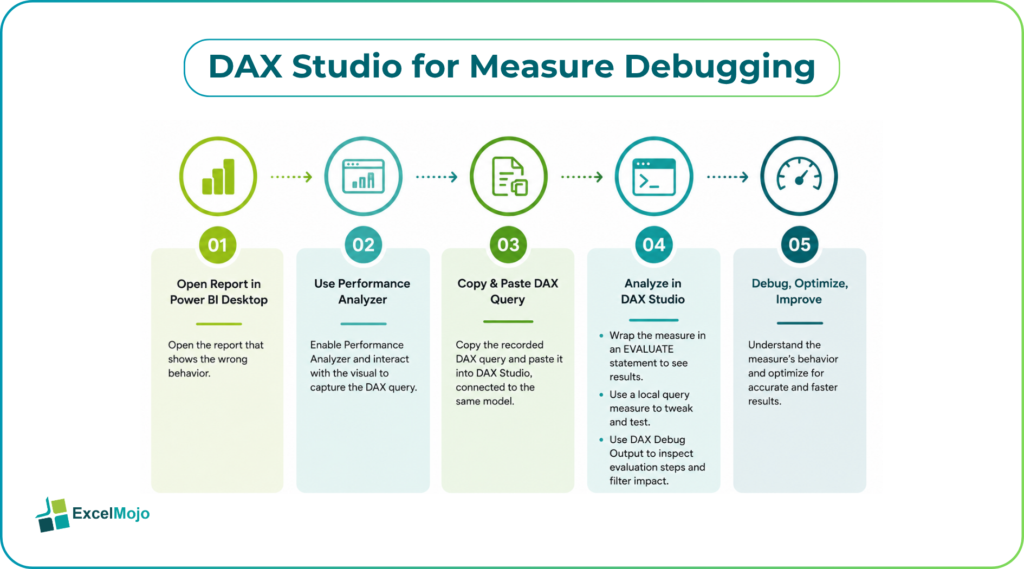
How DAX Studio Helps Isolate a Broken Measure
DAX Studiois a standalone tool that connects to Power BI models, Analysis Services, and other Tabular engines, letting users run raw DAX queries and inspect the underlying evaluation steps.
A typical measure debugging pattern for Power BI DAX Studio Copilot measure debugging:
- In Power BI Desktop, open the report that exhibits the wrong behavior.
- In the View tab, activate Performance Analyzer, then interact with the visual so the engine records the DAX query.
- Copy the recorded DAX query and paste it into DAX Studio, connecting to the same model.
Inside DAX Studio, the analyst can:
- Wrap the measure in an EVALUATE statement to see what it returns in isolation.
- Replace the reported measure with a local query measure that mirrors the original but is easier to tweak.
- Use tools such as DAX Debug Output to capture the evaluation log and see how the measure changes when filters are applied.
This workflow shows how the combination of Performance Analyzer and DAX Studio uncovers the actual DAX sent to the engine, which is critical for diagnosing logical rather than syntactic issues.
How to Involve Copilot in the Debugging Loop
AI assisted DAX Studio Copilot debugging becomes more valuable once the measure is extracted and reproducible in DAX Studio.
A practical pattern:
- In DAX Studio, copy the failing measure and the EVALUATE statement that calls it.
- Paste both into an AI assistant (for example, Copilot in Power BI or an external code‑oriented Copilot‑style tool).
- Ask a specific question such as:
- “This measure returns 0 when it should return monthly revenue; explain what might be wrong and suggest a corrected version.”
- Or: “Here is a DAX EVALUATE that uses CALCULATE and FILTER; the result does not match the underlying table sum. Point out any filter‑context pitfalls.”
Copilot reads the code, the test query, and, in some setups, the sample output, and then returns:
- A high‑level explanation of how the filter context or ALL‑type modifiers may be stripping away expected rows.
- A rewritten measure that respects the intended scoping (for example, by moving filters into the right place or using DIVIDE to avoid division by zero).
Copilot is used to generate, explain, and rewrite measures, but the user must still own the logic and validate against real‑world test cases. For Power BI DAX Studio Copilot measure debugging, the AI is best treated as a second pair of eyes over the DAX, not as the final authority on business rules.
Practical Example: Fixing a Misbehaving % of Total Measure
A common measure debugging scenario is a “% of total” metric that does not behave correctly when sliced by multiple dimensions.
Suppose the model has a measure:
Sales % of Total = DIVIDE(
[Total Sales],
CALCULATE( [Total Sales], ALL( SalesTable ) )
)
When filtered by region, the percentage adds up correctly, but when the user also slices by product category, the numbers suddenly look off because ALL(SalesTable) removes too much context.
Using Power BI DAX Studio Copilot measure debugging:
- The analyst copies the measure and an EVALUATE statement that slices by both region and product and pastes it into DAX Studio.
- They confirm that the result does not match the expected share of total sales at the required level.
- They paste the code into Copilot and ask: “This % of total measure ignores additional filters on product; rewrite it so it respects the current context but still computes a valid share.”
Copilot may suggest using ALLSELECTED instead of ALL, such as:
Sales % of Total = DIVIDE(
[Total Sales],
CALCULATE( [Total Sales], ALLSELECTED( SalesTable ) )
)
The analyst then tests the new version in DAX Studio, validates against a known test case, and, once satisfied, overwrites the original measure in Power BI. This pattern illustrates how AI assisted DAX Studio Copilot debugging can accelerate the repair of subtle logical issues while still requiring the analyst to interpret the business context.
Pitfalls and Best‑Practice Tips
Power BI DAX Studio Copilot measure debugging can speed up troubleshooting, but it also introduces a few important constraints.
One common issue is over‑reliance on AI explanations. Copilot can propose plausible‑looking fixes, but those fixes may not respect complex business rules, such as company‑specific allocation logic or ownership splits. Best practice is to treat every AI‑suggested rewrite as a hypothesis that must pass a battery of test cases and peer review.
Another risk is performance blindness. The new measure may be logically correct but significantly slower, especially if it introduces heavy FILTER expressions or nested CALCULATE calls. Teams should capture the original and new versions in DAX Studio, use evaluation‑log tools, and compare execution plans where possible to ensure the fix does not worsen Power BI DAX Studio Copilot performance tuning goals.
A third pitfall is context confusion. The measure may behave correctly in isolation but break when combined with other visuals or slicers. Analysts should test the fixed measure in the actual report, not just in DAX Studio, and consider using Breadcrumb‑style debugging—breaking the measure into intermediate helper measures—so each step can be inspected independently.
Frequently Asked Questions (FAQs)
Can Power BI DAX Studio Copilot measure debugging replace a model reviewer?
No. DAX Studio and Copilot are diagnostic tools, not governance controls. They can help surface logical issues and explain code, but human review is still essential for validating that measures align with accounting, finance, or commercial policies.
Do Copilot‑assisted DAX Studio sessions require a license beyond the standard Power BI stack?
The core DAX Studio tool is free and open source, but Copilot‑style AI features in Power BI Desktop or Fabric require a Copilot‑enabled license in the workspace. The exact requirements depend on the tenant and subscription model, so analysts should coordinate with their Power BI or Fabric admin before relying on AI‑assisted debugging in shared environments.
How accurate are Copilot suggestions for DAX fixes?
Copilot is generally strong at identifying common DAX patterns, such as misuse of ALL versus ALLSELECTED, or missing DIVIDE wrappers, but accuracy depends on how clearly the problem is described and how clean the model relationships are. Users should always validate suggested measures against a small, well‑understood data slice before pushing them into production.
Can Power BI DAX Studio Copilot performance tuning optimize measures for large datasets?
Yes, DAX Studio can expose the actual DAX sent to the engine and, in some cases, the evaluation logs, which Copilot can use to suggest performance‑aware changes such as pre‑aggregations or simpler filter logic. However, true performance wins often require changes at the model or source‑query level, so the analyst should treat DAX‑level tuning as one lever among many.