


What is PRICEMAT in Google Sheets?
PRICEMAT in Google Sheets is a financial function that calculates the price of a security that pays interest at maturity, based on its expected yield. It determines the price per $100 face value and helps determine the minimum price at which a company can sell a bond to attract investors. The function requires parameters like the settlement date, maturity date, issue date, annual interest rate, expected yield, and an optional day count convention.
The PRICEMAT function is useful for investors and financial analysts to value fixed-income securities by considering factors like the time until maturity and the interest rate. As an example, we calculate the price of a security as follows:
=PRICEMAT(DATE(2020,01,02),DATE(2040,12,31),DATE(2020,01,01),4,1.2).
We get the price as $323.36.

Use this PRICEMAT in Google Sheets Template to follow along with the examples in this article.
Download Excel TemplateKey Takeaways
- PRICEMAT in Google Sheets calculates the price per $100 face value of a bond that pays interest only once, at maturity.
- The function is commonly used to evaluate whether a bond is trading at a premium, discount, or at par based on its coupon rate and market yield.
- The syntax for the PRICEMAT function is:
- =PRICEMAT(settlement, maturity, issue, rate, yield, [day_count_convention])
- PRICEMAT considers actual dates (issue, settlement, and maturity) along with coupon and yield rates to determine the bond’s fair value.
Syntax
The PRICEMAT in Google Sheets formula has several parameters.
=PRICEMAT(settlement, maturity, issue, rate, yield, [day_count_convention])
- Settlement: It is the date when the security is purchased or settled.
- Maturity: It is the date when the security matures.
- Issue – The date the security was initially issued.
- Rate: The annual coupon rate of the security.
- Yield: The security’s annual yield
- Basis: (optional) The day count basis to use. If omitted, it defaults to 0 (actual/actual).
- 1 indicates Actual/Actual – used for US Treasury Bonds and Bills, but also the most relevant for non-financial use.
- 2 indicates Actual/360 – This assumes a 360 day year.
- 3 indicates Actual/365 – This assumes a 365 day year.
- 4 indicates European 30/360 – Similar to 0, this calculates based on a 30 day month and 360 day year, but adjusts end-of-month dates according to European financial conventions
How to Use PRICEMAT function in Google Sheets?
The PRICEMAT function calculates the price per $100 face value of a bond that pays interest at maturity. You can use PRICEMAT in two main ways:
- Enter PRICEMAT manually
- Use the function from the Google Sheets menu.
Enter PRICEMAT manually
To calculate PRICEMAT in Google Sheets manually, follow these steps:
Step 1: Enter the required bond details into your sheet.
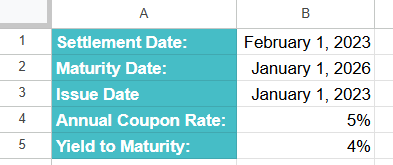
Step 2: Click on the cell where we wish the bond price result to appear. Type the following:
=PRICEMAT(

Step 3: Enter the arguments by referencing the appropriate cells:
=PRICEMAT(B1, B2, B3, B4, B5)
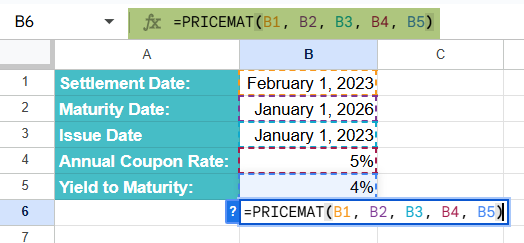
Step 4: Press Enter. The formula will return the price of the bond at maturity based on the inputs provided.
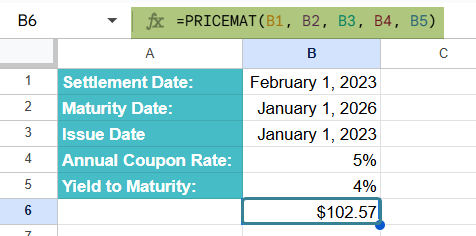
The price will typically be above or below $100 depending on whether the coupon rate is higher or lower than the yield to maturity.
Entering PRICEMAT Through the Menu Bar
- Go to the Insert tab.
- Choose Function -> Financial.
- From the list, select PRICEMAT.
- Fill in the required arguments and press Enter.
Examples
Let’s look at some real-life examples to see how the PRICEMAT function works in different bond scenarios.
Example #1
Let us look at an example where an investor is considering purchasing a government bond. The bond matures in 6 years and pays interest only once—at maturity. The bond’s face value is $100, with an annual coupon rate of 4.5%. However, the current market yield to maturity is 3%. The investor wants to calculate the bond’s price today to decide if it’s a worthwhile purchase.
As this bond pays interest at maturity, we use the PRICEMAT in Google Sheets for this.
Step 1: Enter the bond details as shown below.
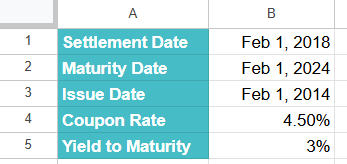
Step 2: Click on the cell where you want the result and enter the formula:
=PRICEMAT(B1, B2, B3, B4, B5)
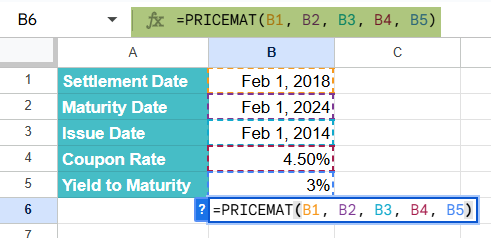
Step 3: Press Enter. You get the bond’s fair price per $100 face value. The calculated price will be approximately $104.88.
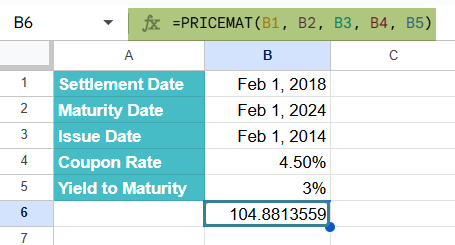
This is above $100 (a premium bond) because the coupon rate is higher than the market yield.
Example #2 – Evaluate whether a bond is overpriced or underpriced based on current market conditions
In this example, an investor is evaluating a corporate bond to see if it is overpriced or underpriced compared to its fair market value. The bond matures in 4 years and pays interest only at maturity. The bond’s face value is $100, with an annual coupon rate of 3%. The current market yield to maturity is 5%.
Since the bond pays its interest at maturity, the PRICEMAT function is ideal for this calculation.
Step 1: Enter the data as shown below:

Step 2: Click on the cell where you want the bond price result to appear. Enter the following formula:
=PRICEMAT(A2, B2, C2, D2, E2)
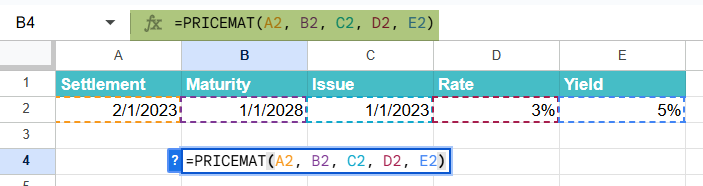
Step 3: Press Enter. The function will calculate the bond’s price per $100 face value, considering the difference between the coupon rate and the yield to maturity.
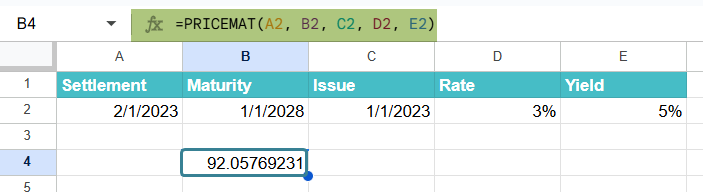
The result will be approximately $92.05, meaning the bond trades at a premium because its coupon rate (3%) is higher than the market yield (5%).
If the market price > $92.05, it is overpriced. If < $92.05, the bond is underpriced and a possible buy.
Here, the PRICEMAT function can reveal whether a bond is fairly priced and as the bond’s price is below $100, it indicates it is trading at a discount. If the market is offering this bond for more than $93.67, it would be considered overpriced
Example #3 – Compare potential returns and risks associated with various bonds
In this example, an investor is comparing three different long-term bonds (10-year maturity) to evaluate which one offers the best balance of return and risk. The details of the bonds are as follows:
The settlement Date is February 1, 2023 and the maturity date is January 1, 2025 (10 years after issue). The issue date is January 1, 2015. The coupon and yield values for the different bonds are:
- Bond 1: Coupon = 6%, Yield = 4%
- Bond 2: Coupon = 4%, Yield = 4%
- Bond 3: Coupon = 2%, Yield = 4%
Step 1: Enter all the details, as shown below.
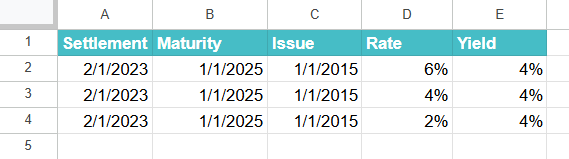
Step 2: In the result cell for each bond, enter the PRICEMAT formula. For Bond 1, we enter:
=PRICEMAT(A2, B2, C2, D2, E2)
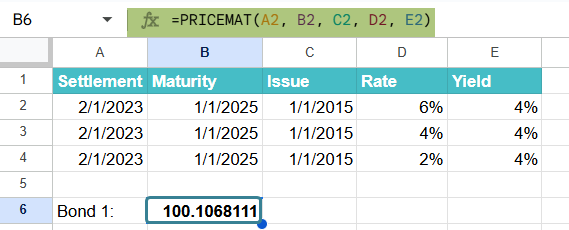
Step 3: Repeat the formula for Bonds 2 and 2 using their respective coupon and yield values.

Step 4: Press Enter for every bond.
Bond 1 Price ≈ $100.10 (Premium bond – coupon rate is higher than market yield). Now, Bond 2 Price = $97.69 (Discount bond – coupon rate is lower than market yield). Bond 3 Price ≈ $95.28 (Discount bond – coupon rate is lower than market yield)
Bond 1 offers higher returns (premium bond) but at the risk of overpaying if market rates rise.
Bonds 2 and 3 are cheaper (discount bond) but provide lower coupon income, so the investor mainly profits if held to maturity.
This example shows how the PRICEMAT function can help investors not only calculate fair bond prices but also compare different bonds side by side.
Important Things to Note
- The settlement, issue, and maturity date should be entered using the DATE function or TO_DATE and not as a text.
- Ensure that the yield, rate, and redemption are all positive values.
- Always use PRICEMAT when the bond pays interest only once at maturity. If bond pays periodic interest (semiannual, annual, etc.) throughout its life, we use the PRICE function.
Frequently Asked Questions (FAQs)
Some of the mistakes include:
1. Entering the dates with incorrect date formats or as a text. The values should be in a specific date format. Always check that the dates are in a valid format, like YYYY-MM-DD, or change the using the DATE function.
2. Coupon rates and yields should be input as decimals. For example, you should enter the values as 5% or 0.05, not 5. Failing to do so will result in incorrect calculations.
3. Never forget to include the basis value, if mentioned. If you’re not sure which value to use, try different values to see how they change your calculations.
PRICEMAT is specifically designed for bonds that pay interest at maturity only, otherwise we use the PRICE function instead. Also, it does not return the total value of an investment but the price per $100 face value. To find the total investment, multiply the result by the total face value of the bonds.
Let us look at some of the errors we get:
#VALUE! – This error occurs if any of the arguments are not of the expected data type.
#NUM! – e get this error if any of the numerical arguments are less than 0, or if the issue date is after the settlement date, or any required fields are left empty.
#NAME? – It occurs if the function is misspelled.
Use this PRICEMAT in Google Sheets Template to follow along with the examples in this article.
Download Excel TemplateRecommended Articles
Continue with these related resources when you want the next practical step in this topic.
- Basic Google Sheets Formulas
- Google Sheets Functions
- Array Formula In Google Sheets
- Comparison Operators in Google Sheets
- Relative References in Google Sheets
Explore the full Google Sheets Formula Basics guide or browse Google Sheets Resources.