


What is MDETERM in Google Sheets?
MDETERM in Google Sheets is a function that calculates the determinant of a square matrix. It takes a single argument, the range or array that represents the square matrix. The function returns a single numerical value representing the determinant of the input matrix.
The determinant is a scalar value in linear algebra that can be computed from the elements of a square matrix. It gives us valuable insight into some properties of the matrix. The input must always be a square matrix with the same number of rows and columns; else the formula will give errors. In the below example, we find the determinant as shown below:

Use this MDETERM in Google Sheets Template to follow along with the examples in this article.
Download Excel TemplateKey Takeaways
- MDETERM in Google Sheets calculates the determinant of a square matrix, which is a single numerical value representing certain properties of that matrix.
- The function is commonly used in linear algebra to determine if a matrix is invertible, and to evaluate the solvability of systems of linear equations.
- The syntax for the MDETERM function is: =MDETERM(range).
- MDETERM only works with square matrices (same number of rows and columns) and returns an error if the matrix is not square.
Syntax
The MDETERM function in Google Sheets is designed to calculate the determinant of a square matrix. A square matrix is defined as one with the same number of rows and columns; for instance, a 2×2 or 4 x 4 matrix.
The MDETERM in Google Sheets formula is straightforward:
=MDETERM(range)
Here, range is the range of cells that comprise your matrix.
- The input is the square matrix range.
- The output is the determinant of this matrix.
For example, if your we enter the matrix in cells B1 to D3, you would enter =MDETERM(B1:D3).
How to Use MDETERM Function in Google Sheets?
The MDETERM function is useful in linear algebra, especially when solving systems of equations or analyzing matrix properties.
To enter the MDETERM in Google Sheets, there are two main ways:
- Enter MDETERM manually
- From the Google Sheets menu
Enter MDETERM Manually
To calculate the determinant using MDETERM in Google Sheets manually, follow these steps:
Step 1: Enter the square matrix into the sheet. Ensure that it is a square matrix. i.e., it has the same number of rows and columns. The matrix is 3×3.

Step 2: Click on the cell where you wish the determinant result to appear. Type =MDETERM( as shown below.
=MDETERM(

Step 3: Now enter the range of the matrix cells and close the parenthesis.
=MDETERM(A1:C3)

Step 4: Press Enter. The result will be the determinant of the matrix. Here, it will return a an positive, negative, or zero value depending on the matrix.
Entering MDETERM Through the Menu Bar
- Go to the Insert tab and choose Function -> Math.
- From the list, select MDETERM.
- A helper tooltip will appear; select the cell range of the matrix.
- Press Enter to calculate the determinant.
Examples
Let us look at some interesting examples on how to use MDETERM for different applications in Google Sheets.
Example #1
We can begin with an example simple to understand. We have a 3*3 matrix as shown below.

Step 1: Enter the matrix in a spreadsheet. We enter it as follows:

Step 2: Use the MDETERM function, in a cell where you want the result.
=MDETERM(A1:C3)

Step 3: You get the result when you press Enter.

Here the result is zero. This means the linear equations do not have a single unique solution or infinite solutions.
Example #2 – Use MDETERM with IF Function
In linear algebra, a set of equations can be represented using a matrix. Suppose we have a system of linear equations as shown below:
2x + 4y + 3z = ?
1x + 5y + 6z = ?
7x + 2y + 8z = ?
We can solve these equations by using matrices to simplify the process. To solve these equations, we must determine if a unique solution exists for them using MDETERM in Google Sheets. Here, for a unique solution, the determinant of the coefficient matrix is non-zero.
Let’s walk through how to work out the solution in Google Sheets.
Step 1: Enter the coefficients of the system into a 3×3 square matrix, as shown below.
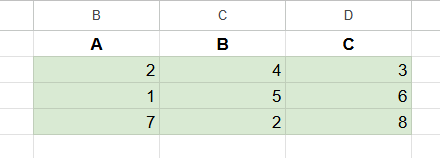
Step 2: Use MDETERM with an IF Statement, to check if the system of equations has a unique solution. We enter:
=IF(MDETERM(B2:D4)<>0, MDETERM(B2:D4), “No unique solution”)
Here,
- MDETERM(B2:D4) calculates the determinant of the 3×3 matrix.
- =IF(MDETERM(B2:D4)<>0 – The IF function checks whether the determinant is not zero.
- If the determinant is not zero, it returns the determinant value.
- If the determinant is zero, it returns “No unique solution”.

Step 3: Press Enter. Here, non-zero determinant → Unique solution possible
Zero determinant → No unique solution (either none or infinite)
This logic can be extended for other calculations like matrix inversion only when a unique solution exists.

Example #3 – Use MDETERM with Conditional Formatting
We have two matrices. Here we should highlight matrices that do not have a unique solution using conditional formatting to check if the determinant is zero. Such solutions are helpful when you’re working with multiple matrices and wish to identify the ones that are non-invertible.
Suppose there are a few 3×3 matrices in a sheet and we must automatically highlight any matrix that doesn’t have a unique solution. We use the MDETERM function to calculate the determinant.
Conditional formatting to change the background color of the matrix if its determinant equals zero.
Step 1: Enter three different 3×3 matrices side-by-side or vertically.

Step 2: Use MDETERM to find the determinants.
=MDETERM(A2:C4)
=MDETERM(E2:G4)
=MDETERM(H2:J4)
Repeat this for each matrix block if you want to view the values.

Step 3: Apply conditional formatting. Select the range of the first matrix, A2:C4.
Go to Format > Conditional formatting.
Under Format cells if, select “Custom formula is”.
Enter the formula:
=MDETERM(A$1:C$3)=0
Choose a fill color to highlight matrices with no unique solution.
Click Done.

Step 4: Repeat this process for the other matrices and see the results.
Apply the same logic to other matrix blocks like E1:G3, updating the cell references accordingly.

The conditional format activates only if the determinant is exactly 0.
$ signs keep the range fixed during formatting so the entire 3×3 matrix responds to a single rule.
Important Things to Note
- The input should be a square matrix, and the matrix should not contain non-numeric values. Else, MDETERM will return an error.
- MDETERM is used for mathematical analysis, solving equation systems, and linear algebra.
- The MDETERM function only works with square matrices. The result of this function is the determinant, a scalar value used in numerous mathematical calculations like finding the inverse of a matrix.
- Use the MDETERM function to check if a matrix is invertible.
Frequently Asked Questions (FAQs)
Let us look at some of the errors MDETERM returns:
We get the #VALUE! error when:
• Any cells are empty or contain text.
• Array does not have an equal number of rows and columns.
We get the #DIV/0! Error when:
• The determinant of the matrix is zero.
• MDETERM is usually calculated with an accuracy of around 16 digits. You may get a small numeric error if this calculation is incomplete.
If the matrix is not square, meaning it has a different number of rows and columns (like 2×3 or 4×2), MDETERM will return a #VALUE! error.
There are some interesting uses for MDETERM in the real-world.
Computer Graphics: They’re used to transform coordinates in 3D graphics, making them essential for game development and animation. Many popular games use this function.
Engineering: They are used in areas such as civil engineering where the determinants can help in analyzing structural stability and forces.
Economics: Determinants can help solve linear equations for economic modelling in In quantitative finance.
1. MDETERM is often used with other matrix functions for complex matrix related calculations. Some of them include:
2. MINVERSE – It is used to find the inverse of a matrix.
3. MMULT – It is used in matrix multiplication.
4. TRANSPOSE – It flips a matrix over its diagonal, switching rows and columns
Use this MDETERM in Google Sheets Template to follow along with the examples in this article.
Download Excel TemplateRecommended Articles
Continue with these related resources when you want the next practical step in this topic.
- Basic Google Sheets Formulas
- Google Sheets Functions
- Array Formula In Google Sheets
- Comparison Operators in Google Sheets
- Relative References in Google Sheets
Explore the full Google Sheets Formula Basics guide or browse Google Sheets Resources.