


Introduction to Excel Voice AI
Voice-activated AI in Excel has evolved from simple accessibility tools into sophisticated assistants that can automate complex data analysis, formula generation, and formatting through natural language. Voice AI for Excel allows users to interact with spreadsheets using spoken language instead of traditional inputs like keyboard and mouse. By leveraging Natural Language Processing (NLP), these tools understand conversational commands to perform tasks like creating charts, updating data, etc., which is particularly beneficial for multitasking and accessibility.
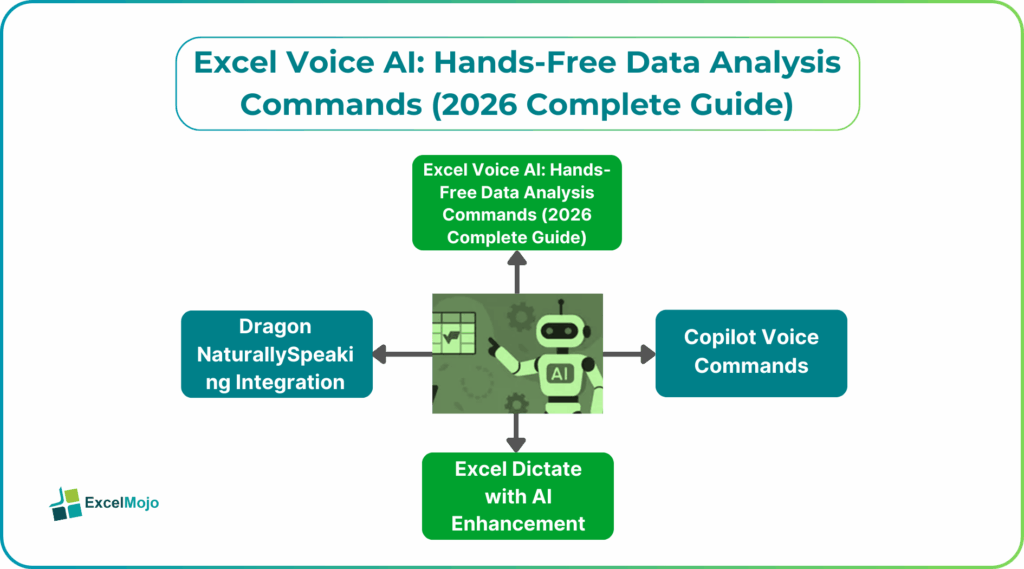
Native Excel Voice AI Features
Microsoft has integrated voice capabilities directly into its ecosystem, chiefly through the Microsoft 365 Copilot platform. They are very useful and can be fine-tuned to meet the requirements of your workflow.
#1 – Copilot Voice Commands
Copilot in Excel has a microphone button that allows for interaction without the need for any specific hardware. Its main functionality is that you can ask questions about your data, request for summaries, or get suggestions by speaking directly to the application. It’s simple, fast and accurate enough to meet the requirements of any organization.
Users can give commands such as “Suggest a formula to calculate average sales per region” or “Show in bold the top 3 values in Annual Sales,” and the3y can get immediate answers. Besides, advanced interaction is also possible. You can begin a voice chat by saying “Hey Copilot” in the desktop app. This allows for a continuous conversation where you can interrupt or ask repeated questions.
#2 – Excel Dictate with AI Enhancement
The Dictate feature in Microsoft 365 has been improved with AI to enhance its transcription accuracy.
One can directly enter data into it through the “Dictate” button on the Home tab. It allows users to input content into cells or note sections using their voice. It has many intelligent features with AI enhancements that allow easy dictation and can automatically correct grammar and punctuation as you speak. This Excel Voice AI is a wonderful tool for those not so familiar with the nitty-gritties of the English language.
The Windows 11 also has voice access. This is a system-level feature that allows users to move between cells by saying “Press Tab” or specific numbers and dictate text as necessary.
Third-Party Voice AI Tools for Excel
For power users needing deeper integration or industry-specific workflows, third-party solutions offer specialized voice control that can meet their requirements. Let us look at some of the best third party voice Excel voice AI tools.
#1 – Dragon NaturallySpeaking Integration
Nuance’s Dragon software provides robust natural language commands specifically for Excel.
Quick Edit Mode: This mode automatically overwrites cell content when you begin dictating after selecting a cell.
Full Edit Mode: It can be accessed by by saying “Edit Cell.” It allows for modifying existing content within a cell, supporting line and paragraph commands.
Navigation & Formatting: This feature supports complex commands like “Go to cell A1,” “Set column width to 20,” or “Format that Arial 10 points bold”.
#2 – Voice In + Excel Add-on
Third-party browser extensions and specialized add-ons like Speech4Excel bridge gaps not covered by native features.
- Speech4Excel: It is designed for professional environments like laboratories where hands are not free, it allows for high-speed data entry and technical term recognition without needing an internet connection for basic modes.
- Voice In: This is typically used for browser-based versions of Excel, but it also enables dictation into any text field, allowing users to populate web-based spreadsheets through simple voice-to-text.
Step-by-Step Voice Setup Guide
Excel voice AI features allow you to enter data, navigate sheets, and perform analysis without traditional keyboard inputs. By combining built-in Dictation for data entry and Analyze Data for natural language queries, you can achieve a nearly hands-free workflow. AI speech in Excel lets users control data entry, analysis, and formatting using natural voice commands instead of a keyboard or mouse.
To start using your voice in Excel, you must enable system-wide recognition and then activate specific Excel features. Let us look at the steps needed for the same.
- System Preparation: Ensure your microphone is connected and enabled in your OS settings. On Windows, search for “Speech Recognition” in the Control Panel and follow the setup wizard to calibrate your voice.
- Enable Dictation: In Excel 365, click the Dictate button on the Home tab to configure Text-to-Speech Optionally, you can also right-click the Quick Access Toolbar, select More Commands, and add Speak Cells to have Excel read data back to you.
- Activate Voice Access in Windows 11: Press Win + H to open the Windows voice typing menu, which allows you to dictate directly into any active cell.
Voice Command Examples by Use Case
For data entry and editing, we use the following voice commands.
- To insert Numbers: Say “one hundred point five” to enter 100.5 into a cell.
- To correct Mistakes: Say “Scratch that” or “Delete that” to remove the last dictated entry.
For formatting: For Excel voice AI, use commands like “Bold”, “Italic”, or “Font color red” on selected cells.
- For cell movement: Say “Move down 3” to skip two rows and land three cells down.
- For specific jumping: Say “Go to A1” or “Next sheet” to navigate the workbook.
- For scroll control: Use “Scroll up” or “Scroll down 2 pages” for long datasets.
For data analysis & formulas, we can use:
Basic Math: Say “Sum”, “Average”, or “Maximum” to insert these functions into the active cell.
Natural Language Queries: Open the Analyze Data pane (Home tab) and click the microphone icon to ask questions like:
- “Show me a bar chart of sales by region”.
- “What is the average profit for 2024?”.
Frequently Asked Questions (FAQs)
Microsoft 365 Copilot with voice support works best for hands-free Excel analysis, summaries, and natural language queries in Excel. Dragon NaturallySpeaking offers the most precise control for navigation, editing, and formatting using voice commands. For browser-based Excel and quick dictation, tools like Voice In and Speech4Excel are effective add-ons.
You cannot fully create PivotTables using voice alone in Excel as of 2026. However, you can use Excel voice commands 2026 with Copilot to analyze data, suggest summaries, and explain insights that PivotTables would normally provide. Voice input is mainly used to guide analysis rather than execute complex structural actions.
Excel voice AI is accurate for data queries, summaries, and basic analytical tasks when combined with Copilot and Analyze Data. For complex modeling or advanced formulas, voice commands as prompts are best rather than direct execution tools. The accuracy of voice commands improves when users give clear, structured voice instructions and refine them further for best results.
Recommended Articles
Continue with these related resources when you want the next practical step in this topic.
- How To Use AI With Excel
- How AI Is Transforming Data Analysis In Excel (2026 Complete Guide)
- Excel AI And Machine Learning: Beginner’s Guide For 2026
- The Most Useful AI Features in Excel: Unlock Smarter Spreadsheets in 2026
- Top Skills for AI-Enabled Excel in 2026 (Must-Master List)
Explore the full Excel AI Automation and Analysis guide or browse Excel Resources.