


Introduction to AI Budget Planners in Excel
Budget planning is an important aspect for the successful running of any household or business. It helps individuals and businesses manage income and expenses effectively, helping maintain financial control and achieve goals.
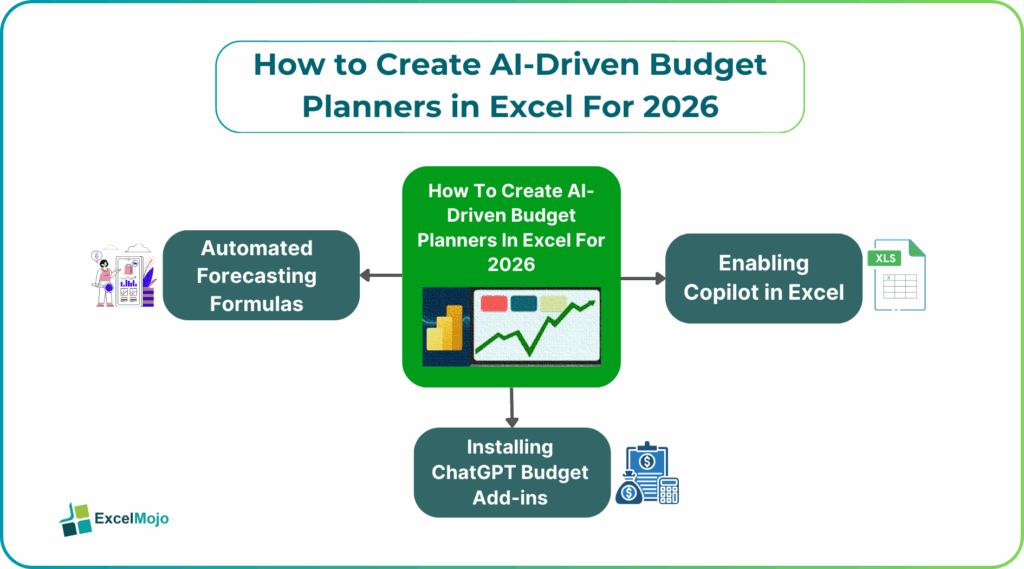
Using Excel for budget planning is very useful because it organizes data efficiently. Further, it automates calculations and enables clear financial analysis through the use of formulas and charts. AI-driven budget planning in Excel uses tools like Microsoft Copilot or ChatGPT add-ins. These generative AI agents automate budget creation, analyze spending, suggest formulas, and provide insights. All this can be done with the help of structured templates, data formatting, and commands via prompts. They help generate budgets and identify any anomalies, thus visualizing financial trends for better control.
Setting Up AI Tools for Budget Creation
When we wish to use AI tools in Excel, the first step involves setting them up. When you install these tools in Excel for budget creation, they enable faster, more accurate financial planning by automating data analysis and forecasting. The AI-powered features of these tools helps users transform raw financial data into well-defined and planned budgets with minimal manual effort. These tools help identify spend patterns, predict future expenses, and reduce human errors in calculations. The integration of AI in Excel helps businesses create dynamic, data-driven budgets that adapt to changing financial conditions.
#1 – Enabling Copilot in Excel
The name Copilot is synonymous with Excel when it comes to discussing the best AI agent we can use with it. To access Copilot to create budget Excel Copilot, go to the Copilot icon on the Home tab.
Next, type prompts like “Create a monthly budget for a household of three with an $80k yearly income, with housing, food, etc.” to generate a structured budget table with formulas.
Once this is done, you can highlight spending data and ask Copilot for totals or use “show data insights” to find trends. Use these insights to plan your budget.
#2 – Installing ChatGPT Budget Add-ins
Another name that springs to mind when we wish to apply AI budget planner Excel includes ChatGPT. To add it into Excel,
- Search for “ChatGPT for Microsoft Excel” or any similar ChatGPT extensions on the Excel add-in store.
- Click the “Open in Excel” on the add-in’s page to launch the integration process.
- You can utilize custom functions to pull data, summarize text, or generate budget components directly within your spreadsheet.
#3 – Preparing Financial Data Templates
Let us look at the steps involved in preparing templates for the process of financial budgeting.
Format your financial data into tables with clear columns for categories like Income, amounts, and dates.
You must enter income sources and expense types (utilities, food).
You can then add basic Excel formulas like SUM to automatically calculate totals. The AI tools can then analyze the results and provide significant insights.
Step-by-Step AI Budget Planner Creation
Excel AI budgeting 2026,
Creating an AI budget planner Excel requires patience. You must define categories, using ML for forecasting, and implement dynamic variance analysis for real-time insights. Let us look at them in a little more detail.
#1 – Generate Income and Expense Categories
- First gather all historical financial data like transactions, bills, etc.
- For the initial set-up, define core categorieslike Housing, Food, Transport, Salary, Investments and sub-categories.
- Use Natural Language Programming (NLP) to automatically suggest granular categories from transactions you provide.
#2 – Automated Forecasting Formulas
You can choose from models like ARIMA, Prophet, neural networks) for time-series forecasting.Train the model on historical data to predict future income and expenses. Integrate formulas like moving averages, exponential smoothing, etc. into the AI for baseline predictions.
#3 – Smart Expense Categorization
In this step, you can use classification algorithms (like SVM) to learn patterns from categorized data. You can combine ML with user-defined rules for categorizing your expenses.
#4 – Dynamic Variance Analysis
This part involves automatically comparing actual spending against forecasted/budgeted amounts. You can use AI to flag significant overspending or underspending. AI also helps generate alerts or reports explaining why variances occurred. This, helps you adjust your spendings or savings accordingly.
Top AI Prompts for Budget Automation
Using AI tools within Excel requires specific, actionable prompts. Here are the top prompts for budget automation based on industry use cases:
If you wish to structure your spendings
“Act as a financial analyst. Create a detailed 12-month, multi-category household budget template in Excel, including columns for planned, actual, and variance analysis.”
“Create a monthly budget table for a small business with categories for COGS, salaries, rent, and marketing, and include a column for ‘percentage of income’.”
For data categorization
“Review the transaction data in column A to C, and automatically categorize them into [Food, Utilities, Rent, Transport] in column D.”
“What are the top 3 spending categories that went over budget this month based on this data? Provide a summary.”
Common Budget AI Issues and solutions
AI budget planner Excel: While AI is a powerful tool for budget planning and smart analysis, it often relies on existing, messy data that leads to common issues that can hinder efficiency.
Issue: Inaccurate Data/Hallucinations
Answer: Never rely solely on AI output. You must verify AI responses and formulas against raw data.
Issue: Inconsistent Input Data
Solution: Use AI data cleaning tools to standardize formats, remove duplicates, and structure data if you want to apply complex formulas.
Issue: “What-If” Complexity
Solution: Instead of rigid formulas, use AI to generate dynamic formulas to automatically adjust when new categories are added.
Issue: Lack of Context
Solution: Provide detailed context in prompts (e.g., “Act as a CFO,” “Using last year’s data”). If the result is poor, rephrase the prompt in a better way.
Issue: Data Security Concerns
Solution: Use enterprise-grade, secure AI tools that comply with data protection regulations, especially when dealing with sensitive financial data for smart budget Excel AI.
Frequently Asked Questions (FAQs)
AI automates data summarization, identifies spending patterns, and generates insights, transforming raw data into actionable financial understanding. It boosts accuracy with predictive forecasting and automates complex tasks, freeing users for strategic financial decisions rather than manual number crunching.
Let us look at some interesting prompts.
“Summarize my top spending categories this month and suggest ways to reduce them by 10%”.
“Create a budget forecast for the next quarter showing best-case, worst-case, and likely scenarios based on my current spending”.
AI allows you to model different financial outcomes like market changes or income fluctuations. This enables proactive planning by showing potential results for various inputs, helping you prepare for multiple future possibilities.
Recommended Articles
Continue with these related resources when you want the next practical step in this topic.
- How To Use AI With Excel
- How AI Is Transforming Data Analysis In Excel (2026 Complete Guide)
- Excel AI And Machine Learning: Beginner’s Guide For 2026
- The Most Useful AI Features in Excel: Unlock Smarter Spreadsheets in 2026
- Top Skills for AI-Enabled Excel in 2026 (Must-Master List)
Explore the full Excel AI Automation and Analysis guide or browse Excel Resources.