


What Is Change Case In Google Sheets?
Change Case in Google Sheets refers to changing the alphabets or text case in a dataset from capital to small letters or vice versa, to title case or writing a sentence in a proper format.
The Google Sheets Change Case can be performed using the LOWER, UPPER and the PROPER functions in Google Sheets to generate organized and professional reports.
Use this Change Case In Google Sheets Template to follow along with the examples in this article.
Download Excel TemplateFor example, consider the text in the image below entered in the correct case. We will use either of the case function and change to a different case.
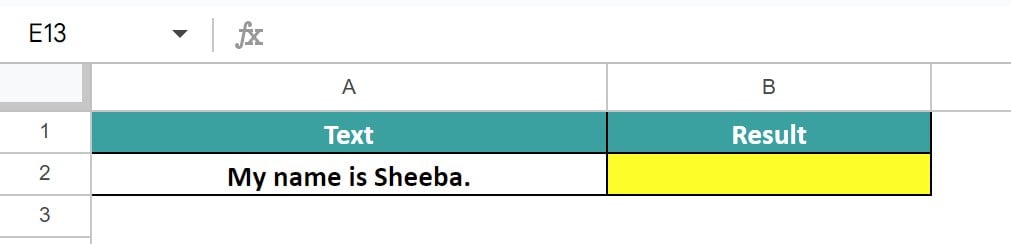
Select cell B2, enter the formula =UPPER(A2) and press “Enter”, as shown below.
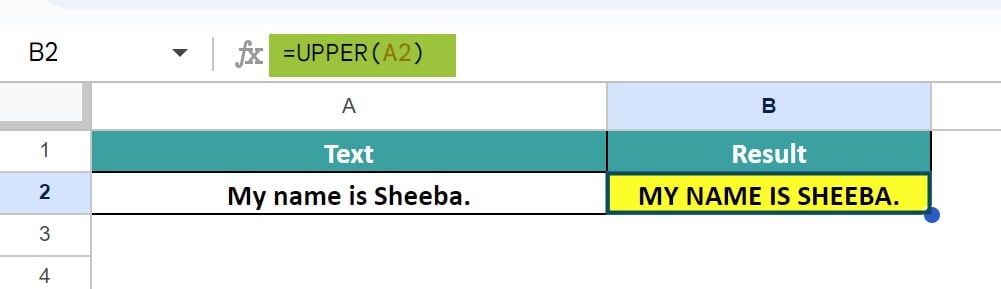
The output is shown above where the proper sentence case text is changed to Upper case. Likewise, we can apply change case in Google Sheets to change the text into lower, upper or proper.
Key Takeaways
- The Change Case In Google Sheets helps us change the text or sentences from an existing case to upper, lower or title case.
- Regardless of the case, we can use the UPPER function to convert to capital or uppercase letters, LOWER function to convert to small or lowercase letters and the PROPER function to convert to title case.
- We can select only one cell value at a time and not a cell range of values. And also only case of the text will change according to the formulas used, but the numeric values or the symbols remain untouched or unaltered.
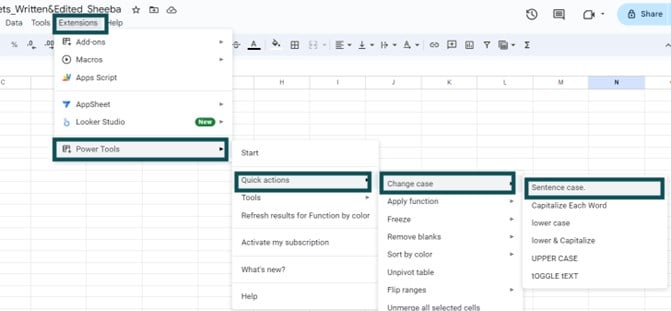
- Like MS Document to change case, we can use the “Extensions – Power Tools – Quick Actions – Change case” path to change case without any functions.
Google Sheets Function To Change Case
The three Google Sheets Functions to Change Case are,
- PROPER function.
- UPPER function.
- LOWER function.
#1 – PROPER function In Google Sheets
The PROPER Change Case in Google Sheets converts the existing text case to the title case, i.e., all the first letters of the selected text or sentence will change to capital letters or upper case and the rest will be converted to small letters or lower case.
The syntax of the PROPER function is:
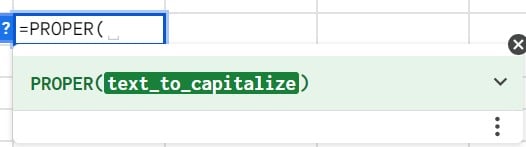
The one and only mandatory argument of the PROPER function is:
- text_to_capitalize: It is the selected text that is converted to the title case.
#2 – UPPER function In Google Sheets
The UPPER Change Case in Google Sheets converts the existing text case to capital letters, i.e., the selected text or sentence will be converted to capital letters or upper case regardless of the existing case.
The syntax of the UPPER function is:

The one and only mandatory argument of the UPPER function is:
- text: It is the selected text that is converted to capital letters or upper-case letters.
#3 – LOWER function In Google Sheets
The LOWER Change Case in Google Sheets converts the existing text case to small letters, i.e., the selected text or sentence will be converted to small letters or lower case regardless of the existing case.
The syntax of the LOWER function is:
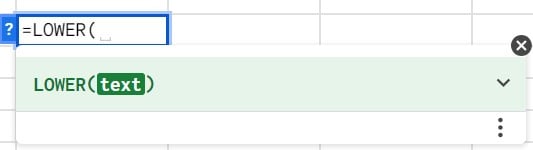
The one and only mandatory argument of the LOWER function is:
- text: It is the selected text that is converted to small letters or lower-case letters.
Examples
Let us consider some Change Case in Google Sheets examples from existing random case to uppercase, lowercase, sentence case, capitalize, etc.
Example #1 – Change Lower Case To Upper Case
Consider the dataset given below that consists of the names of the seven continents entered in lowercase letters that must be converted to uppercase. Therefore, we will use the UPPER function.

The steps Change Lower Case To Upper Case are:
Step 1: Select cell B2 and enter the formula =UPPER(A2), as shown below.
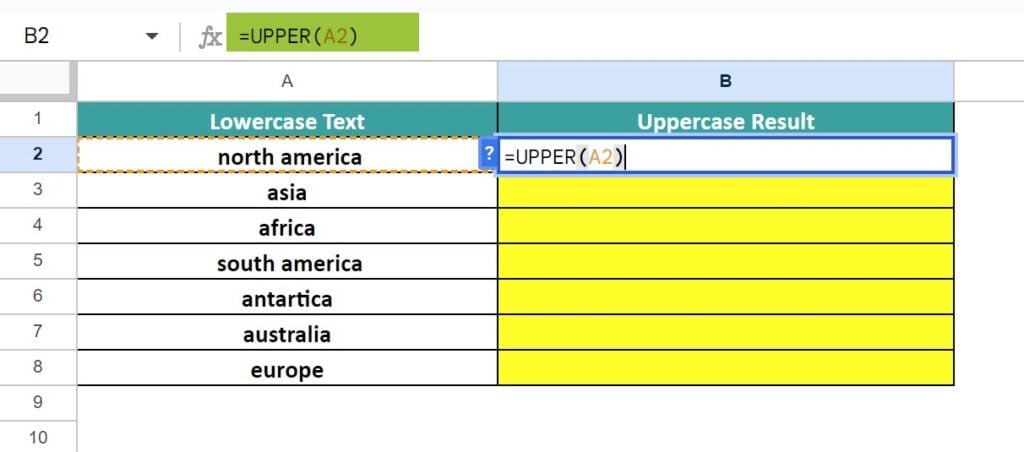
Step 2: Press “Enter” and Google Sheets gives us an Autofill option, as shown below. We can either choose that or use the fill handle method.

Step 3: Drag the formula from cell B2 to B8 using the fill handle, to get the following results.

Example #2 – Change AllCaps To Lowercase
Let us take the result of the Example #1 dataset that was converted to all uppercase and now we will convert it all to lowercase. Now, we will use the LOWER function.
The steps Change All Caps To Lowercase are:
Step 1: Select cell B2 and enter the formula =LOWER(A2), as shown below.

Step 2: Press “Enter” and drag the formula from cell B2 to B8 using the fill handle, to get the following results.

Example #3 – Change To Tiltle Case
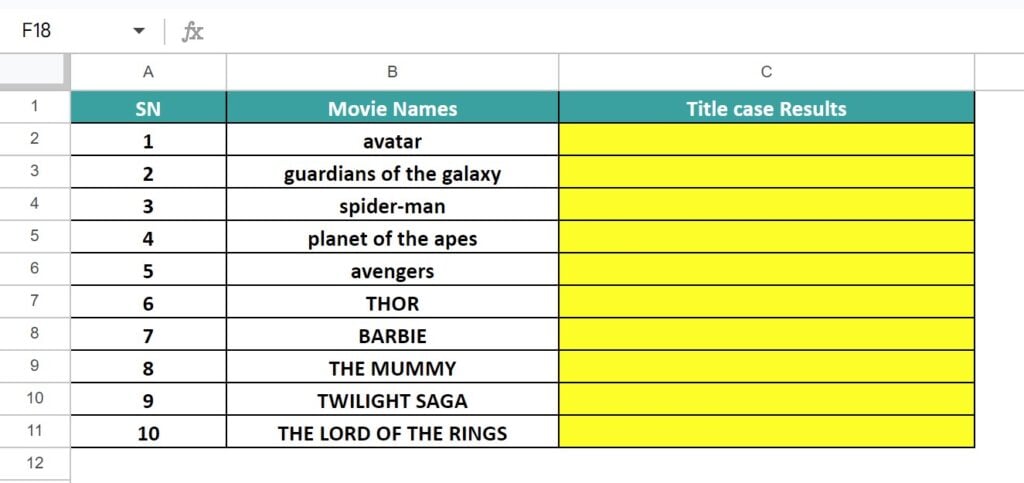
The dataset given below consists of top 10 Hollywood movies with sequels entered in lowercase and uppercase. We will convert the entire dataset To Title Case using the PROPER function
The steps Change To Title case are:
Step 1: Select cell C2 and enter the formula =PROPER(B2), as shown below.

Step 2: Press “Enter” and drag the formula from cell C2 to C11 using the fill handle, to get the following results.

Example #4 – Apply Sentence case using functions
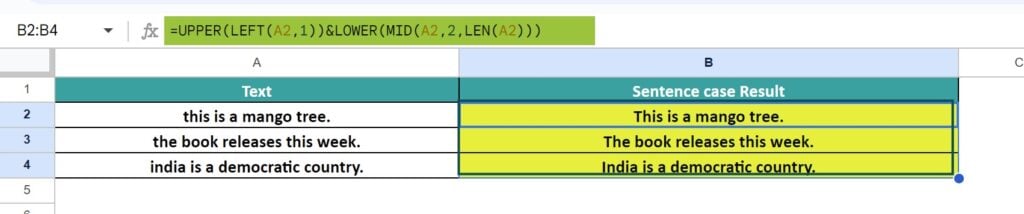
We have the below dataset with some sentences. Let us use a combination of functions to convert them to sentence case.
The steps to Apply Sentence case using functions are:
Step 1: Select cell B2 and enter the formula =UPPER(LEFT(A2,1))&LOWER(MID(A2,2,LEN(A2))), as shown below.

Step 2: Next, press “Enter” and drag the formula from cell C2 to C4 using the fill handle, to get the following results.
Change Text Case With Power Tools Add-On
The steps to Change Text Case With Power Tools Add-On are as follows:
Step 1: First, to add the Power Tools if it is not previously available, select the “Extensions” tab – click the “Add-ons” option right-arrow – select the “Get add-ons” option, as shown below.

Step 2: The “Google Workspace Marketplace” window appears, as shown below, that has many installed apps for download. Finally, in the “Search bar”, type “Power Tools” and click the app and proceed with the installation.

Step 3: Then in the “Extensions” tab, we will see the “Power Tools” option, as shown below.

Step 4: Finally, to change the case, select the “Extensions” tab – click the “Power Tools” option right-arrow – click the “Quick actions” option right-arrow – select the “Change case” option right-arrow – choose the required case, such as “Sentence case”, “Capitalize Each Word”, “lower case”, “lower & Capitalize”, “UPPER CASE” or the “tOGGLE tEXT” options, as shown below.
Important Things To Note
- The Change Case in Google Sheets works only on characters A-Z. The numerical values and special characters remain unchanged.
- The PROPER function converts the letter after a special character or punctuation into uppercase.
- We cannot select a part of a text within a cell and change the case.
- Each formula to change case in Google Sheets takes only one argument as input. Thus, we can enter a text within double quotes or select one cell reference to text value as an argument.
- Also, we cannot enter multiple texts or cell references, separated by commas or even a cell range because all these instances will throw an error.
Frequently Asked Questions (FAQs)
The steps to insert the PROPER Change Case In Google Sheets are,
Select the cell with text – select the “Insert” tab – click the “Function” option right arrow – click the “Text” option right arrow – select the “PROPER” function, as shown below.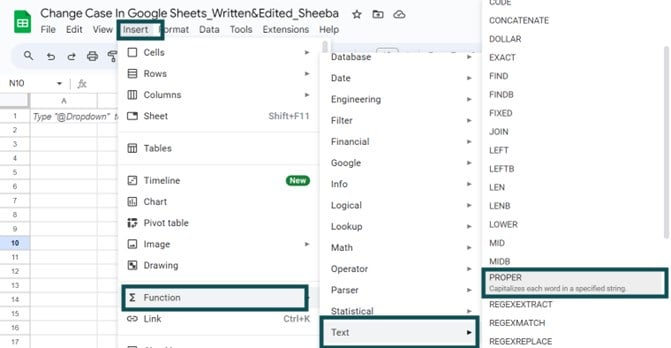
Step 2: The “PROPER” formulaappears, as shown below. Enter the arguments as cell values or cell references and press “Enter”.
The steps to insert the UPPER Change Case In Google Sheets are,
Select the cell with text – select the “Insert” tab – click the “Function” option right arrow – click the “Text” option right arrow – select the “UPPER” function, as shown below
Step 2: The “UPPER” formulaappears, as shown below. Enter the arguments as cell values or cell references and press “Enter”.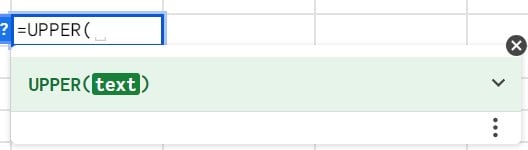
The steps to insert the LOWER Change Case In Google Sheets are,
Select the cell with text – select the “Insert” tab – click the “Function” option right arrow – click the “Text” option right arrow – select the “LOWER” function, as shown below.
Step 2: The “LOWER” formulaappears, as shown below. Enter the arguments as cell values or cell references and press “Enter”.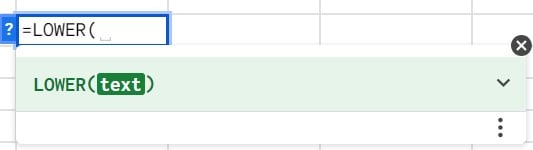
The steps to install the Power Tools Add-On are as follows:
Step 1: First, select the “Extensions” tab – click the “Add-ons” option right-arrow – select the “Get add-ons” option, as shown below.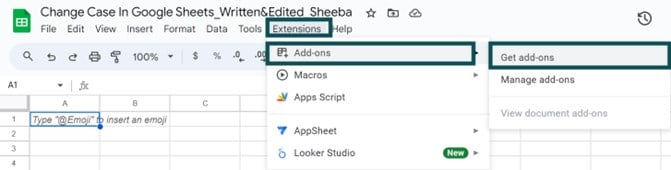
Step 2: The “Google Workspace Marketplace” window appears, as shown below, that has many installed apps for download. In the “Search bar”, type “Power Tools” and click the app and proceed with the installation.
Step 3: Then in the “Extensions” tab, we will see the “Power Tools” option, as shown below.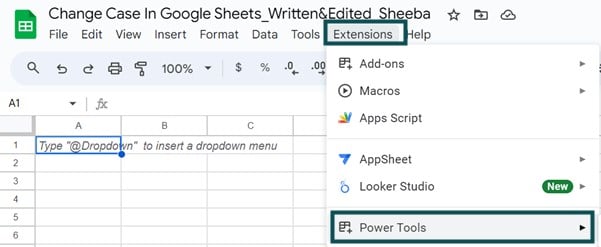
Use this Change Case In Google Sheets Template to follow along with the examples in this article.
Download Excel TemplateRecommended Articles
Continue with these related resources when you want the next practical step in this topic.
- Text function in Google Sheets
- Concatenate In Google Sheets
- LEN Function In Google Sheets
- LEFT Function In Google Sheets
- MID In Google Sheets
Explore the full Google Sheets Text Functions guide or browse Google Sheets Resources.