


Introduction to Excel AI To Track And Forecast Sales Pipelines
Every organization must give utmost importance to sales pipeline forecasting. It basically means predicting future sales by analyzing current deals in the pipeline, their stages, and the chance of closing them. This helps them estimate upcoming revenue and plan ahead.
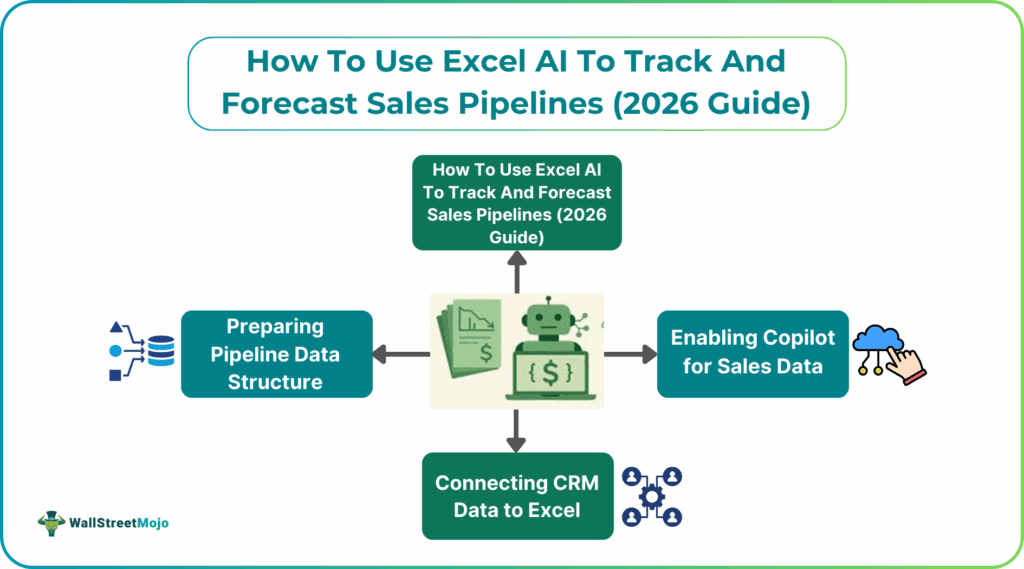
When we use Excel AI to track sales pipelines, we can finish the work seamlessly, but it takes up a lot of time. It involves preparing structured data in tables and connecting to your CRM for data feeds. After this, we must use natural language prompts to ask Copilot to identify trends, summarize opportunities, forecast revenue, and create visualizations.
Microsoft Excel’s built-in AI features, such as Analyze Data can track and forecast sales pipelines by analyzing historical data and visualizing trends. These tools help users gain insights and make accurate predictions.
Setting Up AI Tools for Sales Pipeline Tracking
Let us look at how to set up AI tools for tracking sales pipelines to improve your business.
#1 – Enabling Copilot for Sales Data
First, you must have a Microsoft 365 subscription with a Copilot license. Then, open an Excel file (with your data. Click the Copilot icon on the Home tab ribbon. You can start writing clear and detailed prompts like, “Show me the sales pipeline by stage.”
#2 – Connecting CRM Data to Excel
To import data from external sources like your CRM (e.g., Salesforce), use Excel’s Get & Transform (Power Query) feature via CSV export or direct connectors.
For advanced setups, use Power Automate to schedule regular data syncs from your CRM into a central Excel file.
#3 – Preparing Pipeline Data Structure
Next, you must convert your data range into a formal Excel Table for Copilot to easily read and process. Include key columns and remove duplicates, fix errors, and standardize formats like dates for better AI accuracy.
Step-by-Step Sales Pipeline Tracking with AI
To track a sales pipeline in Excel with AI, you need clean, organized historical sales data. Once your data is in chronological order, use Excel’s built-in “Analyze Data” tool (found on the Home tab) to automatically identify patterns, trends, and outliers. There is no need for maula formula entry.
You can also use pre-built Excel sales pipeline templates available from various sources like Smartsheet or Gong, which often come with integrated dashboards for monitoring team progress and deal status.
#1 – Automated Deal Stage Visualization
Automated deal stage visualization involves using Excel charts to visually represent where each deal stands in the sales funnel. By organizing data with a dedicated “Stage” column, you can create dynamic pie charts that automatically update as you change the status of deals using drop-downs.
#2 – Win Probability Scoring with AI
Win probability scoring with AI leverages machine learning models to analyze historical data. It will assign the likelihood of closing each potential deal. Excel with AI can perform historical conversion rates for each sales stage to calculate a “weighted forecast”. This can help you generate a data-informed, weighted value for your pipeline. This process that can be enhanced by integrating AI-powered data analysis tools.
#3 – Revenue Forecasting Models
AI in Excel can significantly enhance revenue forecasting by using advanced functions like the FORECAST.ETS function. Users can also apply classical statistical methods like linear regression to project future revenue based on past performance. This can be used for data that follows a steady linear trend. The built-in Forecast Sheet feature, is another powerful AI-driven tool that automatically creates a visual line or column chart with future projections and a confidence interval.
#4 – Pipeline Velocity Analysis
Pipeline velocity analysis measures how quickly deals move through the sales pipeline. It indicates the overall health and efficiency of your sales process. In Excel, this can be tracked by logging the entry and exit dates for each stage and calculating the average time spent in each stage.
Top AI Prompts for Sales Pipeline Automation
Effective AI prompts require a clear role, goal, output format, and context. For Excel and related AI tools like Microsoft Copilot or third-party add-ins, consider the following:
- The Sales Data Analysis: “Analyze the provided sales data in this spreadsheet. Identify the top 3 performing products, the sales rep with the highest conversion rate, and any significant sales slumps in Q3. Format the results as a summary table”.
- Lead Prioritization: “Act as a sales operations expert. Given this lead dataset (columns: lead source, company size, engagement score, job title), assign a lead score (0-100) based on conversion likelihood. Output a CSV with columns: Lead_ID, Score, Key_Factors”.
- Automated Follow-up Content: “Act as a seasoned Account Executive. Draft a two-email nurture flow for deals in the [industry] that have been in the ‘Proposal’ stage for over 14 days. Include social proof and a low-pressure CTA to re-engage the prospect. Output as plain text”.
- Pipeline Health Check: “Evaluate this opportunity (deal size: [amount], stage: [stage], last activity: [date]) and provide a deal health score, highlighting the top risks and suggested next steps to move it forward”.
Integrating Excel AI with CRM Systems
Integrating Excel with your CRM ensures a seamless, automated flow of data for more accurate and real-time analysis.
Use automation platforms like Zapier or Celigo to create automated workflows (e.g., a new contact in your CRM automatically adds a row in Excel).
Many modern CRMs have built-in AI capabilities and native integrations with Microsoft products, allowing AI features to pull from unified datasets.
The primary benefits include automated data entry, real-time pipeline visibility, improved lead scoring, and enhanced decision-making based on a complete customer view.
Common Challenges and Solutions
| Issue | Solution | Impact |
|---|---|---|
| Manual Data Entry Errors | Automate data capture and synchronization between your CRM and Excel using integration tools. | Reduces errors and saves significant time for sales reps. |
| Poor Data Quality/Hygiene | Conduct regular data audits to remove duplicates and fill missing values. Standardize data entry protocols and use AI validation tools. | Ensures AI tools have reliable data, leading to more accurate predictions. |
| Limited Forecasting Models | Leverage Excel’s built-in advanced functions like FORECAST.ETS or specialized AI add-ins for more complex modeling beyond basic linear regression. | Provides deeper analytical capabilities and better predictive accuracy. |
| User Adoption | Provide comprehensive training to your sales team, focusing on how AI tools simplify their work and boost results, not replace their judgment. | Increases team buy-in and ensures the tools are used to their full potential |
Frequently Asked Questions (FAQs)
AI enhances forecasting by processing vast data (CRM, market trends) to find complex correlations, scoring leads accurately, and pinpointing bottlenecks, leading to more reliable predictions than manual methods. It provides real-time alerts for stalled deals and automates tasks, letting sales teams focus on closing, while identifying high-potential opportunities through predictive analytics.
Effective prompts include: “Analyze my Q4 pipeline for risks and opportunities, highlighting top 3 potential deals” or “What factors predict conversion success in Stage 2?”. Use prompts like “Generate a forecast report showing revenue by region and product for next quarter” or “Identify the typical buyer journey for closed-lost deals”.
Excel’s AI capabilities (like Copilot in Microsoft 365) can analyze exported CRM data or connect via integrations (Power Query, APIs) for analysis and reporting, but dedicated CRM platforms offer more seamless, native real-time tracking. While Excel provides powerful analysis on static or synced data, true real-time updates often require direct CRM-AI integration for dynamic pipeline management.
Recommended Articles
Continue with these related resources when you want the next practical step in this topic.
- How To Use AI With Excel
- How AI Is Transforming Data Analysis In Excel (2026 Complete Guide)
- Excel AI And Machine Learning: Beginner’s Guide For 2026
- The Most Useful AI Features in Excel: Unlock Smarter Spreadsheets in 2026
- Top Skills for AI-Enabled Excel in 2026 (Must-Master List)
Explore the full Excel AI Automation and Analysis guide or browse Excel Resources.