


Introduction to AI Excel Project Management Templates
In the digitally driven workplace of today, project managers are increasingly counting on on tools that make planning and reporting faster and simpler. These and other aspects like customer handling are an important part of any project. One such tool that aids managers are the AI-powered project management templates for Excel. No need to build complicated spreadsheets from scratch. Project teams can now use AI capabilities to generate ready-to-use templates. They include all the important tasks that drive a project like timelines, task lists, Gantt charts, and more. These AI templates include built-in logic like automated formulas, conditional formatting, and dashboards that that can be upated with live data. They not only save time but also help maintain consistency and reduce manual errors.
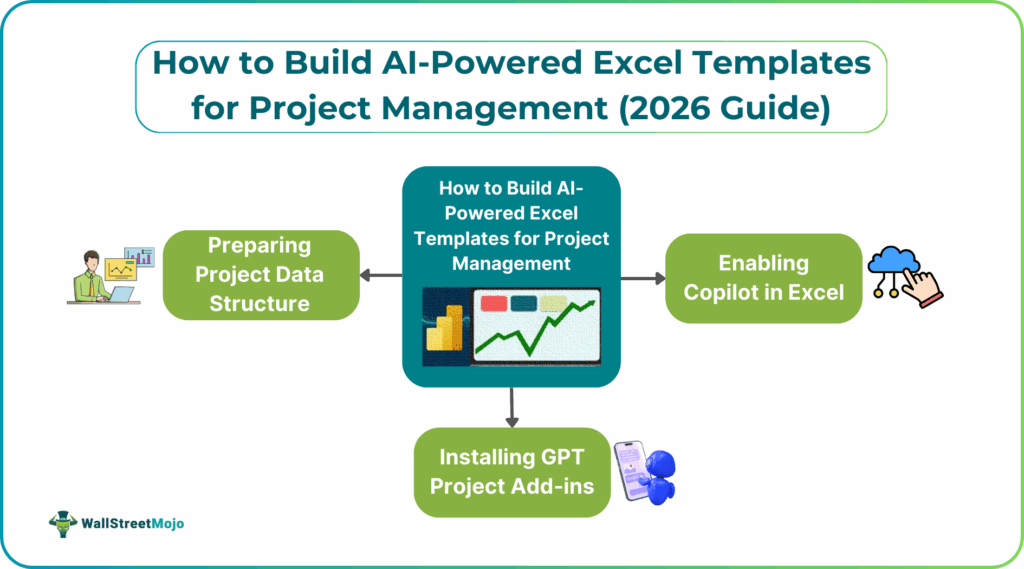
In this article, let us explore how AI-powered templates can be built in Excel with existing tools.
Setting Up AI Excel Project Management Templates Tools
To unlock the benefits of AI in Excel project templates, there are a few important steps to follow. Also, you have some existing tools that help you build them in no time. Many of these tools are built into or compatible with Microsoft 365. Others use AI-driven platforms that integrate with spreadsheets.
#1 – Enabling Copilot in Excel
Microsoft Copilot is an AI assistant included with some Microsoft 365 subscriptions that works directly within Excel. Copilot can automate tasks such as generating formulas, creating summaries, analyzing trends, building charts, and even much more in a human-friendly, understandable language. To use Copilot, you must open your Excel file. Select the Copilot icon, and start typing a natural language prompt. You can build your required project templates with simple conversational language. You can ask for timelines and logging and any task you desire for your project, and have the AI generate them for you.
#2 – Installing GPT Project Add-ins
It’s not just Copilot project management Excel, there are other third-party platforms that bring GPT-powered AI into project spreadsheet workflows. These add-ins can simplify the creation of project templates with the help of plain language prompts which are easily interpreted. For instance, AI platforms for Excel can help generate task structures, conditional formatting, and complex formulas that would normally take long to derive. These tools make it much easier to work with Excel when building a project management template with exhaustive features.
#3 – Preparing Project Data Structure
Before you start using AI to generate templates, it’s important to structure your project data in a clear and organized way. You must define key elements like task names, start and end dates, task owners, priorities, budget lines, and dependencies in a consistent way. AI tools work best when the input data has good structure in a predictable way, such as a table or well-defined columns. Proper structure not only increases the accuracy of AI-generated templates but also makes automated features like trend detection and timeline visualization work correctly.
Step-by-Step AI Template Creation Process
Once your tools are ready and your data structure is organized, you can start building AI Excel Project Management Templates. The following steps outline how to leverage AI for different core elements of project management planning in Excel.
#1 – Generate Task Lists with AI
Task lists form the backbone of any project plan. For AI Excel Project Management Templates, you can prompt the system to create a list of tasks by describing what your project needs. For example, you might type, “Generate tasks needed to launch a new product with start and end dates,” and the AI give you a structured task table. This helps avoid manual entry and ensures that all critical work items are captured logically.
#2 – Create Automated Gantt Charts
Gantt charts are visual timelines that show project tasks with a calendar view. This makes it easy to identify overlaps, milestones, and deadlines. AI can help automate project tracking Excel AI by creating the necessary chart format once you provide the task list and schedule. The chart uses built-in Excel features to map out task durations and dependencies. Those platforms that use AI Gantt generation can be prompted with the timeline in natural language. You will get a visual representation that you can refine and customize further.
#3 – Build Resource Allocation Models
Resource allocation is a critical part of project planning that involves assigning team members, budgets, and other resources to tasks. AI templates can include resource allocation tables that automatically calculate utilization rates and suggest how to balance workloads. By organizing resources in a separate table and linking them to tasks in your project plan, AI can help provide clearer insights into how work is distributed. This helps in identifying any bottlenecks.
#4 – Risk Assessment Matrix Automation
Projects come with a lot of uncertainties, and a risk assessment matrix helps identify and prioritize potential risks. With AI, you can build a risk matrix that categorizes issues based on likelihood and impact. Some platforms go further by suggesting common risks based on project metadata and recommending mitigation steps. AI-enhanced risk matrices can use automation to highlight high-priority risks and update scoring as conditions change, helping teams stay proactive rather than reactive.
Top AI Prompts for Project Management Templates
AI Excel Project Management Templates – To tap into the best potential of Excel, your prompts are important. Here are some examples of effective AI prompts you can use when building AI Excel project management templates:
“Generate a project task list for a website launch including durations, owners, and due dates.”
“Create a Gantt chart from the task list table with start and end dates.”
“Build a resource allocation table comparing team member hours against task assignments.”
“Create a risk assessment matrix with categories for likelihood and impact based on project description.”
“Summarize key milestones and deadlines with visual formatting for presentation.”
These prompts translate your project management needs into actions the AI can perform, allowing you to build templates more efficiently.
Conclusion
AI-powered project management templates in Excel are transforming how teams plan, track, and report project work. Instead of spending hours manually setting up spreadsheets, AI tools like Microsoft Copilot can generate core project planning schedules and templates automatically. They help simplify tasks such as building task lists, creating AI Gantt chart Excel, allocating resources, etc. When used the right way, these AI capabilities can boost efficiency, reduce errors, and make project data more accessible and also streamline all processes. As AI continues to evolve, we can expect much more intelligent automation built directly into Excel.
Frequently Asked Questions (FAQs)
AI speeds up the creation of Excel AI project templates 2026 by generating structured tables, charts, and formulas from natural language prompts. It reduces manual setup, maintains consistency, and automates calculations that would otherwise take significant time.
Effective prompts include asking the AI to create a Gantt chart from a task list with dates, specify visual formatting, or include dependencies. We have shared some of the best prompts in the article above. Clear descriptions of your project timeline help the system generate accurate charts quickly.
While basic AI templates themselves don’t predict delays, AI tools can analyze trends and highlight potential scheduling conflicts. They help identify resource overloads that may lead to delays. Predictive features are usually part of more advanced AI project platforms.
Recommended Articles
Continue with these related resources when you want the next practical step in this topic.
- How To Use AI With Excel
- How AI Is Transforming Data Analysis In Excel (2026 Complete Guide)
- Excel AI And Machine Learning: Beginner’s Guide For 2026
- The Most Useful AI Features in Excel: Unlock Smarter Spreadsheets in 2026
- Top Skills for AI-Enabled Excel in 2026 (Must-Master List)
Explore the full Excel AI Automation and Analysis guide or browse Excel Resources.