


Introduction – VBA User-Defined Functions AI for Formula Creation
Many finance teams still work around Excel’s built‑in functions, stretching complex IF‑heavy formulas or repeating logic across dozens of cells because the exact operation they need is not available. The usual workaround is either to accept messy, hard‑to‑maintain formulas or to write raw VBA macros that manipulate ranges instead of allowing clean, reusable functions in the sheet. The combination of user‑defined functions in VBA and AI‑assisted code generation changes that by letting analysts describe the logic in plain language and then have an assistant generate a User‑Defined Function (UDF) in VBA that behaves like a native worksheet function.
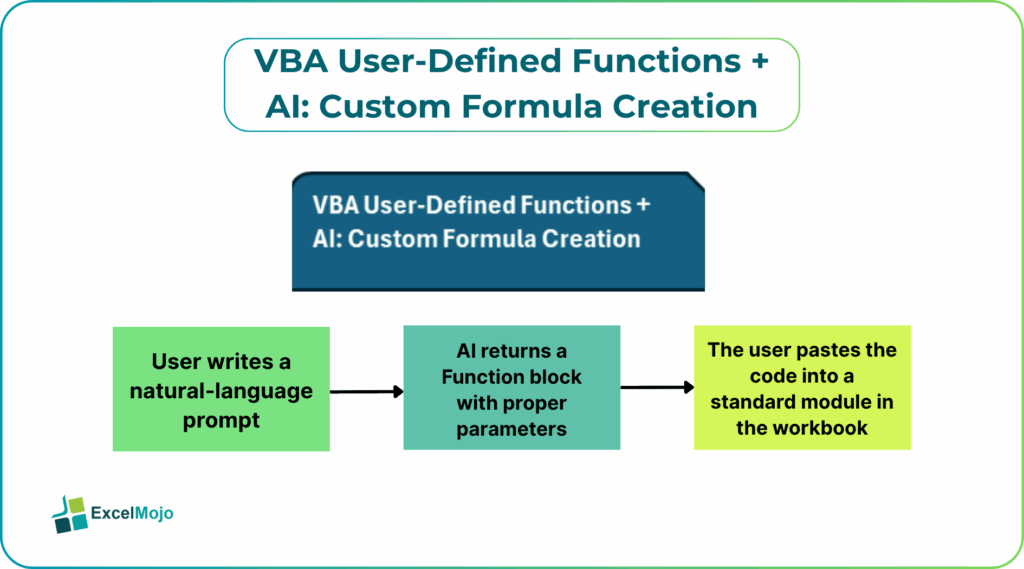
This is a broader idea of custom formula creation using AI and VBA UDFs, where the AI scaffolds the VBA outlineand the analyst owns the business rules and testing. For example, a user can ask an AI to “Create an Excel function that returns the next business day, skipping weekends and these holidays,” and get a NEXTBUSINESSDAY‑style UDF that can be dropped into any cell. Functions created in the Visual Basic editor can be used in formulas just like built‑in functions, as long as the workbook is saved with macros enabled. That means building custom formulas with VBA and AI does not require changing the user’s mental model of Excel; it simply extends the formula palette with domain‑specific functions.
How User‑Defined Functions Work in Excel
A User‑Defined Function (UDF) in Excel is a VBA function that can be called from a worksheet cell, just like SUM, VLOOKUP, or XLOOKUP.
A basic skeleton looks like this:
Function AddTax(Amount As Double, Rate As Double) As Double
AddTax = Amount * (1 + Rate)
End Function
This function can then be used in the sheet as:
=AddTax(100, 0.18)
Functions defined with the Function keyword return a value and can accept multiple parameters, including ranges, strings, and dates. For AI powered VBA User‑Defined Functions, that pattern means an AI can generate a valid Function block once the business logic is described, and the analyst can plug it into a workbook module and test it with real‑world data.
How to Generate a UDF with AI
VBA UDFsbecome most useful when the analyst uses an AI assistant to write the first‑draft function instead of building it from scratch.
A typical workflow:
- The user writes a natural‑language prompt such as:
- “Create an Excel function that returns the next business day, ignoring weekends and a list of holidays.”
- Or: “Create a VBA function that calculates a weighted average, where the weights are in one column and the values in another.”
- The AI returns a Function block with proper parameters, data‑type hints, and error handling.
- The user pastes the code into a standard module in the workbook, saves as .xlsm, and tests the function in a cell.
For AI custom formula creation VBA UDFs, the AI handles the boilerplate; the analyst owns the logic, the naming, and the boundary‑case testing.
Practical Example: A Custom Weighted Average Function
A common use case for creating custom formulas with VBA and AI is a weighted average that cannot be cleanly expressed with SUMPRODUCT and SUM without repeating ranges.
Suppose the user has:
- Column A: Values
- Column B: Weights
A prompt like: “Create an Excel function that takes a range of values and a range of weights and returns the weighted average” can yield a VBA UDF such as:
Function WeightedAverage(Values As Range, Weights As Range) As Double
Dim i As Long
Dim Total As Double, TotalWeight As Double
Dim v As Variant, w As Variant
v = Values.Value
w = Values.Value
If UBound(v, 1) <> UBound(w, 1) Then
WeightedAverage = CVErr(xlErrValue)
Exit Function
End If
For i = 1 To UBound(v, 1)
Total = Total + v(i, 1) * w(i, 1)
TotalWeight = TotalWeight + w(i, 1)
Next i
If TotalWeight = 0 Then
WeightedAverage = CVErr(xlErrDiv0)
Else
WeightedAverage = Total / TotalWeight
End If
End Function
This example illustrates AI powered VBA User‑Defined Functions by turning a descriptive request into a reusable function that can be called as:
=WeightedAverage(A2:A100, B2:B100)
Teams can extend this pattern to build domain‑specific functions such as EffectiveTaxRate, DaysToTarget, or RollingCumulative, which consolidate complex logic into a single formula and make models more readable and maintainable.
Pitfalls and Best‑Practice Tips
VBA User‑Defined Functions AI custom formulas can greatly speed up model design, but it also introduces a few practical pitfalls.
One common issue is volatility and performance. UDFs that read large ranges or call volatile functions such as NOW or TODAY can trigger excessive recalculation and slow down the workbook. Best practice is to avoid volatile calls inside UDFs unless absolutely necessary and to test with realistic‑size ranges.
Another risk is error handling and clarity. AI‑generated code may not always validate inputs or handle edge cases (for example, mismatched array sizes or non‑numeric cells). Analysts should add explicit checks, return CVErr where appropriate, and document the function’s assumptions directly in the workbook or hidden sheet.
A third pitfall is maintainability. Once a workbook relies on several custom functions, refactoring becomes harder. Teams should keep functions in a single module, use clear, business‑driven names, and version‑control the VBA code alongside the model logic to make future changes safer.
Frequently Asked Questions (FAQs)
AI can replace the initial coding effort for many UDFs, especially for well‑defined, numeric‑only logic, but it does not replace the analyst’s role in validating, testing, and documenting the functions. The analyst should treat AI‑generated VBA as a first draft that still needs review.
No. VBA User‑Defined Functions are specific to Excel; Power BI uses DAX and Power Query for custom logic, and Google Sheets uses Apps Script or built‑in functions. The same “AI‑assisted UDF” concept can be adapted to those platforms, but the underlying language and tooling are different.
UDFs defined in a workbook’s module travel with that file when saved as .xlsm. For reuse across many models, analysts can package the functions into a shared .xlam add‑in that is installed once and then available in all workbooks, which is a common pattern in enterprise Excel environments.
Yes. UDFs can accept and return strings, so they can encode business‑specific text‑parsing logic (for example, extracting a cost‑center code from an invoice number). However, such functions should be kept simple and tested thoroughly, because complex text logic can be harder to debug than numeric formulas.