


Introduction to ChatGPT Excel Add-Ons
If you spend plenty of time working with messy tables and writing complicated formulas in Excel, here’s some good news for you. You can install ChatGPT-powered Excel add-ons and save hours. Gone will be the days of generating regular reports manually. These add-ins use large language models (LLMs) and help use these AI tools directly inside Excel. All you need to know is some plain English. Yoi can now generate formulas, clean data, and auto-build charts, all in a matter of minutes. These tools can speed routine tasks and improve output quality when used in the right way.
Why Use ChatGPT Add-Ons in Excel?
Using ChatGPT with its advanced use of LLMs is a boon when combined with Excel. Let us look at some of the advantages of using this combo.
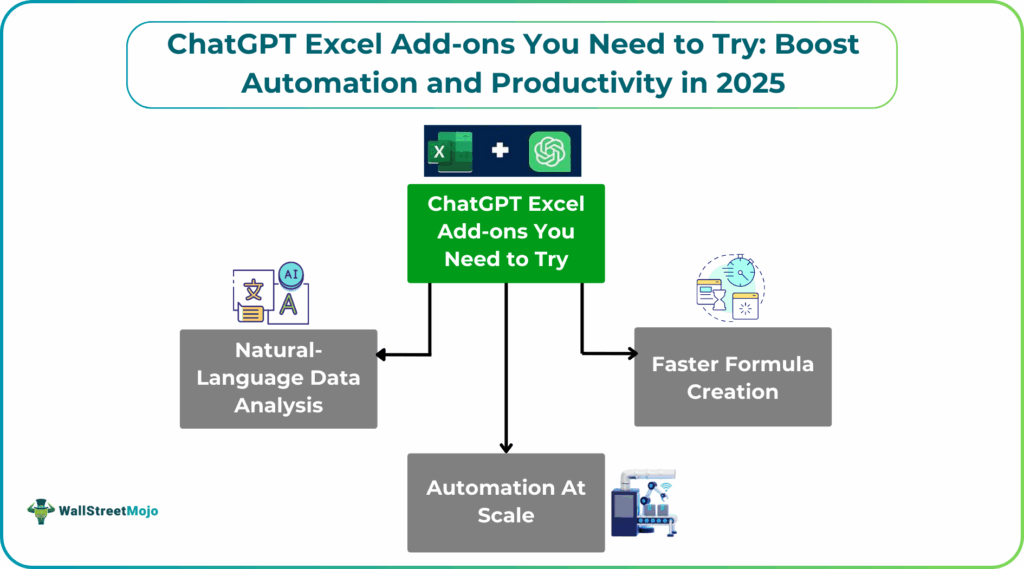
- Faster formula creation: No need to manually wrestle with nested IFs or INDEX/MATCH. Just describe what you want, and the add-on suggests a formula you can paste or insert. They help non-experts build sturdy logic by giving complex formulas in no time.
- Natural-language data analysis: You can ask simple questions like “summarize sales by region for Q1” or “list the top 10 spending customers,” and you will get human-readable insights or a generated summary. This feature is now available in many third-party add-ons.
- Automation at scale: Many add-ins handle bulk prompts, and they can process thousands of rows in a second. It is very useful for finance teams and analysts who to perform complex repetitive tasks.
- Learning & documentation: Many tools explain formulas and show step-by-step logic. This works great for processes like training and auditing.
Top ChatGPT Excel Add-Ons to Try in 2025
There are many add-ons that use OpenAI models. They are very useful when used with Excel especially for the finance teams to perform complex calculations and automate repetitive tasks. Let us look at some of these top add-ons.
#1 – GPT for Excel Add-On
This add-on can help create custom functions by letting you send prompts to an LLM from cells. As a result, you get text-based results, generate explanations, or create automated content inside sheets.
Why try it: Good for teams that want flexible workflows like generating descriptions, cleaning text columns, or creating SQL from tables.
#2 – AI Formula Generator Add-On
We have many AI formula generator add-ons like FormulaBot, GPTExcel, and so on. They convert plain English into Excel formulas, explain existing formulas, and suggest optimizations. These tools target both novices and advanced users.
Why try it: It can significantly cut the time spent debugging tricky formulas. You can also learn by example.
Note that the generated formulas should be tested. Sometimes, AI can suggest workable but suboptimal formulas.
#3 – ChatGPT Data Analysis Add-On
This includes third-party tools and those like Copilot that use LLM reasoning to generate summaries, build pivot tables and suggest visualizations. It can produce written analysis or summaries from ranges. Microsoft’s Copilot and several marketplace add-ins offer these features.
Why try it: It works great for turning raw numbers into narratives. It is very useful for weekly reporting or one-click summaries.
Remember to always validate the results and summaries it produces.
#4 – Natural Language Formula Creator
Another useful AI add-on, the specialized variants of formula generators focus on “conversational formulas.” Here, you just type a sentence like “create a formula that flags sales > average for January 2025” and get a ready result. Several add-ins and built-in Copilot features now support this.
Why try it: This is very helpful for non-Excel experts who know what they want but not how to code it.
Note that ambiguous prompts lead to ambiguous formulas. Hence give specific and concise instructions.
#5 – Automated Excel Reporting Tool
These tools use templates plus AI to populate and refresh recurring reports like chart creation, commentary generation, and export to PDFs.
Why try it: It saves hours for monthly/quarterly reporting.
The main point to be noted is that it requires integration with company data warehouses, so may require IT setup and governance.
How to Install and Get Started with ChatGPT Excel Add-Ons
- You have to first locate the add-in you want to install. You can use the Office Add-ins store or the vendor’s website and check for the requires features, screenshots, and reviews.
- Open the Excel application and navigate to the Insert tab in the ribbon. This tab contains various tools for inserting objects like tables, charts, and add-ons. Look for the Get Add-ons or Office Add-ins option in the toolbar.
- Search for the ChatGPT Excel add-on you want.
- Authenticate: Most tools require linking an API key or signing into an account. Do so and install the add-on.
- After installation, go to the My Add-ins section in the Insert tab. Locate the ChatGPT add-in from the list of installed tools and click to launch it. You get the ChatGPT add-on, ready to assist with your Excel tasks.
Tips for Maximizing Efficiency with ChatGPT Add-Ons
- Be precise in prompts: Short, specific instructions w2ill reduce ambiguity. DO not go for long, detailed and confusing statements that could confuse the add-ons.
- Use shortcuts: Find out all about the various shortcuts in ChatGPT and Excel. It will help you navigate through the data with ease and perform actions faster.
- Save templates: Once an AI prompt and sheet layout works well, save it as a template or macro to reuse.
- Monitor costs and limits: If your add-on is a paid model, check the usage limits regularly.
- Try using advanced commands: ChatGPT add-ons offer many advanced commands and functionalities. You can explore how to use them to maximise the advantage of these add-ons.
Potential Challenges and How to Overcome Them
- Ambiguous Results: LLMs can give plausible but incorrect outputs. Always validate important calculations and use sample inputs with known outputs, to check if your formulas or prompts give proper results.
- Complex commands: Executing complex commands might require a specific syntax or structure. If you’re struggling with a particular command, refer to the add-on’s documentation for assistance.
- Data privacy concerns: Read vendor privacy and data model-training policies. If you are working with sensitive data, take measure to protect privacy.
- Versioning & audit trails: AI-generated formulas can change over time. Keep change logs and snapshots of critical workbooks.
- Data format inconsistencies: You may get errors due to inconsistent data formats within your spreadsheet.
- Overreliance: Use AI as an assistant, not as a one stop-shop to avoid over dependencies.
The Future of ChatGPT Add-Ons for Excel
ChatGPT add-ons for Excel are revolutionizing the way Excel is used in different fields. Implementing ChatGPT add-ons in your Excel operations is a must for quick and accurate results.
Analysts and companies investing in AI add-ons for Excel will likely see productivity gains over time. By installing ChatGPT add-ons in Excel, you can improve the efficiency of your own workflow. Integrating ChatGPT add-ons are a highly effective solution and choose tools that best fits your specific needs.
Frequently Asked Questions (FAQs)
Many third-party tools are popular. Some of the popular tools include:
GPT for Excel, formula generators like Formulabot, Power Query, DataRobot and integrated Copilot features from Microsoft and other vendors.
These add-ons save the time spent on formula writing, automate reporting tasks, translate plain English language to spreadsheet actions, and help with advanced analysis – very difficult to do manually. LLM assistants can reduce task time and raise output quality in any work.
Most ChatGPT Excel add-ons are installed through Excel’s Add-ins marketplace and have user guides. The real potential likes in using them in complex workflows and whether you need IT help for enterprise integrations.
Recommended Articles
Continue with these related resources when you want the next practical step in this topic.
- Excel Copilot: What It Is and How to Get Started In 2026
- Top 10 AI Tools For Excel Data Analysis
- The Best Excel AI Plugins You Should Try This Year
- Excel Copilot vs. ChatGPT: What’s Better for Your Spreadsheets?
- How to Integrate Gemini AI Directly in Excel Workbooks
Explore the full Excel AI Tools and Copilot guide or browse Excel Resources.