


Introduction to AI Report Generation in Excel
AI report generation in Excel can be done with the help of Microsoft 365 Copilot and various third-party tools. They are used to automate the process of creating summaries, visualizations, and detailed reports from the present raw data. Using this latest AI technology helps users interact with their data using natural language. This improves the overall efficiency of the workflow.
Native Excel AI Features for Reports
MS Excel includes several native AI-powered features that can streamline data analysis, automate tasks, and help in generating reports. With the help of Copilot, these tools simplify complex processes from data cleaning to visualization.
#1 – Core Native AI Features for Reports
Let us look at some of the distinctive features of these AI tools that help generate meaningful insights and reports.
- Microsoft 365 Copilot: It is an assistant available on Excel that acts like a conversational chatbot. It allows users to interact with their data using natural language prompts.
- Analyze Data: This feature automatically scans your data to identify patterns, trends, and more. It provides suggestions for visualizations like charts and PivotTables.
- Forecast Sheet: This is another built-in tool that can use historical time-series data to make future predictions. It is very useful for sales forecasting, inventory management, and other tasks like budget planning.
- Data Types (Stocks and Geography): While the above generate reports, this AI tool can recognize text as specific entities like stocks or geographical locations. They are linked to real-time data and allow users to pull metrics like stock prices and population directly into their spreadsheets, enriching reports with live data.
- Flash Fill: This is one of Excel’s older AI tools, that completes data entries based on patterns it detects in earlier entered cells, aiding with data cleaning.
#2 – Copilot Report Summarization
When it comes to reporting, Copilot in Excel reads your spreadsheet and generates concise, written summaries. This way you can identify key findings, trends, and patterns in plain language.
It analyzes tables, charts, and pivot data and generates them to help analysis without the need for excessive human intervention.
Its summaries adapt to the structure and intent of your data, providing explanations that align with business metrics.
#3 – Analyze Data Insights to Reports
Using the Analyze Data feature, AI works on your dataset directly within the worksheet to generate insight-driven summaries. It can perform automated analysis to detect outliers, trends and any significant changes. It can generate multiple formulas or charts.
These AI-generated insights can be quickly converted into written reports. This gives you faster and accurate documentation for decision-making.
#4 – Automated Chart Recommendations
Copilot Excel reports suggest the most effective chart types based on your data, be it line, bar, scatter, etc. You can clearly visualize trends and comparisons. Users can quickly perform AI Excel report generation and get Excel AI dashboard creation in a single click.
Copilot uses the features of Excel’s Forecast Sheet to create visuals, including future trends. This helps in making important decisions like marketing plans and strategic reporting.
#5 – Forecast Sheet Reporting
Excel’s Forecast Sheet is a powerful tool for creating visual predictions like charts from historical time-series data. To access this, you must go to the Data tab -> Forecast Sheet. It uses an Exponential Smoothing (ETS) algorithm to detect seasonality and project future values. This important AI tool can help with quick trend analysis suitable for sales, inventory, or any consistent time-based data.
Top AI Add-ins for Excel Report Generation
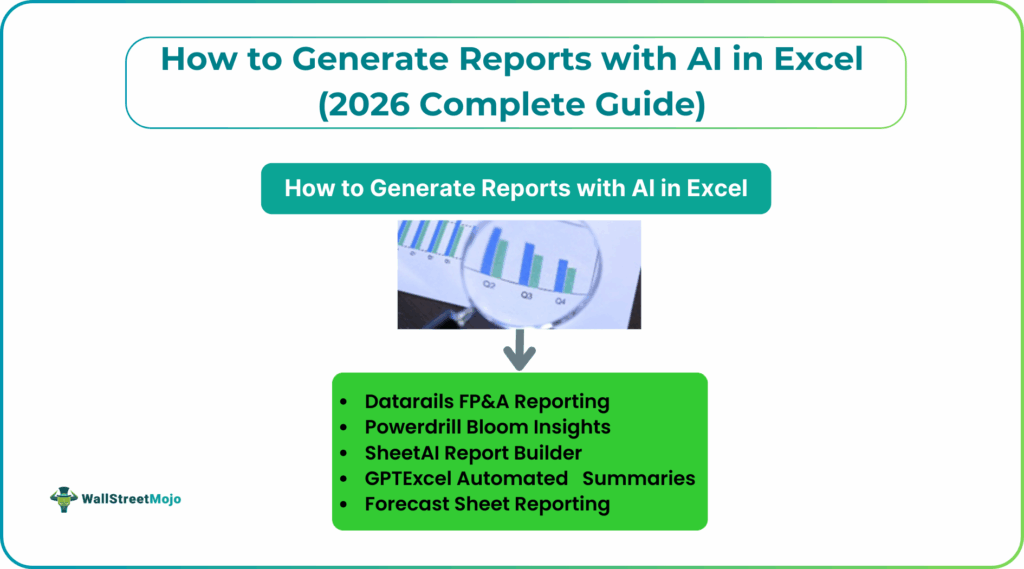
Some of the top AI add-ins like Datarails, Powerdrill Bloom, SheetAI and GPTExcel streamline Excel reporting by automating data analysis, generating charts, creating summaries, and simplifying complex tasks. Let us look at them one by one.
#1 – Datarails FP&A Reporting
This AI tool is used to automate Excel reporting AI so you can focus on making data-driven decisions.
It makes reporting easier by enhancing your familiar Excel spreadsheets. Using Datarails, one need not use outdated methods like copy/pasting information. You can automatically populate your monthly data and export it to the balance sheet, income statement, etc. This useful, enterprise-level FP&A tool taps into the unexplored potential of Excel for finance teams. With its latest features, it offers data consolidation, financial modeling, and automated forecasting within the Excel interface.
#2 – Powerdrill Bloom Insights
This tool focuses on transforming complex data to generate reports AI Excel that are easy to understand trends and patterns. It can generate charts like line, bar, pie and export them into presentations. This makes the data clearer. One can generate reports in a single click. Easily customize your charts within the report to present data visually as clear to stakeholders.
#3 – SheetAI Report Builder
This tool can simplify data work by offering AI assistance for formulas, pivot tables, data cleanup, and automation. With its report generation, it can boost productivity for all users.
#4 – GPTExcel Automated Summaries
GPTExcel helps users work faster by generating Excel formulas, VBA or Apps Scripts, SQL queries, and simple data summaries using natural language prompts. It removes the need to manually write complex logic when working with spreadsheets or databases.
Users start by uploading their Excel or CSV files to the GPTExcel platform. The AI then scans the data, looks for patterns, and gives you statistics. Based on this analysis, it generates a summary in plain English. You get important details regarding your business, like total revenue, top-performing products, and the different categories found in the dataset.
Best Practices for AI-Generated Reports
Let us look at some of the best practices when we must generate reports AI Excel.
- Establish Clear Objectives: Define the report’s purpose and target audience before generation.
- Use High-Quality Data: Ensure the AI uses accurate and latest/live data. The quality of the input directly impacts the output’s reliability.
- Implement Human Oversight: Ask for a subject matter expert to review, refine, and validate the final report. With One can correct potential biases or inaccuracies that AI might introduce.
- Focus on Actionable Insights: Configure the AI to not just summarize data, but to highlight practical next steps for decision-makers.
- Maintain Ethical Standards: Avoid generating content that could be biased, misleading, or violate privacy norms.
- Optimize for Readability: Use clear, concise language, and format the report with headings, bullet points, and visualizations so that it is easy to understand.
Frequently Asked Questions (FAQs)
AI analyzes your data structure, identifies patterns, and applies built-in logic to generate summaries, charts, and insights automatically. Tools like Copilot or AI add-ins can also create formulas, PivotTables, and narratives using natural-language prompts.
Popular options include Microsoft Copilot for Excel for native AI insights, ChatGPT for Excel add-ins for flexible analysis, and tools like SheetAI or Numerous.ai for fast report and formula generation. Each varies by depth of automation, cost, and Excel integration level.
Yes, many AI-powered Excel tools can combine data from multiple sheets, workbooks, or external sources like CSV files and databases. They help clean, merge, and analyze the data to produce unified, consistent reports efficiently.
Recommended Articles
Continue with these related resources when you want the next practical step in this topic.
- How To Use AI With Excel
- How AI Is Transforming Data Analysis In Excel (2026 Complete Guide)
- Excel AI And Machine Learning: Beginner’s Guide For 2026
- The Most Useful AI Features in Excel: Unlock Smarter Spreadsheets in 2026
- Top Skills for AI-Enabled Excel in 2026 (Must-Master List)
Explore the full Excel AI Automation and Analysis guide or browse Excel Resources.