


Introduction to AI Pivot tables In Excel
Think of a Pivot table as a smart way to summarize data. Imagine working with a spreadsheet that contains thousands of rows of sales records—dates, customers, products, regions, and revenue values all packed together. At first glance, it’s just a wall of numbers that’s hard to make sense of.
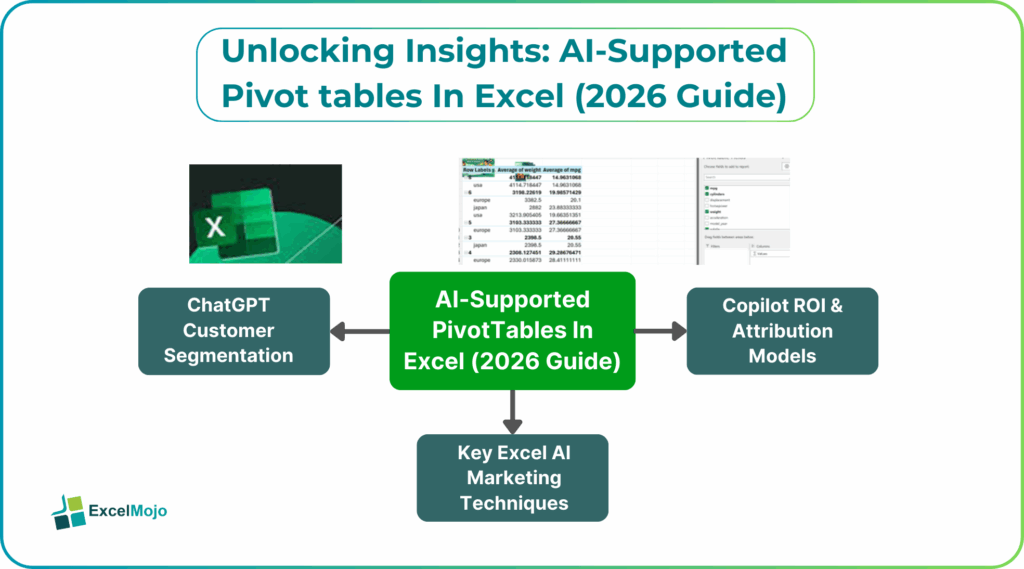
A Pivot table helps turn that raw data into something meaningful. Instead of scanning rows one by one or writing formulas like SUMIFS or COUNTIFS, a Pivot table quickly groups, totals, and organizes the information so patterns become clear. You can instantly see things like total sales by region, monthly performance, or top-selling products.
Traditionally, creating a Pivot table requires a manual process. You select your data, go to Insert -> Pivot table, and then work with the Pivot table Fields pane. From there, you decide what belongs in Rows, Columns, Values, or Filters.
The AI-enhanced approach changes this experience completely. Instead of building the Pivot table yourself, you simply describe what you want to see. You might ask Excel to show total sales by city or compare revenue across product categories. Excel then builds the Pivot table automatically.
Native Excel AI Pivot table Features
Native AI features in Microsoft Excel Pivot tables are designed to make data analysis easier and more approachable. They reduce manual steps and guide users toward useful insights, even if they are not experienced with Excel AI Pivot tables 2026.
Key native AI-driven capabilities include:
- Creating Pivot tables using natural-language requests, such as asking Excel to summarize data by category
- Suggesting Pivot table layouts automatically based on how the data is structured
- Highlighting trends and key insights within Pivot table results
- Recommending helpful filters, fields, and visualizations
- Explaining Pivot table outputs in simple terms for better understanding
- Assisting with data cleanup before Excel AI Pivot tables 2026 are created
These features allow users to focus more on understanding the results and less on setting up the analysis.
#1 – Copilot Pivot table Recommendations
Copilot makes working with large datasets much simpler by allowing you to request Pivot tables in plain language. Instead of navigating multiple menus, you can just ask for the summary you want.
For example, imagine a marketing dataset that includes years, campaign types, products, budgets, costs, and revenue. If your goal is to compare the average budget across different campaign types, you can simply ask Copilot to create that Pivot table for you. Excel handles the setup automatically.
This approach removes many of the steps that usually slow users down and helps ensure the Pivot table focuses only on relevant data.
Create a Pivot table with Copilot:
- Open Excel and ensure your data is formatted as a table or supported range
- Select the Copilot icon from the ribbon
- Ask Copilot to create a Pivot table using clear, descriptive language
- Review the generated Pivot table and request changes if needed
- Refine your request to improve accuracy and results
Copilot Pivot table insights works best when your question is specific and aligned with your data structure.
#2 – Analyze Data Pivot Insights
Analyze Data, sometimes referred to as Pivot Insights, uses built-in intelligence to explore your dataset automatically. Rather than deciding how to analyze the data yourself, Excel examines it and presents ready-made Excel AI Pivot tables 2026 and charts.
This feature is especially helpful when you’re unsure where to start or want quick answers without manual setup. Excel looks for common groupings, changes over time, and notable values that stand out.
Core capabilities include:
- Automatic Pivot table suggestions based on detected patterns
- One-click summaries
- Identification of outliers in the data
- Suggested charts linked directly to AI PivotTables Excel results
Step-by-Step AI Pivot table Creation
Instead of relying on formulas or manual filtering, Pivot Tables let you reorganize data to see it from different angles. With AI support, the process becomes even more straightforward.
Step 1: Get Your Data Ready for AI
AI tools work best when the data is clean and structured. Preparing your spreadsheet first saves time and avoids issues later.
Format your data as an Excel Table:
- Click any cell inside your data range
- Go to the Insert tab and select Table, or use Ctrl + T (Cmd + T on Mac)
- Confirm the range and ensure “My table has headers” is selected
- Click OK
This step helps Excel correctly understand your data.
Step 2: Using “Analyze Data” to Generate Pivot Tables
Analyze Data scans your table and opens a panel on the right side of the screen. It reviews your data and prepares insights automatically.
Method 1: Using AI-Recommended Pivot Tables
Excel presents suggested AI PivotTables Excel and charts based on common patterns. You may see summaries like revenue by region or order count by month. If one matches your needs, click Insert Pivot table and Excel creates it instantly on a new worksheet.
Method 2: Asking Questions in Plain Language
At the top of the Analyze Data pane, you can type questions such as:
- What is the total revenue by product category?
- Show highest sales by region
Excel interprets the question and generates the best Pivot table to answer it. Once the result looks right, you can insert it with a single click.
Advanced AI Pivot table Techniques
Advanced Excel Pivot tables AI in Excel help you explore data faster and from more angles, especially when datasets are large or complex. Instead of digging through numbers manually, AI can suggest patterns, highlight surprises, and help you understand results as you work. Key techniques include:
- Using plain-language questions to adjust or expand Pivot tables
- Letting AI spot trends and outliers in your data
- Enhancing Analyze Data suggestions with calculations
- Asking AI to explain unexpected numbers or summarize views
Best Practices & Optimization
When your data is well organized, Excel’s AI delivers clearer insights and faster performance.
Recommended best practices:
- Keep data clean and organized in a simple table format
- Use clear, consistent column names
- Standardize dates, categories, and text before analysis
- Remove columns that don’t add value
Frequently Asked Questions (FAQs)
AI helps analyze data faster by highlighting patterns, trends, and outliers automatically. It also suggests better ways to structure PivotTables for clearer insights.
Copilot can recommend the most relevant rows, columns, and values based on your data and question. This reduces guesswork and setup time.
They can identify trends, anomalies, top performers, and key drivers in your data. AI also summarizes findings to make results easier to understand
Recommended Articles
Continue with these related resources when you want the next practical step in this topic.
- How To Use AI With Excel
- How AI Is Transforming Data Analysis In Excel (2026 Complete Guide)
- Excel AI And Machine Learning: Beginner’s Guide For 2026
- The Most Useful AI Features in Excel: Unlock Smarter Spreadsheets in 2026
- Top Skills for AI-Enabled Excel in 2026 (Must-Master List)
Explore the full Excel AI Automation and Analysis guide or browse Excel Resources.